

WireGuard
The WireGuard package adds kernel WireGuard tunnels to FreeSense, with a WebUI for tunnels, peers,
package settings, and status. In FreeSense 1.1.0 the package is FreeSense-pkg-WireGuard 0.2.13. It
uses the FreeBSD if_wg kernel module and the base system wg(8) tool (/usr/bin/wg), so it pulls
in no third-party WireGuard packages.
Use WireGuard when FreeSense should own the tunnel: you hold the keys, decide which networks each peer may use, and write the firewall policy yourself. If you would rather have a hosted control plane handle identity and peer discovery, compare it with Tailscale and ZeroTier in VPN and private networking.
Install
Section titled “Install”- Open System → Package Manager → Available Packages.
- Find WireGuard (package
FreeSense-pkg-WireGuard) and select Install. - Wait for the installer to finish before leaving the page.
During installation the package:
- adds an early shell command (
service wireguardd start) so tunnels come up early in boot; - creates the WireGuard interface group;
- creates a WireGuard access list for the DNS Resolver (Unbound);
- installs the
wireguarddservice and writes the package default settings.
Stable packages are published for amd64 and, starting with 1.1.1, arm64. The package itself has no architecture-specific parts.
Where to find it
Section titled “Where to find it”| Menu path | Page |
|---|---|
| VPN → WireGuard | Tabs Tunnels, Peers, Settings and Status |
| Status → WireGuard | Tunnel and peer status (listed in the VPN group of the Status menu) |
| Firewall → Rules → WireGuard | Rules for the WireGuard interface group |
| Dashboard | WireGuard widget |
First-time setup
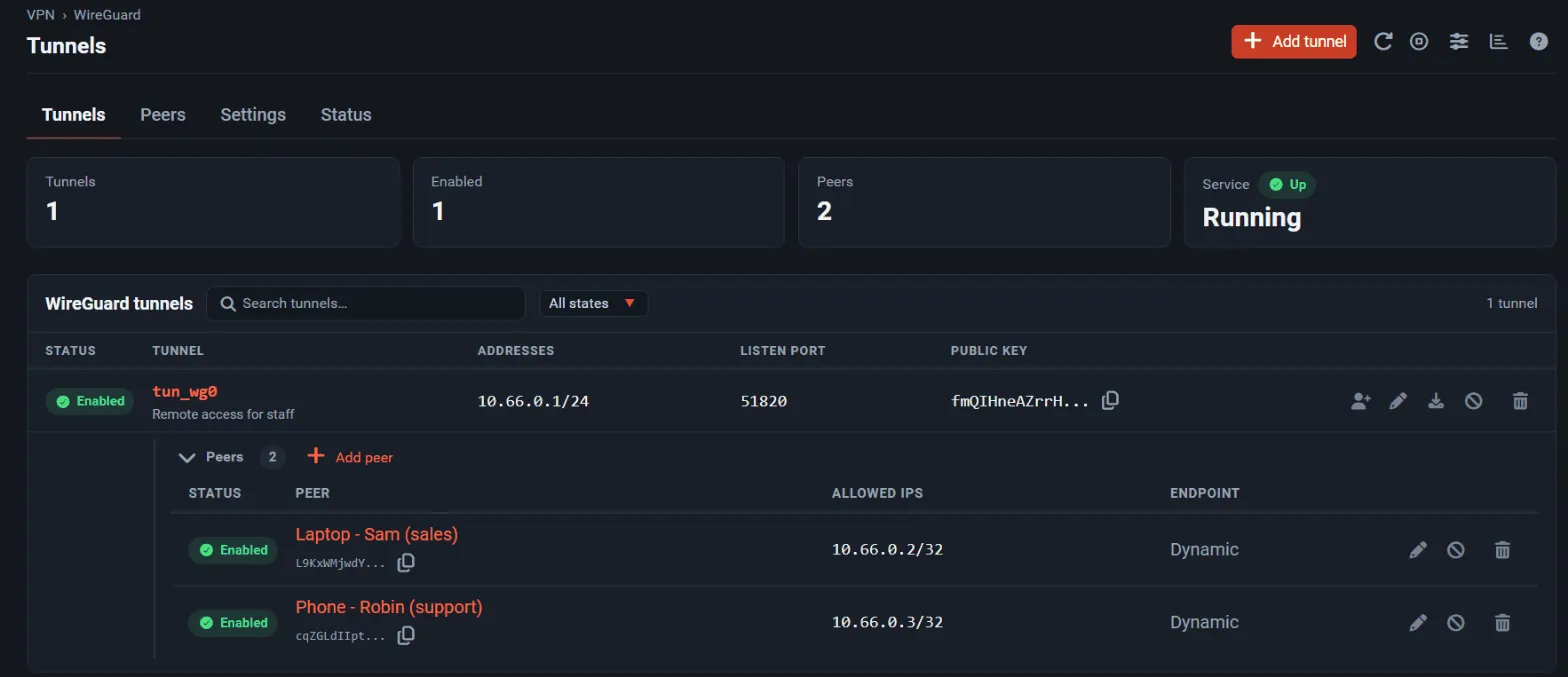
Section titled “First-time setup”This example creates a tunnel on FreeSense and adds one remote peer.
- Open VPN → WireGuard → Settings, tick Enable WireGuard and select Save.
- Open the Tunnels tab and select Add tunnel.
- Leave Enable tunnel ticked and enter a Description.
- Enter a Listen Port. The form suggests the next free port, starting at 51820.
- Under Keys, select New key pair, or paste a private key that you created elsewhere. The public key is calculated from it. Give the remote side only the public key.
- Under Interface, add one or more Interface Addresses for the tunnel, for example
10.6.210.1/24. These addresses only apply while the tunnel is not assigned to an interface. - Select Save tunnel. You must save the tunnel before you can add peers to it.
- Select Add peer (on the tunnel page or the Peers tab):
- pick the tunnel under Tunnel;
- enter the remote side’s Public key;
- for a peer at a fixed address, untick Dynamic and enter its Endpoint and port; for a roaming client, leave Dynamic ticked;
- add the Allowed IPs: the peer’s tunnel address (for example
10.6.210.2/32) and any remote networks behind it.
- Select Save peer, then Apply if the WebUI asks you to.
- Add a firewall rule on the WAN that passes UDP to the listen port. The package does not create this rule for you.
- Add rules on Firewall → Rules → WireGuard that allow the tunnel traffic you want.
- Check Status → WireGuard. A peer has completed a handshake when it shows a recent Latest handshake time.
To route whole networks through the tunnel, or to use it as a gateway, assign it as an interface:
open Interfaces → Assignments, add the tun_wg device (for example tun_wg0), enable the new
interface, and set its addresses there. After you assign a tunnel, its addresses and MTU come from
the interface configuration, not from the tunnel page.
Settings reference
Section titled “Settings reference”Settings tab
Section titled “Settings tab”| Field | What it does | Default |
|---|---|---|
| Enable | Turns the WireGuard service on or off. You cannot disable WireGuard while any tunnel is assigned to an interface. | Off |
| Keep Configuration | Keeps all tunnels, peers, and package settings when the package is removed or reinstalled. | On |
| Interface Group Membership | Which tunnels belong to the WireGuard interface group: All Tunnels, Only Unassigned Tunnels or None. Group rules are evaluated before interface rules. | All Tunnels |
| Endpoint Hostname Resolve Interval | Seconds between new DNS lookups of peer endpoint hostnames. 0 turns this off. |
300 |
| Track System Resolve Interval | Uses the system Aliases Hostnames Resolve Interval (under System → Advanced → Firewall & NAT) instead. | Off |
| Hide Secrets | Shows private and pre-shared keys as password fields. | On |
| Hide Peers | Collapses the peers of each tunnel when the status page opens. | On |
Tunnel
Section titled “Tunnel”| Field | What it does | Default |
|---|---|---|
| Enable tunnel | A tunnel must be enabled before you can assign it. You cannot disable an assigned tunnel. | On for a new tunnel |
| Description | Your own label. FreeSense does not use it. | Empty |
| Listen Port | UDP port the tunnel uses to talk to its peers. Required. | Next free port from 51820 |
| Interface Keys | Private key (required) and the public key derived from it. New key pair replaces both after you confirm. | Empty |
| Interface Addresses | IPv4 or IPv6 addresses with prefix length, each with an optional description. Used only while the tunnel is unassigned. An address that already exists on the firewall is refused. | Empty |
Tunnel interfaces are named tun_wg0, tun_wg1 and so on. The default MTU is 1420.
| Field | What it does | Default |
|---|---|---|
| Enable peer | Untick to turn off a peer without deleting it. | On |
| Tunnel | The tunnel the peer belongs to. Opening Add peer from a tunnel preselects it. | None |
| Description | Your own label. | Empty |
| Dynamic | The peer connects from an unknown address. Untick to set a fixed endpoint. | On |
| Endpoint | Hostname, IPv4 or IPv6 address, and port of the peer. An empty port means 51820. | Empty |
| Keep Alive | Seconds between keepalive packets to this peer. Empty means off. Useful when the peer is behind NAT. | Off |
| Public key | The peer’s WireGuard public key. It must be unique within the tunnel. | Empty |
| Pre-shared Key | Optional extra symmetric key. New pre-shared key generates one. | Empty |
| Allowed IPs | Networks or hosts reachable through this peer. Entries are rounded down to their network address. Each entry must be unique among the peers of a tunnel, otherwise traffic for the overlapping network goes only to the last peer. A tunnel can have only one IPv4 and one IPv6 default route. | Empty |
Allowed IPs controls which traffic WireGuard sends to a peer and accepts from it. It does not replace firewall rules. Keep it as small as possible.
Dashboard widget
Section titled “Dashboard widget”| Field | What it does | Default |
|---|---|---|
| Refresh Interval | Widget refresh interval in ticks. 0 turns refreshing off. |
20 |
| Activity Threshold | A peer counts as active if its last handshake is within this many seconds. 0 turns this off. |
120 |
Firewall rules and interfaces
Section titled “Firewall rules and interfaces”- Inbound: pass UDP to each tunnel’s listen port on the interface your peers connect to
(usually WAN). The package defines a
WireGuardListenPortsalias name, but does not create it or any rule for you. - Tunnel traffic: with the default group setting, every tunnel is in the WireGuard interface group. Add pass rules on Firewall → Rules → WireGuard. Group rules apply to all member tunnels and are evaluated before interface rules.
- Assigned tunnels: once a tunnel is assigned, you can also write rules on its own interface tab and use it in gateways, static routes and outbound NAT. Return routes on the remote side are still your job.
- DNS: the WireGuard Unbound access list lets tunnel clients query the DNS Resolver. Do not edit or delete the entries marked “DO NOT EDIT/DELETE”.
Service, logs, and status
Section titled “Service, logs, and status”| Item | Value |
|---|---|
| Service | wireguard (shown as WireGuard in Status → Services) |
| rc script | /usr/local/etc/rc.d/wireguardd |
| Daemon | php_wg running /usr/local/pkg/wireguard/includes/wg_service.inc |
| Kernel module | if_wg, loaded by the service |
| Config files | /usr/local/etc/wireguard |
Status → WireGuard shows tiles for Tunnels up, Active peers (handshake in the last 5 minutes), Received and Sent, then each tunnel with its listen port, MTU, addresses and public key. The peer list shows the endpoint, allowed IPs, latest handshake and traffic. Handshake age is coloured: under 5 minutes, over 5 minutes, and over a day.
The service writes errors such as “Unable to create WireGuard tunnel(s)” or “Unable to load WireGuard kernel module” to the system log. Check Status → System Logs.
From a shell, wg show prints the live kernel state of all tunnels.
Upgrade, backup, and removal
Section titled “Upgrade, backup, and removal”- Tunnels, peers, and settings are stored in
config.xmlunderinstalledpackages/wireguard, so they are part of a normal configuration backup. Private keys are in that file too: protect your backups. - When you reinstall the package over an enabled configuration, the service now starts again without a reboot.
- When you remove the package, it deletes its early shell command, interface group, Unbound access
list and temporary files, destroys the running tunnels and unloads
if_wg. With Keep Configuration on (the default), tunnels and peers stay inconfig.xmland return when you reinstall. Turn it off first if you want them removed. - Removing the package no longer restarts the DNS Resolver and gateway monitoring. The running
Unbound and
dpingerkeep working, and the filter reload is queued. - Before you remove the package, unassign any assigned WireGuard interfaces and remove the routes, gateways and rules that use them.
Troubleshooting
Section titled “Troubleshooting”| Symptom | What to check |
|---|---|
| “Unable to create WireGuard tunnel(s)” or “Unable to load WireGuard kernel module” | The System image must include if_wg.ko. FreeSense 1.1 System builds ship it. Run kldstat -n if_wg and ls /boot/kernel/if_wg.ko. |
| No handshake | UDP to the listen port is blocked, the endpoint or port is wrong, or the public keys are swapped. Check the WAN rule and both peers’ keys. |
| Handshake, but no traffic | Allowed IPs too narrow or overlapping another peer, no rule on the WireGuard tab, or no route back on the remote side. |
| Traffic for one network reaches the wrong peer | Two peers on the same tunnel list overlapping Allowed IPs. The last peer wins. |
| Tunnel cannot be disabled or deleted | It is assigned to an interface. Remove dependent routes and rules, then unassign it under Interfaces → Assignments. |
| “Cannot disable WireGuard when one or more tunnels is assigned” | Same cause: unassign the tunnels first. |
| “Address … is already configured on this firewall” | The tunnel address overlaps an address on another interface. Choose an unused subnet. |
| Tunnels down after reinstalling the package (1.0.x) | Start the service from Status → Services. In 1.1 the package starts it after installation. |
| Peer with a hostname endpoint stops working after its IP changes | Check Endpoint Hostname Resolve Interval; 0 turns re-resolving off. |
Retire a tunnel in this order: remove routes and rules, unassign the interface, delete or disable the tunnel, then remove the public key on the remote side. If a key may have leaked, create a new key pair; do not just wait for the tunnel to go idle.