

Fleet policies
A policy holds rules that firewalls must meet, such as a minimum version or the WebGUI over HTTPS. Fleet checks each rule against what each firewall reports and its newest configuration backup, and shows the result under Policies → Compliance.
Add a policy
Section titled “Add a policy”-
Open Policies. With no policy yet, select Add the first policy; later, add one from the Policies view.
-
Enter a Name and a Description.
-
Under For, choose all firewalls, one or more groups, or single firewalls. A policy for one firewall or a group wins over a policy for all firewalls, rule by rule.
-
Switch on the rules you want. The editor shows one area at a time: pick the area in the list on the left (it shows how many of its rules are on). The search box looks through all areas, and an area with a field that needs fixing opens by itself when you save. Rules are grouped in areas:
Area Rules Versions Minimum version, Pinned version, Allowed versions, Update channel Operations Recent backup, Rollback protection (ZFS), NTP servers set, Remote syslog, Time zone Security SSH by key only, WebGUI over HTTPS, WebGUI login protection Naming Hostname pattern, Domain, Domain of its group, Hostname follows its group Custom Any configuration path and the value it must have -
For each rule, choose When it is broken:
- Report: Fleet only shows it.
- Fix: Fleet corrects the setting in the firewall’s maintenance window, after a safety backup. A failed fix is not retried by itself.
- Lock: the firewall refuses saves that break the rule, also while the controller is offline. A console administrator can suspend the lock (break-glass).
Not every rule offers every mode. What are Fix and Lock? next to the search box explains them in a small window.
-
Select Save policy.
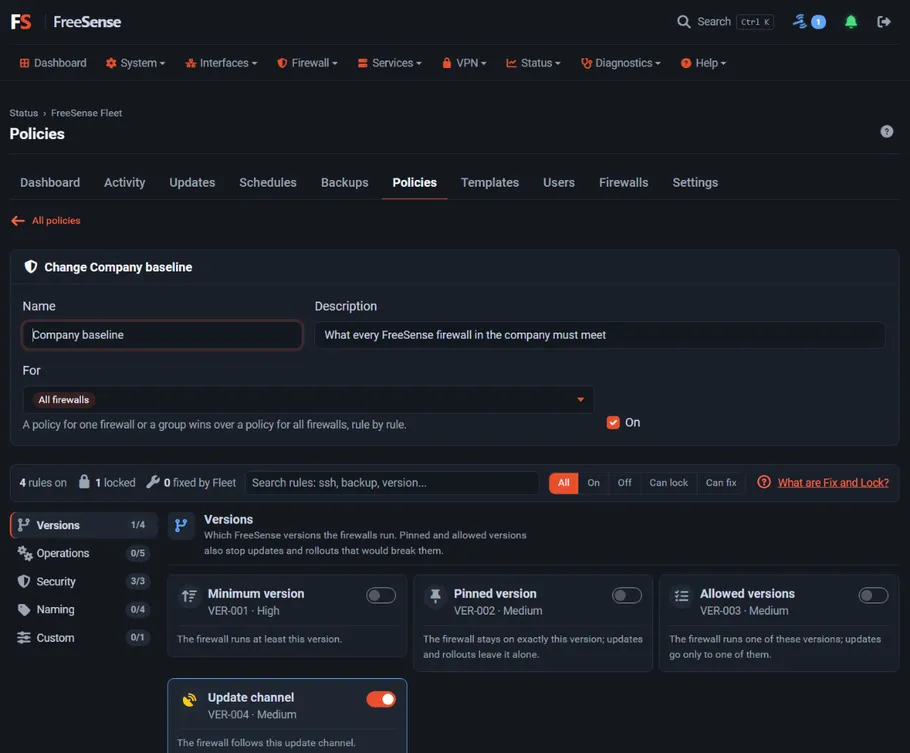
Pinned and allowed version rules also stop updates and rollouts that would break them.
Two rules deserve a note:
- WebGUI login protection checks the firewall’s login protection (sshguard): it fails when the pass list covers every address, or when the attack score that triggers a block is above the limit you set. Fleet never fixes or locks it, and it never changes a firewall’s anti-lockout rule: switching that rule from afar could lock the administrator out or open the WebUI on a WAN-only firewall.
- Update channel accepts the Development channel that Development firewalls report.
A firewall that starts failing a rule of high severity raises the alert A firewall started failing a High policy rule. Failing rules also count in the Fleet headline, the top-bar icon and the live view.
Compliance
Section titled “Compliance”Policies → Compliance shows the share of passing checks, the firewalls failing a rule, and each rule’s fails, passes, unknowns and exceptions. Below, every firewall is listed with the rules it fails; filter by state, rule or group. Select Check now to check again at once.
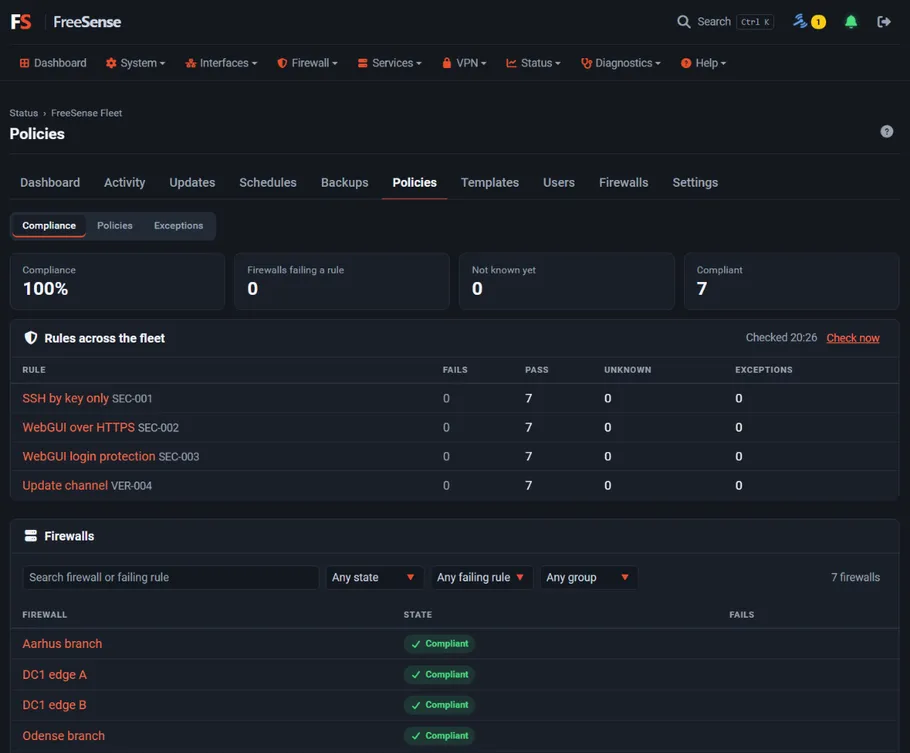
Select a rule to see only the firewalls it concerns, or a firewall to see its Policies view with the reason for each result.
Exceptions
Section titled “Exceptions”When one firewall may break a rule for a while, add an exception from its Policies view instead of changing the policy. An exception has a reason and an end date, and is listed under Policies → Exceptions.