

Getting started with the REST API
This walkthrough enables the REST API, creates a dedicated user with only the privileges it needs, creates an API key, and makes the first requests: read system information, list and create firewall aliases, apply the change, check for a system update and list packages.
The examples use https://192.168.1.1 as the firewall’s WebGUI address. Replace it with yours. For how authentication, scopes and errors work in detail, see the REST API overview. Every endpoint is listed in the reference.
Before you begin
Section titled “Before you begin”- You can sign in to the WebUI as an administrator.
- The client you will run the requests from can reach the WebGUI over HTTPS.
- You have
curl, or PowerShell 7 for the PowerShell examples.
Step 1: Enable the API
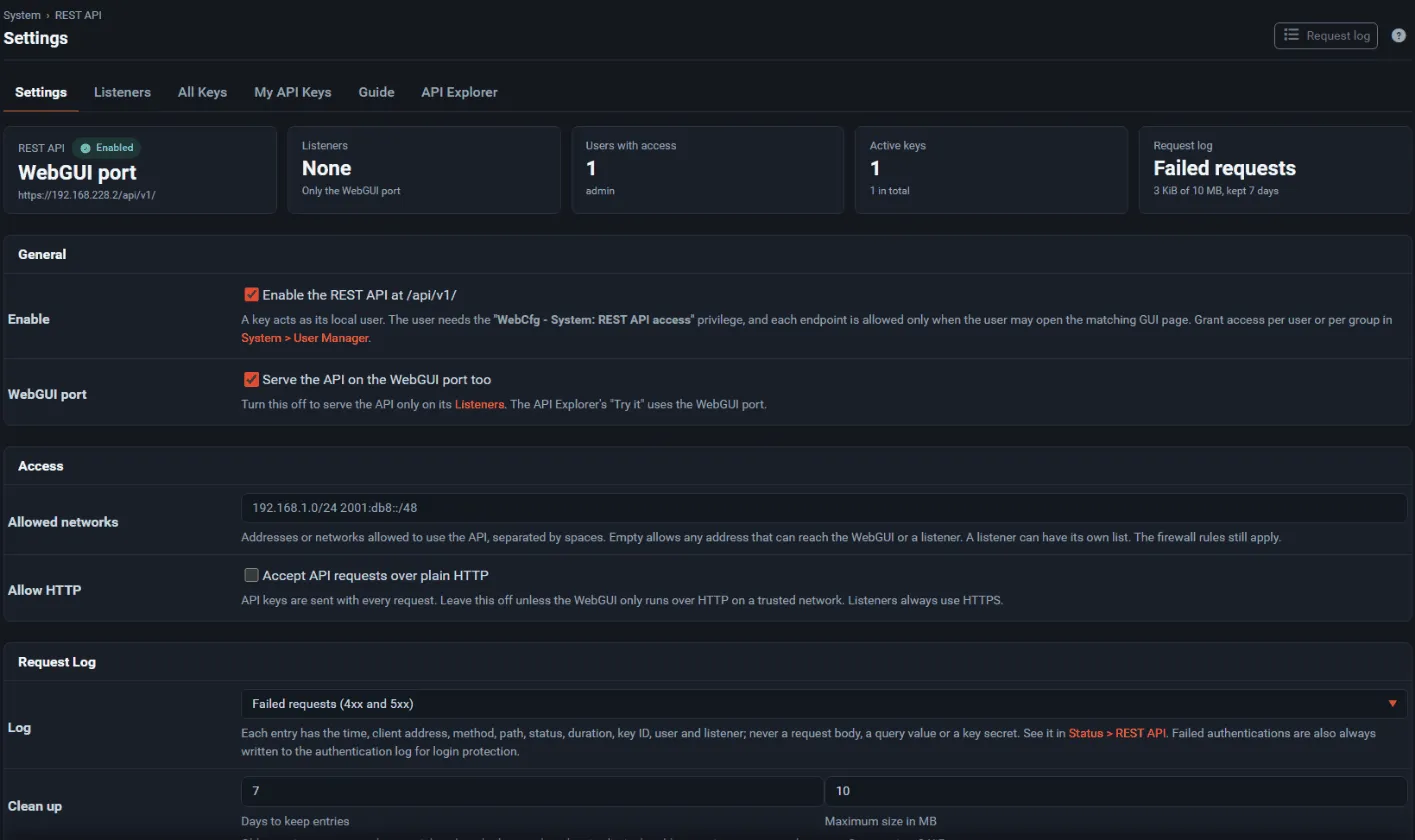
Section titled “Step 1: Enable the API”- Open System → REST API.
- Under General, check Enable. Leave WebGUI port checked.
- Under Access, enter the address of your automation host in Allowed networks, for example
192.168.1.50. Leave the field empty only on a trusted lab network. - Leave Allow HTTP unchecked.
- Select Save.
Step 2: Create an API user with limited privileges
Section titled “Step 2: Create an API user with limited privileges”Use a dedicated local user for each integration instead of the admin account. In this example the user may read system information, read and change firewall aliases, and check for updates and list packages, through the API only.
-
Open System → User Manager → Users and select Add.
-
Enter a Username such as
automationand a strong password. The password is not needed for the API, but a local user requires one. -
Save the user, then open it again for editing.
-
Under Effective Privileges, select Add privilege and add these privileges:
Privilege Why WebCfg - System: REST API access Allows the user to use API keys at all. REST API - System information: read GET /api/v1/system/infoandGET /api/v1/status/systemREST API - Firewall aliases: write List, create, change, delete and apply aliases (write includes read). REST API - Packages and system version (lists, update check, install, reinstall, remove, system update): read The update check and the package lists. -
Save. The REST API line under Effective Privileges should now read “Allowed”.
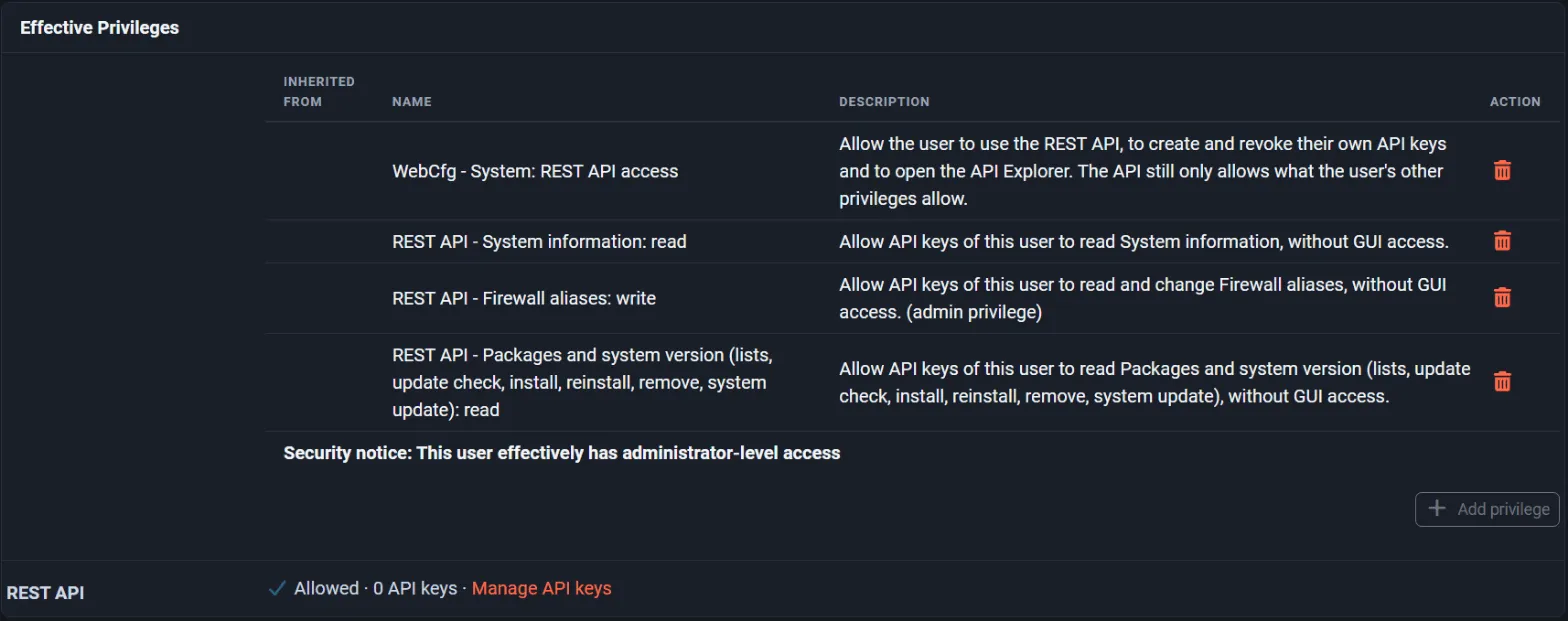
The REST API - ... privileges grant API access only. This user cannot open the corresponding WebUI pages, and its API key cannot reach any other area.
Because changing aliases changes firewall policy, REST API - Firewall aliases: write is marked as an admin privilege, and the page shows Security notice: This user effectively has administrator-level access. That is expected for this walkthrough.
Step 3: Create the API key
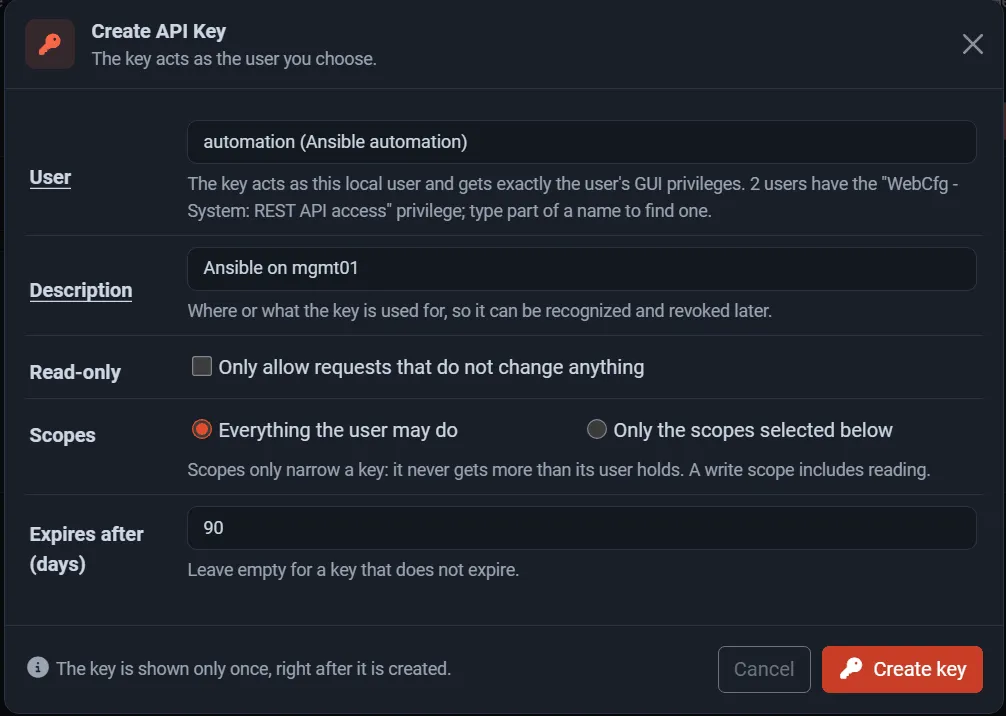
Section titled “Step 3: Create the API key”- Open System → REST API → All Keys and select Create key. (A user who signs in to the WebUI can also create their own keys under My API Keys.)
- Choose the user
automation. - Enter a Description that says where the key is used, for example
Ansible on mgmt01. - Optionally limit the key further: Scopes → Only the scopes selected below, and an expiry in Expires after (days). Leave Read-only unchecked for this walkthrough, because step 6 creates an alias.
- Create the key and copy it from the API key created panel. It is shown only once.
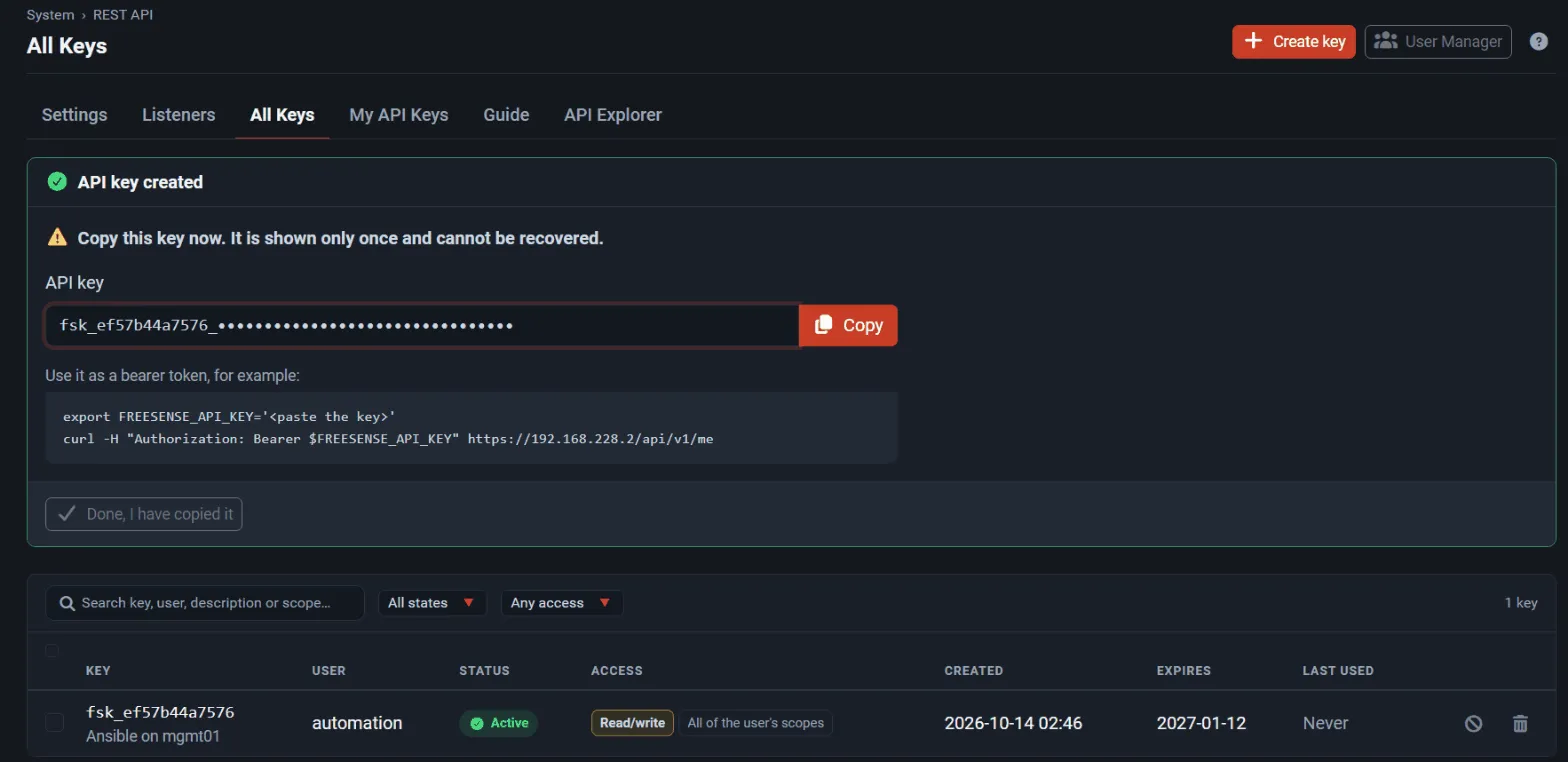
Store the key in an environment variable on the client instead of typing it into commands:
export FREESENSE_API_KEY='fsk_<id>_<secret>'export FS='https://192.168.1.1'$env:FREESENSE_API_KEY = 'fsk_<id>_<secret>'$FS = 'https://192.168.1.1'$H = @{ Authorization = "Bearer $env:FREESENSE_API_KEY" }Step 4: Trust the firewall’s certificate
Section titled “Step 4: Trust the firewall’s certificate”The API is served over HTTPS with the WebGUI certificate. If the firewall still uses its self-signed certificate, export it from System → Certificates and point the client at it:
curl --cacert firewall-webgui.crt -H "Authorization: Bearer $FREESENSE_API_KEY" "$FS/api/v1/me"The curl examples below omit --cacert for brevity. Avoid curl -k and PowerShell’s -SkipCertificateCheck outside a lab: they accept any certificate, which exposes the key to anyone who can intercept the connection.
Step 5: Check the key and read system information
Section titled “Step 5: Check the key and read system information”GET /api/v1/me shows who the key acts as and what it may do:
curl -s -H "Authorization: Bearer $FREESENSE_API_KEY" "$FS/api/v1/me"Invoke-RestMethod -Uri "$FS/api/v1/me" -Headers $HThe response lists the user, the key’s settings (readonly, expires, limited_to_scopes), the effective_scopes (here system:read, firewall.aliases:write and packages:read) and every endpoint the key may call.
Read the system information:
curl -s -H "Authorization: Bearer $FREESENSE_API_KEY" "$FS/api/v1/system/info"(Invoke-RestMethod -Uri "$FS/api/v1/system/info" -Headers $H).dataThe data object contains hostname, domain, product, version, freebsd, platform, cpu, cpu_count, memory_bytes, uptime_seconds and config_revision (time and description of the last configuration change). For live metrics (CPU, memory, swap, mbufs, states, temperatures, disks, uptime) call GET /api/v1/status/system.
Step 6: List the firewall aliases
Section titled “Step 6: List the firewall aliases”curl -s -H "Authorization: Bearer $FREESENSE_API_KEY" "$FS/api/v1/firewall/aliases"(Invoke-RestMethod -Uri "$FS/api/v1/firewall/aliases" -Headers $H).data | Select-Object name, type, descriptionEach alias has name, type, description and entries, a list of {address, detail}. URL table aliases also have update_frequency (days). Get a single alias with GET /api/v1/firewall/aliases/{name}.
Step 7: Create an alias
Section titled “Step 7: Create an alias”Send the alias as JSON. type is one of host, network, port, url, url_ports, urltable or urltable_ports; for a network alias, write each entry in CIDR form such as 192.168.10.0/24.
curl -s -X POST \ -H "Authorization: Bearer $FREESENSE_API_KEY" \ -H "Content-Type: application/json" \ -d '{ "name": "web_servers", "type": "host", "description": "Public web servers", "entries": [ { "address": "192.168.1.10", "detail": "web01" }, { "address": "192.168.1.11", "detail": "web02" } ] }' \ "$FS/api/v1/firewall/aliases"$alias = @{ name = 'web_servers' type = 'host' description = 'Public web servers' entries = @( @{ address = '192.168.1.10'; detail = 'web01' } @{ address = '192.168.1.11'; detail = 'web02' } )}Invoke-RestMethod -Method Post -Uri "$FS/api/v1/firewall/aliases" -Headers $H ` -ContentType 'application/json' -Body ($alias | ConvertTo-Json -Depth 5)A successful request answers 201 Created with the new alias in data. The alias is validated by the same code as the WebUI’s alias editor: an invalid name or address answers 422 validation_failed with the WebUI’s messages in error.details.messages, and an existing name is refused the same way.
To change the alias later, send PUT /api/v1/firewall/aliases/web_servers with only the fields to change; omitted fields keep their value, and "name" renames the alias. DELETE /api/v1/firewall/aliases/web_servers deletes it, and answers 409 in_use while a rule or another alias still references it.
Step 8: Apply the change
Section titled “Step 8: Apply the change”Like in the WebUI, the new alias is saved but not yet active: the change is staged until it is applied. Check what is pending, then apply:
curl -s -H "Authorization: Bearer $FREESENSE_API_KEY" "$FS/api/v1/firewall/pending"curl -s -X POST -H "Authorization: Bearer $FREESENSE_API_KEY" "$FS/api/v1/firewall/aliases/apply"Invoke-RestMethod -Uri "$FS/api/v1/firewall/pending" -Headers $HInvoke-RestMethod -Method Post -Uri "$FS/api/v1/firewall/aliases/apply" -Headers $HThe apply call reloads the filter and returns {"data": {"applied": true, "pending": [...]}}, where pending lists the firewall areas that still have unapplied changes.
To create and apply in one request, add ?apply=true to the create call (POST /api/v1/firewall/aliases?apply=true); the response then includes an apply object with the same result.
Step 9: Check for a system update
Section titled “Step 9: Check for a system update”curl -s -H "Authorization: Bearer $FREESENSE_API_KEY" "$FS/api/v1/system/version?refresh=true"(Invoke-RestMethod -Uri "$FS/api/v1/system/version?refresh=true" -Headers $H).dataWithout refresh=true the firewall answers from its cached result; with it, the update repository is checked now. The data object contains running_version, installed_version, latest_version, update_available (true or false), status (update_available, up_to_date, newer_than_available or unknown) and channel, the configured update channel. While the update system is busy the call answers 409 update_busy; when the repository cannot be reached, 502 version_check_failed.
GET /api/v1/system/update/preflight runs the checks before an update without starting anything, and GET /api/v1/system/update/changelog returns the release notes of the latest release on the channel. Starting the update itself (POST /api/v1/system/firmware/update with {"confirm": true}) requires an administrator and is deliberately not part of this walkthrough. See Updates and channels for how channels and upgrades work.
Step 10: List packages
Section titled “Step 10: List packages”curl -s -H "Authorization: Bearer $FREESENSE_API_KEY" "$FS/api/v1/packages/installed"curl -s -H "Authorization: Bearer $FREESENSE_API_KEY" "$FS/api/v1/packages/available"(Invoke-RestMethod -Uri "$FS/api/v1/packages/installed" -Headers $H).data | Select-Object name, installed_version, version, statusEach package has name (the full package name, such as FreeSense-pkg-nut), shortname, display_name, category, description, version (the version in the repository), www and dependencies. Installed packages also have installed_version and status (up_to_date, upgrade_available, newer_than_available, not_installed, not_in_repository or unknown). Add ?offline=true to the installed list to use only local information. While packages are being installed or removed, both lists answer 409 packages_busy.
Installing, reinstalling and removing packages require an administrator and {"confirm": true}; see the packages area in the reference and Installing packages.
Handle errors in scripts
Section titled “Handle errors in scripts”Every error has the same JSON shape, {"error": {"code": "...", "message": "...", "details": {...}}}, with a matching HTTP status. Check the status first and branch on error.code.
With curl, print the status code alongside the body:
curl -s -w '\nHTTP %{http_code}\n' -H "Authorization: Bearer $FREESENSE_API_KEY" "$FS/api/v1/firewall/aliases/does_not_exist"In PowerShell, Invoke-RestMethod throws on an error status. Read the error body from the exception:
try { Invoke-RestMethod -Uri "$FS/api/v1/firewall/aliases/does_not_exist" -Headers $H} catch { $err = ($_.ErrorDetails.Message | ConvertFrom-Json).error Write-Warning "$($_.Exception.Response.StatusCode): $($err.code) - $($err.message)"}Common first-time errors:
| Response | Cause | Fix |
|---|---|---|
404 api_disabled |
The API is not enabled. | Step 1. |
403 https_required |
The request used plain HTTP. | Use https://. |
403 source_not_allowed |
The client address is not in Allowed networks. | Add the client’s address, or check for NAT between client and firewall. |
401 unauthorized |
The key is missing, mistyped, expired or revoked. | Check the Authorization: Bearer ... header and the key list. |
403 api_access_denied |
The user lacks WebCfg - System: REST API access. | Step 2. |
403 forbidden |
The user lacks the endpoint’s scope; the message names the privilege to add. | Add the named privilege, or use another user. |
403 scope_not_granted or read_only_key |
The key itself is limited. | Create a key with the needed scopes, or without Read-only. |
Explore further
Section titled “Explore further”- System → REST API → API Explorer shows every endpoint on your firewall, whether your user could call it, and lets you try requests from the browser with your key.
- Download the OpenAPI document (
GET /api/v1/openapi.json, or Download openapi.json in the Explorer) to generate a client in your language. - Read the REST API overview for staging, ETags, batch requests, dedicated listeners and security guidance.