

Threat Shield & DNS Protection
Threat Shield is the FreeSense security package for the whole network. It runs a pinned build of
AdGuard Home 0.107.79 (port www/adguardhome-bin, official FreeBSD binary, checksum-pinned) as
the DNS server for your clients and adds firewall protection around it. Everything is managed from
the FreeSense WebUI:
- DNS filtering: block lists at three protection levels, an allowlist with one-click Unblock, custom rules, rewrites, per-client profiles, blocked services with schedules, and a searchable query log.
- Anti-bypass: devices that use their own DNS server are redirected to Threat Shield, and DNS-over-TLS and known DNS-over-HTTPS servers are blocked.
- IP threat lists: Spamhaus DROP, FireHOL, abuse.ch Feodo Tracker and others, loaded into firewall tables.
- GeoIP: block or allow whole countries.
- Inbound protection: reputation (DNSBL) checks and flood limits for services you expose to the internet. See Threat Shield inbound protection.
- Threat map: a live world map of blocked and allowed connections, with a full-screen view for a wall display. See Threat Shield threat map.
- Health checks that show what works and offer a one-click fix when something does not.
Threat Shield is new in FreeSense 1.1 and replaces pfBlockerNG, which is no longer in the package catalog. See Security and filtering packages to compare it with Suricata and CrowdSec.
Install
Section titled “Install”- Open System → Package Manager → Available Packages.
- Find Threat Shield & DNS Protection (category Security, resource profile Moderate). The
package is
FreeSense-pkg-ThreatShield; it pulls inadguardhome-bin. - Select Install and confirm.
The package is installed turned off. Nothing changes in DNS or the firewall until you enable it.
Architecture: amd64 and arm64.
Where to find it
Section titled “Where to find it”| Menu path | Page |
|---|---|
| Services → Threat Shield | Settings, with a tab bar for every other page |
| Status → Threat Shield Status | Overview: protection state, health, a small live map, counters and top lists |
| Status → Threat Map | The live threat map and its full-screen view |
All pages share one tab bar: Overview, Threat map, Settings, Blocklists, Allowlist, Inbound protection, GeoIP, Clients & services, DNS rules and Query log. Pages with several parts have a second row of buttons under the tabs, for example DNS block lists, Allowlist lists and IP lists on Blocklists.
Two dashboard widgets are available under + on the dashboard: Threat Shield (state, counts and problems) and Threat Map (a small live map with blocked and allowed counts).
Guide: turn on DNS blocking
Section titled “Guide: turn on DNS blocking”The fastest way to protect the network is the setup card on the Overview. It appears while Threat Shield is off.
- Open Status → Threat Shield Status.
- Leave both boxes ticked unless you have a reason not to:
- Also block known DNS-over-HTTPS servers stops browsers and apps from sending DNS past the filter.
- Also block DNS-over-TLS (port 853) does the same for encrypted DNS on port 853. Android “Private DNS” then falls back to the network’s DNS.
- Select Enable DNS blocking.
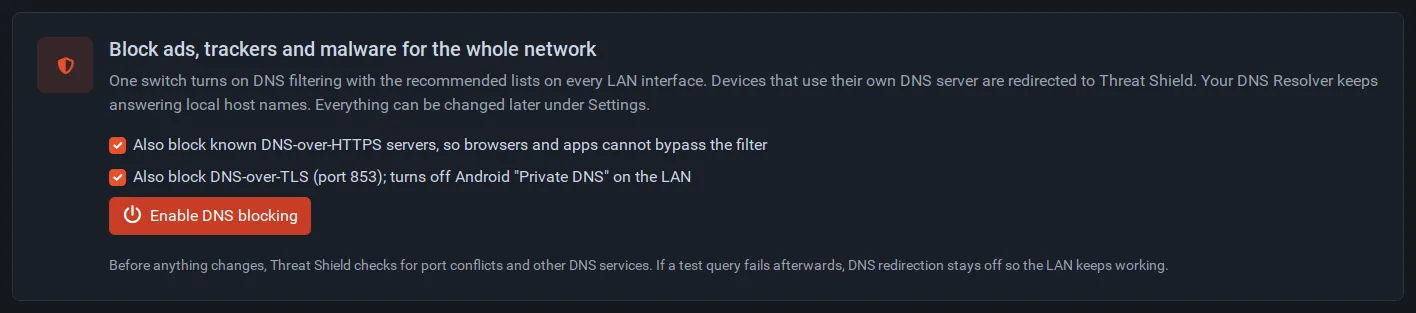
Before it changes anything, Threat Shield checks for port conflicts and other DNS services. It then:
- answers DNS on port 53 in Primary DNS mode and moves the DNS Resolver to
127.0.0.1:5335, where it keeps answering local host names, DHCP names and reverse lookups; - listens on every interface that is not a WAN;
- turns on the Normal protection level (unless you already chose your own lists);
- redirects DNS queries for other servers to itself and blocks plain IPv6 DNS to outside servers;
- runs a test query. If the test fails, DNS redirection is left off so the LAN keeps working, and the page tells you what to check.
Clients that get the firewall as their DNS server from DHCP (the default) are filtered at once.
Then check the result:
- On the Overview, the pill next to Protecting should read All checks passed.
- From a client, open a site with ads. Then open the Query log tab: blocked queries are marked Blocked with the list that blocked them.
- If something you need is blocked, select Unblock next to it (see Allowlist).
The Overview
Section titled “The Overview”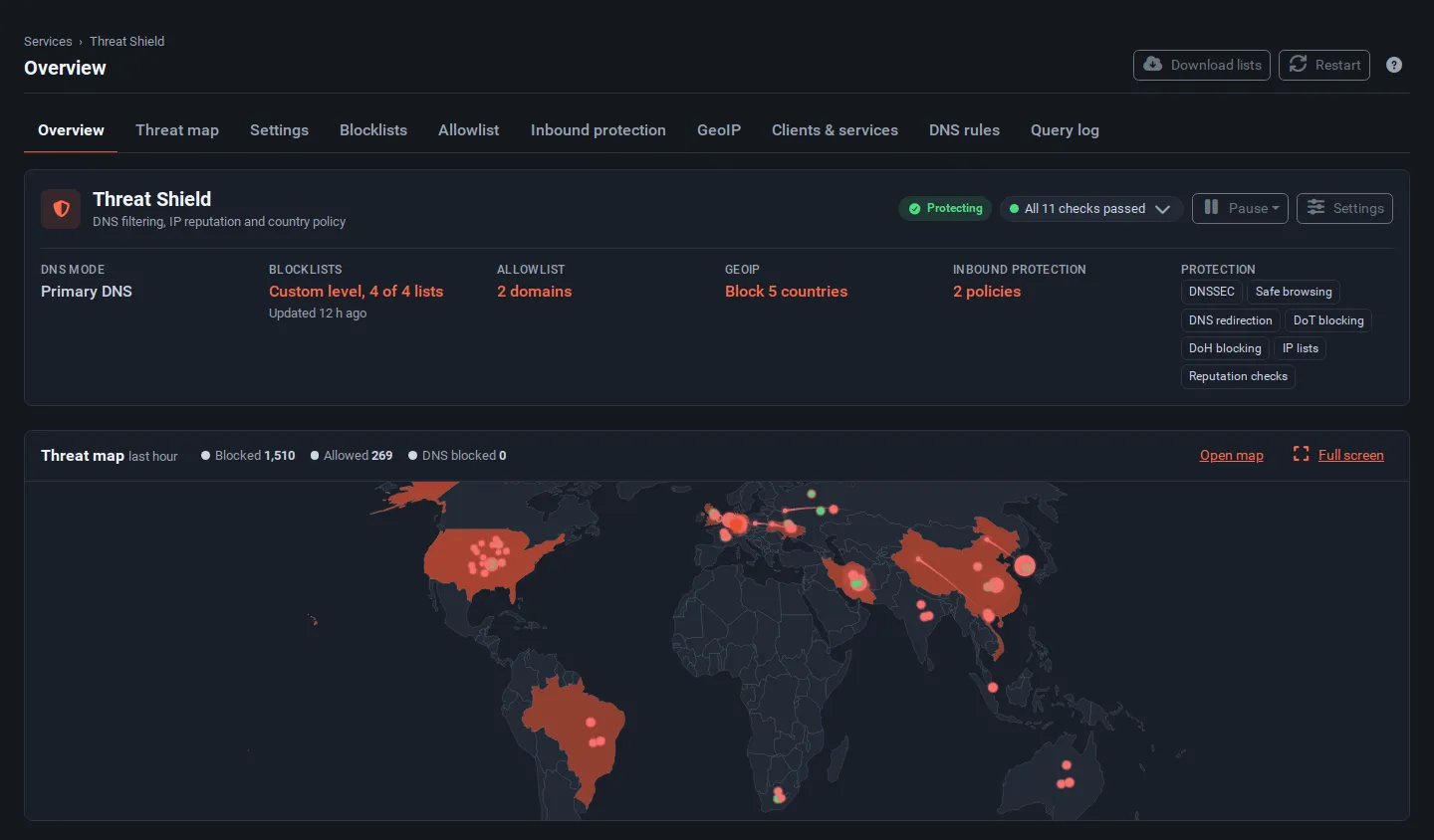
- Summary card: DNS mode, protection level and lists, allowlist size, GeoIP policy, inbound policies and the protection features that are on. The links open the matching tab.
- Health pill (for example All 11 checks passed): select it to open the health checks. When a check fails, the panel opens by itself and the failing check has a button that fixes it, such as Restart or Reload firewall.
- Pause: lets every domain resolve for 5 minutes, 30 minutes, 1 hour, 4 hours or Until I resume. IP lists, GeoIP and inbound protection keep working during a pause. A paused system shows Paused until and a Resume button.
- Threat map: a small live map of the last hour with Open map and Full screen links. Hide it in the map settings (Show a small map on the Threat Shield overview).
- Tiles: DNS queries, blocked by DNS, blocked by IP lists and GeoIP, bypass attempts stopped and (with inbound protection) sources blocked by reputation. Selecting a tile opens the matching list below.
- Explorer: one list with a view picker instead of many tables. Pick Blocked domains, Queried domains, Clients, Blocked sources, Countries, Networks, Ports or Rules, choose a time window and type in Filter to narrow it down. Rows have actions: Unblock on blocked domains, Block on queried domains, and a map pin that opens an address on the threat map. The page remembers the last view.
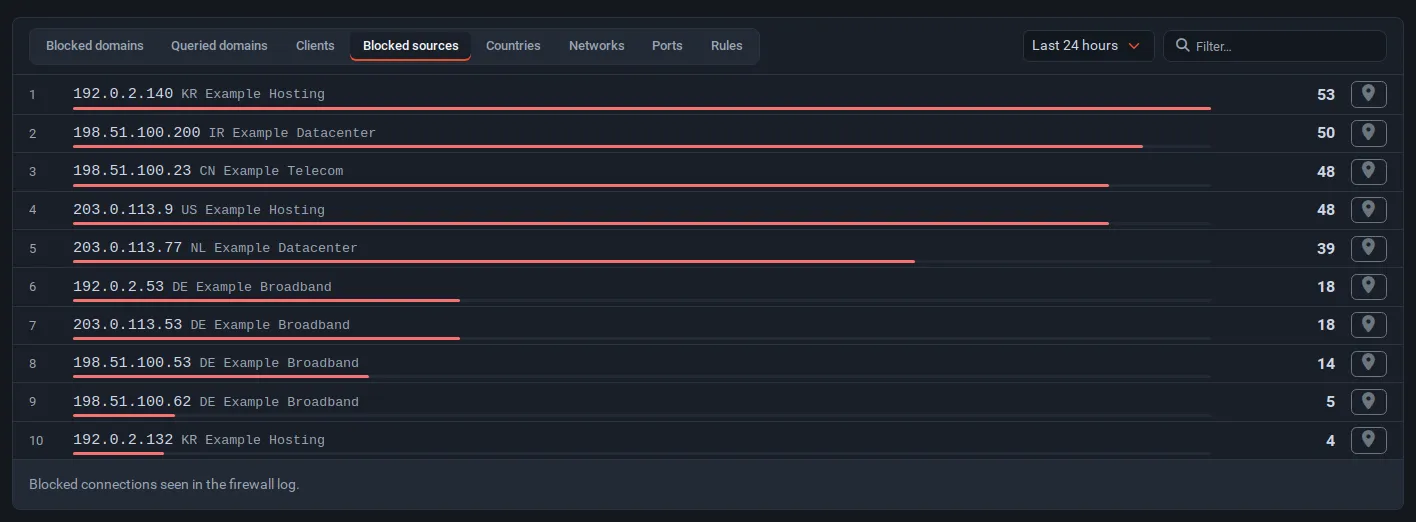
The domain, client and DNS views use AdGuard Home’s statistics period (Settings). The source, country, network, port and rule views come from the firewall log and need the threat map’s data collection (it is on by default).
Health checks
Section titled “Health checks”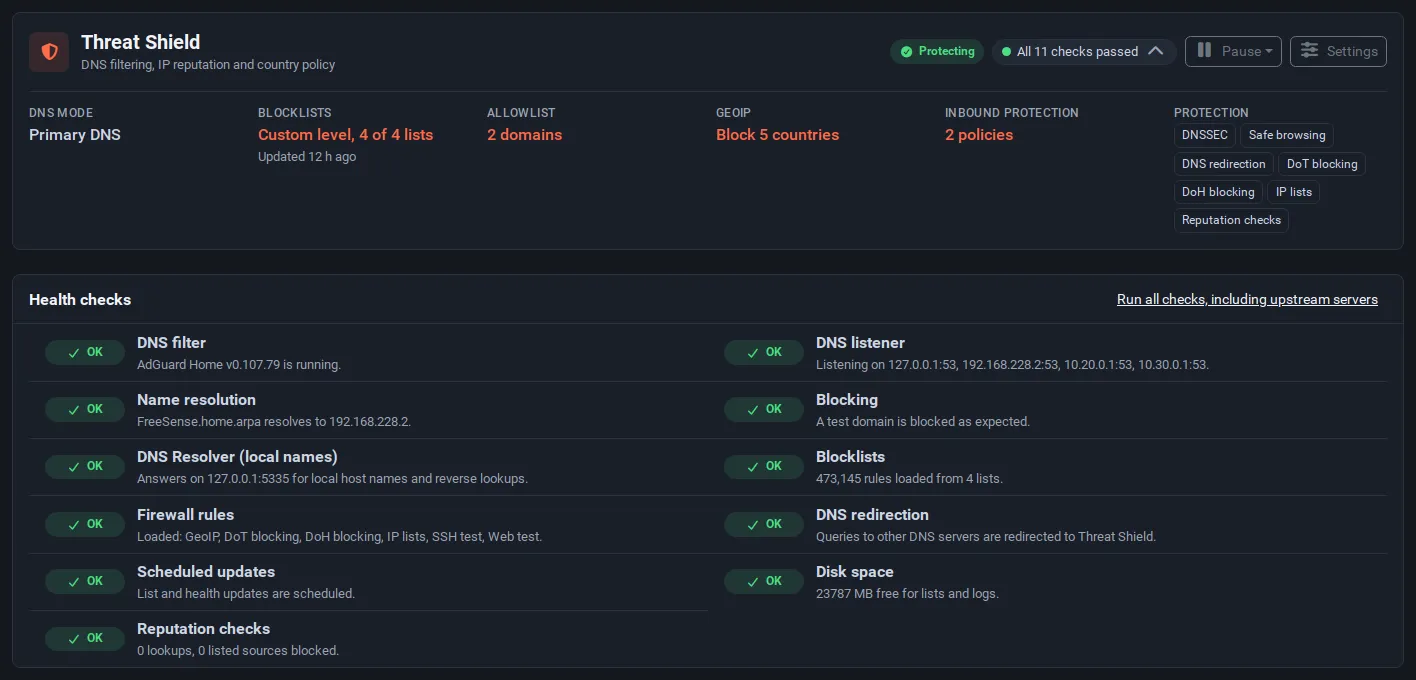
| Check | What it tests | Typical fix |
|---|---|---|
| DNS filter | AdGuard Home runs and its API answers | Restart |
| DNS listener | Threat Shield listens on the expected addresses and port | Apply settings again; if another service holds port 53, see Troubleshooting |
| Name resolution | The Health check domain resolves | Check Upstream servers |
| Blocking | A test domain is blocked | Restart |
| DNS Resolver (local names) | The DNS Resolver answers in the place the DNS mode needs | Restart |
| Blocklists | Rules are loaded from the enabled lists | Download lists |
| Firewall rules | Every rule and table the settings ask for is loaded | Reload firewall |
| DNS redirection | The redirect rule is loaded | Reload firewall |
| Scheduled updates | The update jobs are in cron | Apply settings again |
| Disk space | Enough space for lists and logs | Free space on /var |
| Reputation checks | The DNSBL service runs and lookups work (only with inbound protection) | Start |
Run all checks, including upstream servers also tests every upstream server, which takes a few seconds. A health check also runs every 5 minutes in the background. If DNS stops answering, it removes the DNS redirect so clients are not sent to a filter that is down, and puts it back when Threat Shield answers again.
Blocklists
Section titled “Blocklists”Blocklists → DNS block lists shows the lists in use, their rule counts and when each was last downloaded. A list that failed keeps its last good copy and shows the error.
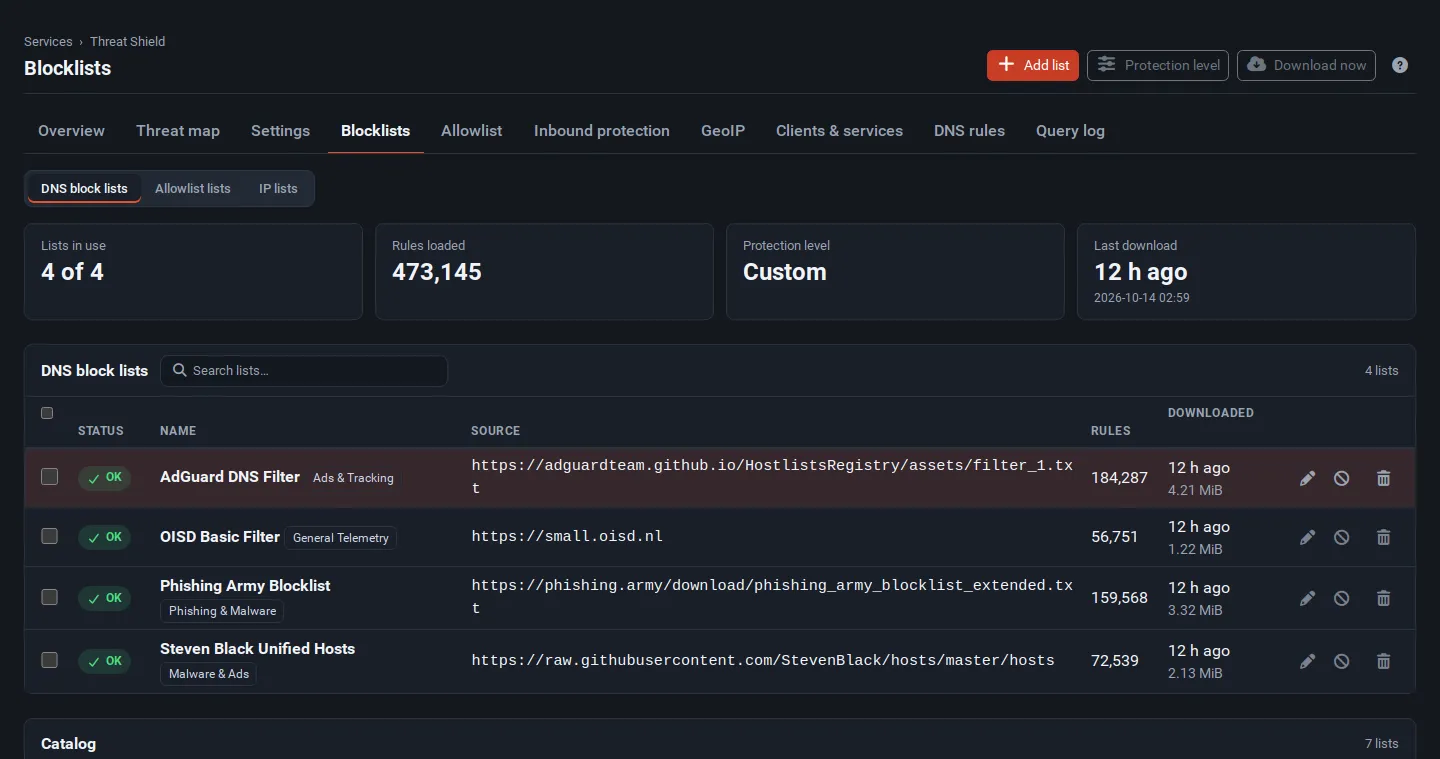
Protection level switches between curated sets of lists. It turns the lists of the chosen level on and the others off; lists you added yourself are not touched. Choosing your own lists shows the level as Custom.
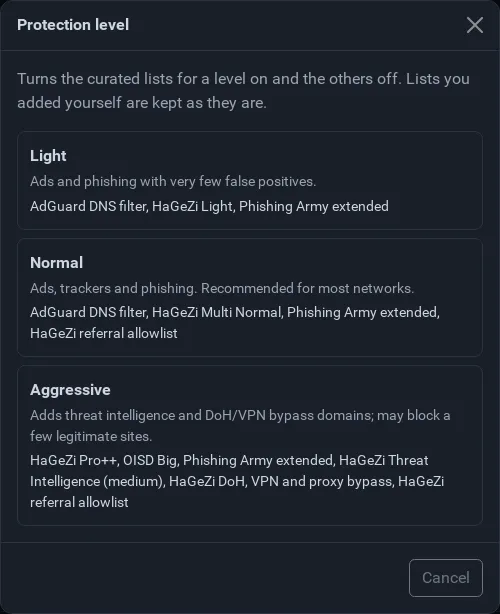
| Level | Use it for | Lists |
|---|---|---|
| Light | Very few false positives | AdGuard DNS filter, HaGeZi Light, Phishing Army extended |
| Normal | Most networks (recommended) | AdGuard DNS filter, HaGeZi Multi Normal, Phishing Army extended, HaGeZi referral allowlist |
| Aggressive | Maximum blocking; may break a few sites | HaGeZi Pro++, OISD Big, Phishing Army extended, HaGeZi Threat Intelligence (medium), HaGeZi DoH, VPN and proxy bypass, HaGeZi referral allowlist |
- Catalog lists more ready-made lists; Add puts one in use.
- Add list adds any HTTPS list in AdGuard / Adblock Plus syntax or hosts format.
- Allowlist lists holds downloaded allow lists (for example the HaGeZi referral allowlist, which keeps affiliate and shopping links working).
- Download now downloads every enabled list in the background. The Download interval sets how often lists are refreshed automatically.
Each download is limited to 32 MiB and 30 seconds and must be HTTPS. A web page, an empty file or a failed download never replaces the last good copy.
IP lists
Section titled “IP lists”Blocklists → IP lists loads lists of known bad addresses into firewall tables.
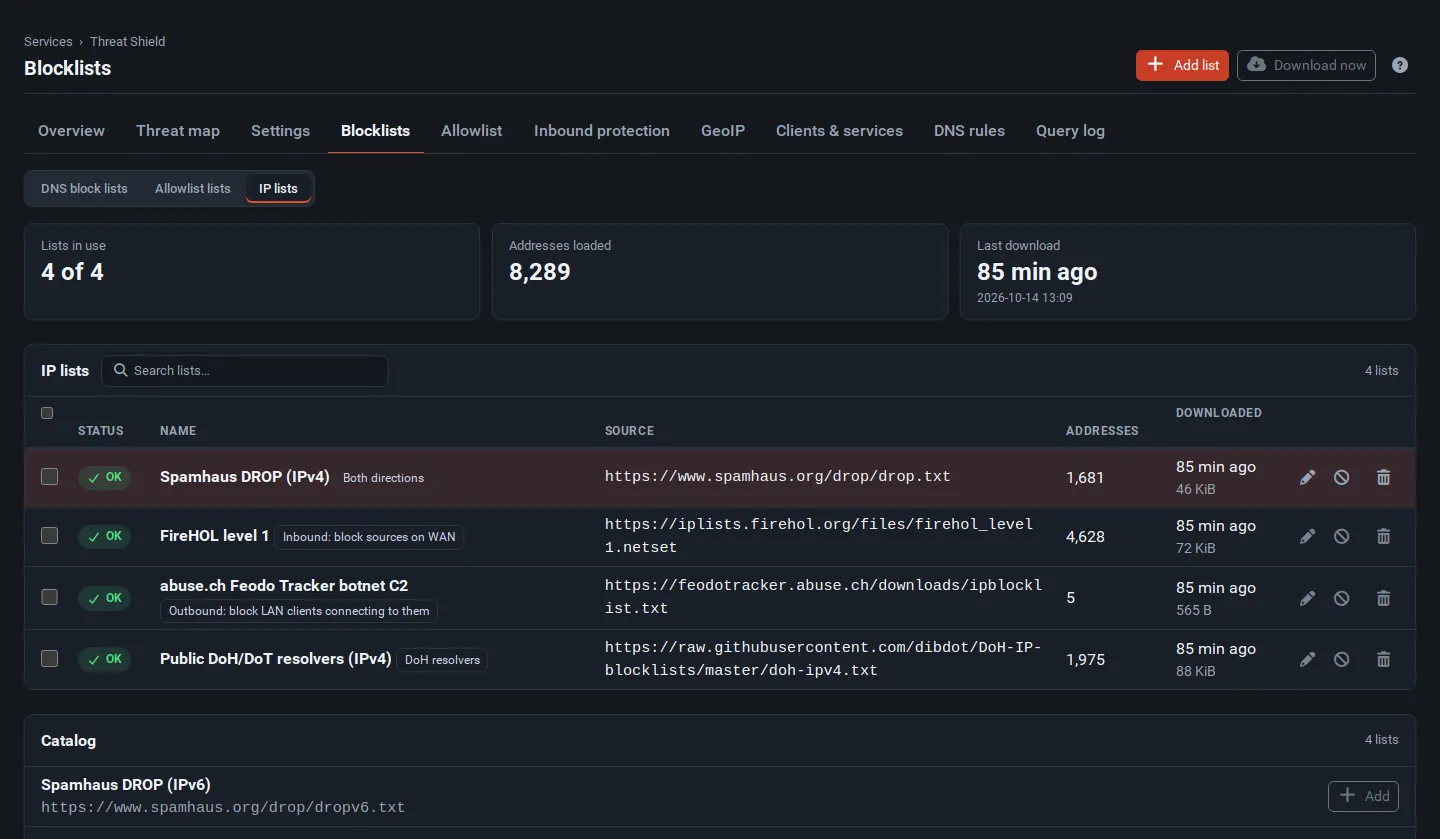
| List | Default direction |
|---|---|
| Spamhaus DROP (IPv4 and IPv6) | Both directions |
| FireHOL level 1 | Inbound: block sources on WAN |
| abuse.ch Feodo Tracker botnet C2 | Outbound: block LAN clients connecting to them |
| Emerging Threats compromised hosts | Inbound |
| CINS Army bad guys | Inbound |
| Public DoH/DoT resolvers (IPv4 and IPv6) | Used by DNS-over-HTTPS blocking (Anti-bypass) |
Edit a list to change its direction or to log its blocks. Private, link-local and your own networks are never blocked, and addresses on the IP allowlist are cut out of every list. IP lists are downloaded daily at minute 29 by default.
Guide: unblock a site that is broken
Section titled “Guide: unblock a site that is broken”When a site or app stops working after you turn on blocking:
- Open Query log and type the site name (or the client address) in the search box.
- Look for rows marked Blocked. The second line names the list that blocked the domain.
- Select Unblock on the row. The domain and its subdomains go on the allowlist and the change applies within seconds.
- Reload the site. Sites often use several domains; repeat for each blocked one.
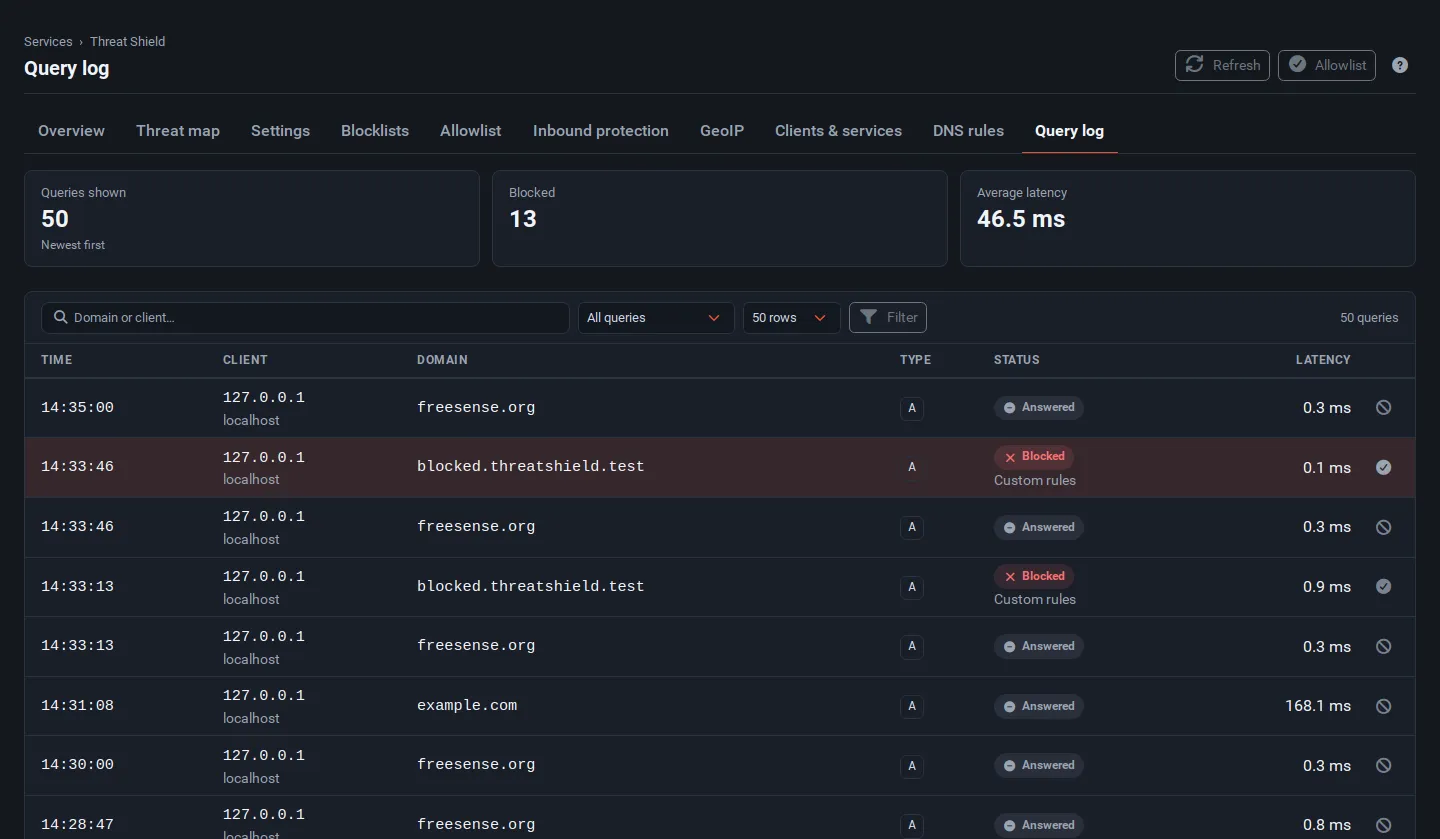
You can also unblock from the Overview (Blocked domains view) or add a domain by hand on the Allowlist tab with Add domain.
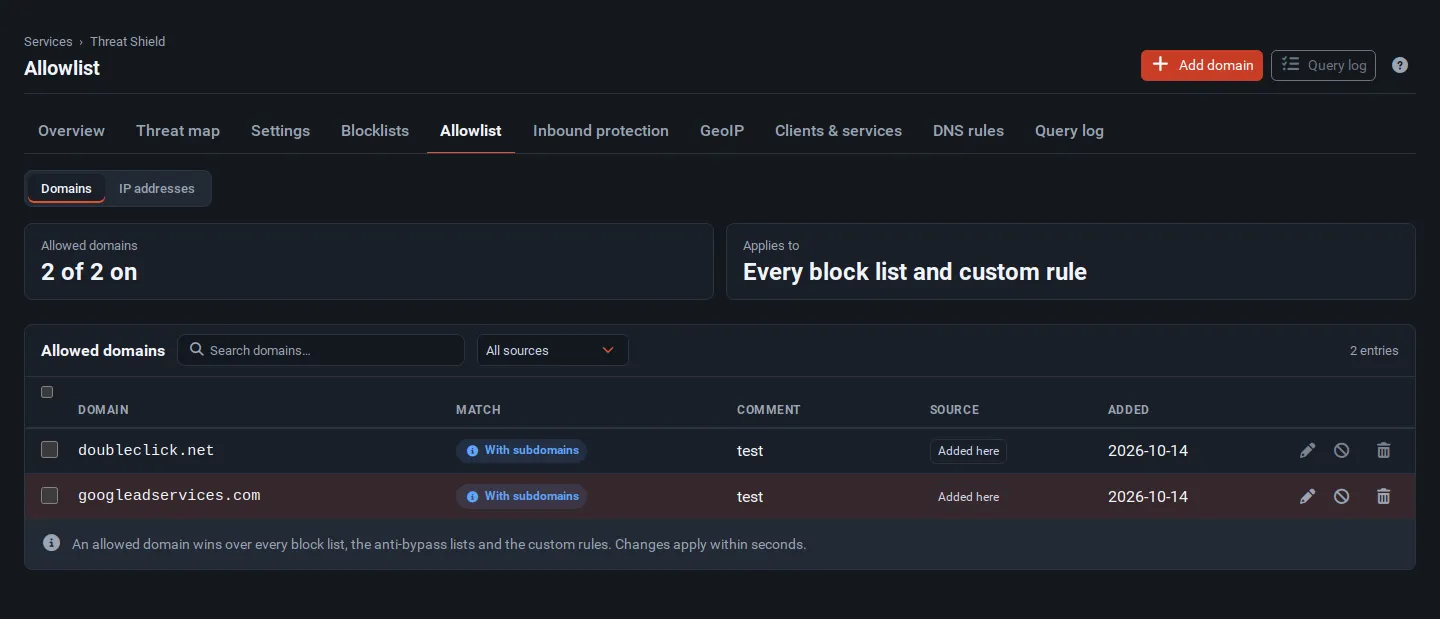
- An allowed domain wins over every block list, the anti-bypass lists and the custom rules.
- Match is either With subdomains (
example.comandwww.example.com) or Exact name. - Source shows where an entry came from, for example Added here, Query log or Overview.
- Allowlist → IP addresses holds addresses and networks that are never blocked by IP lists, GeoIP or reputation checks, for example a partner’s office or your monitoring service.
To block a domain that no list catches, select Block next to it in the query log, or add a
rule under DNS rules → Custom rules (||example.com^ blocks a domain and its subdomains).
Anti-bypass
Section titled “Anti-bypass”Many devices and browsers try to use their own DNS. The Anti-bypass section of Settings stops that on the interfaces you choose under Protected interfaces.
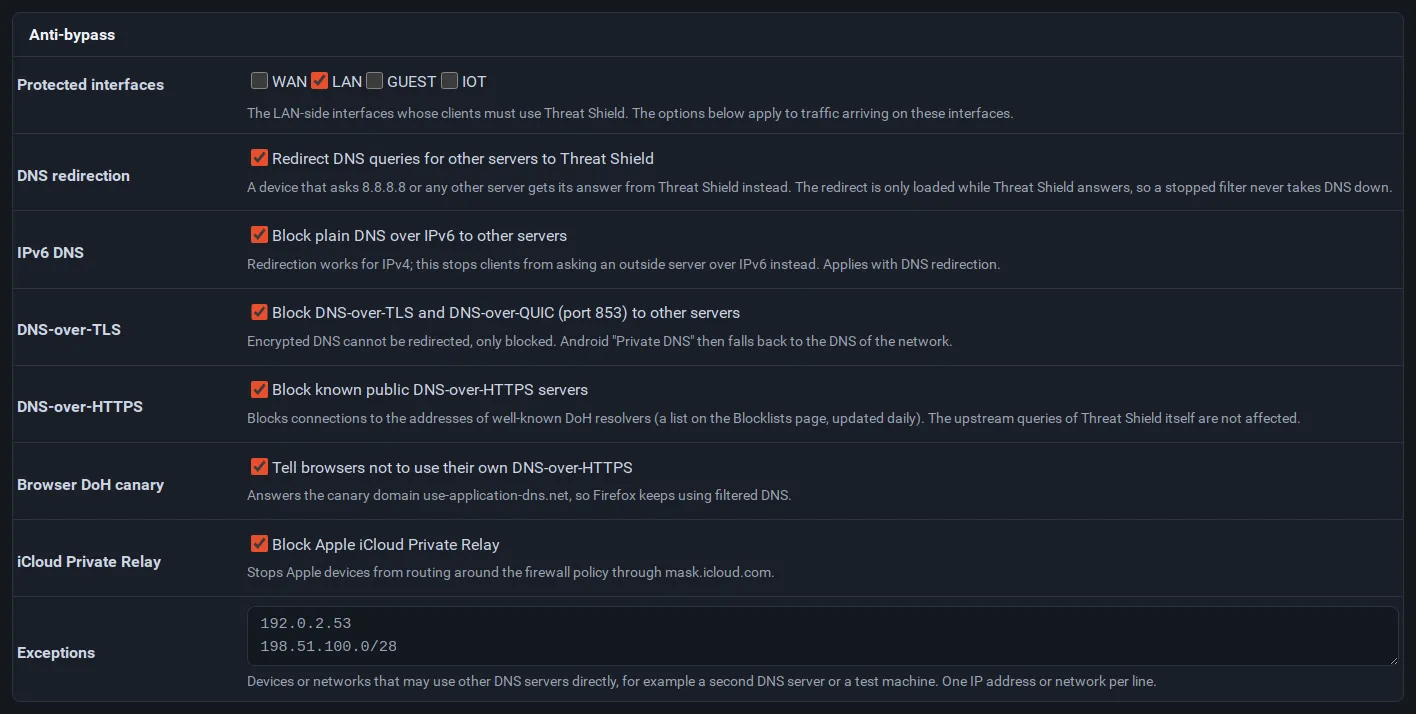
| Setting | What it does |
|---|---|
| DNS redirection | Plain DNS sent to any other server (for example 8.8.8.8) is answered by Threat Shield instead. The redirect is only loaded while Threat Shield answers, so a stopped filter never takes DNS down. |
| IPv6 DNS | Blocks plain DNS over IPv6 to other servers, which redirection cannot catch. |
| DNS-over-TLS | Blocks port 853 (DoT and DoQ) to other servers. Encrypted DNS cannot be redirected, only blocked. |
| DNS-over-HTTPS | Blocks connections to the addresses of well-known public DoH resolvers (the Public DoH/DoT resolvers IP list). Threat Shield’s own upstream queries are not affected. |
| Browser DoH canary | Tells browsers (Firefox) not to switch to their own DNS-over-HTTPS. |
| iCloud Private Relay | Blocks mask.icloud.com, so Apple devices do not route around the firewall policy. |
| Exceptions | Devices or networks that may use other DNS servers directly, for example a second DNS server or a test machine. |
GeoIP blocks or allows whole countries with firewall tables of country networks.
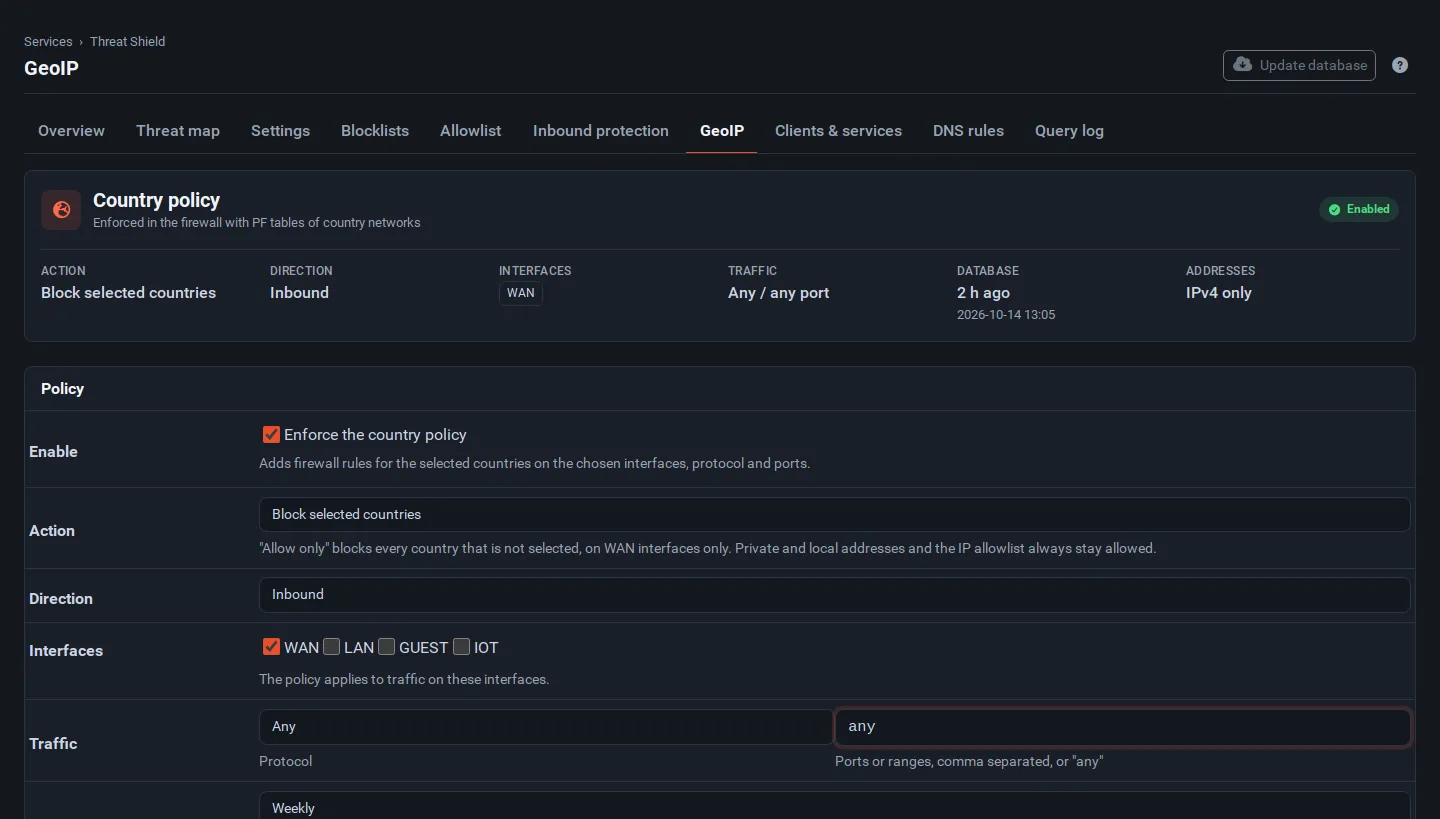
- Tick Enforce the country policy.
- Choose Action: Block selected countries, or Allow selected countries only (WAN interfaces only). “Allow only” blocks every country that is not selected, in each direction the policy covers.
- Choose Direction (Inbound, Outbound or both) and the Interfaces.
- Optionally limit Traffic to a protocol and ports, for example
22,443. - Pick the countries. High-risk preset selects a common set; the region filter and search help with the rest.
- Tick Also apply the policy to IPv6 addresses to filter IPv6 too.
- Select Save.
Country networks are downloaded from ipdeny.com (weekly by default, Update database downloads
them now). Private and local addresses and the IP allowlist are never blocked by country.
Clients, services and schedules
Section titled “Clients, services and schedules”Clients & services → Blocked services blocks whole services such as social networks, games, streaming, chat apps and AI assistants for every client without its own profile.
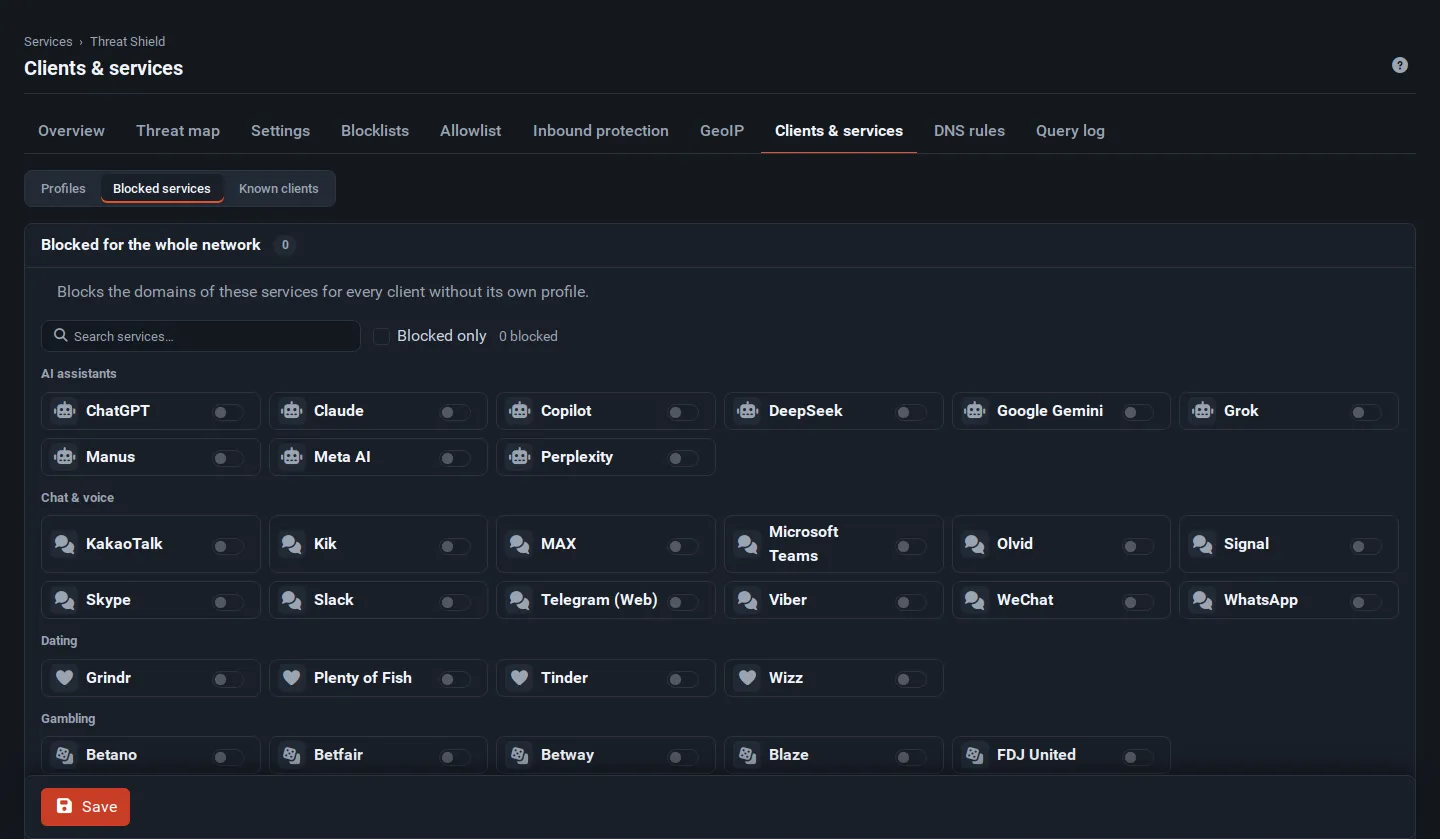
Unblock schedule allows the blocked services during set hours, for example gaming from 18:00 to 20:00 or social media during lunch. Choose the days, the start and end time for each day, and the time zone.
Profiles give a group of clients (up to 20 IP addresses, networks or host names) their own filtering choice, their own blocked services and their own schedule. Known clients lists the devices that used Threat Shield recently.
Settings reference
Section titled “Settings reference”General and upstream DNS
Section titled “General and upstream DNS”| Field | What it does | Default |
|---|---|---|
| Enable | Runs DNS filtering, anti-bypass, IP lists and GeoIP. | Off |
| DNS mode | Primary DNS: Threat Shield on port 53, DNS Resolver moved to 127.0.0.1:5335. Proxy: the DNS Resolver stays on port 53 and forwards to Threat Shield on 127.0.0.1:5354. Standalone: Threat Shield on port 53 and the DNS Resolver turned off. |
Primary DNS |
| DNS port | Listening port; primary mode needs 53. | 53 |
| Listen on | All assigned addresses or chosen interfaces. Pick internal interfaces only. | Set by the setup card |
| Management API port | AdGuard Home’s control API, bound to 127.0.0.1. |
3000 |
| Query strategy | Parallel (fastest answer), fastest IP, or load balancing. | Parallel |
| Upstream servers | One per line: https:// (DoH), tls:// (DoT), quic:// (DoQ) or a plain IP. |
Quad9 and Cloudflare over DoH |
| Bootstrap DNS / Fallback DNS | Plain addresses to resolve upstream names / used only when no upstream answers. | 9.9.9.9, 1.1.1.1 |
Filtering and query log
Section titled “Filtering and query log”| Field | What it does | Default |
|---|---|---|
| DNSSEC | Validate DNSSEC signatures. | On |
| Safe browsing | Block malware, phishing and command-and-control domains (AdGuard lookup service). | On |
| SafeSearch | Enforce SafeSearch on search engines and YouTube. | Off |
| Parental control | Block adult content and gambling (AdGuard lookup service). | Off |
| Blocked answer | What clients get for a blocked name: 0.0.0.0 / ::, NXDOMAIN, REFUSED, or your own IPv4 sinkhole / IPv6 sinkhole. |
Default |
| Query log | Log DNS queries (needed for the query log and top lists). | On |
| Keep log for | 6 hours to 90 days. | 90 days |
| Anonymize clients | Hide the last part of client addresses in the log and statistics. | Off |
| Ignored domains | Names that are never logged, such as monitoring checks. | Empty |
Collapsed sections
Section titled “Collapsed sections”- Cache: Cache size (MB), Minimum TTL, Maximum TTL and the optimistic cache.
- High availability and checks: HA sync copies the Threat Shield settings to the HA peer through System → High Availability (turn it on on both nodes; a pause and the DNS Resolver hand-over stay per node). Health check domain is the name the health checks resolve.
- Rate limiting and client subnet: Rate limit (queries/s) per client subnet (with IPv4 prefix and IPv6 prefix), Not rate limited, and EDNS client subnet.
Every save is validated, written to config.xml, applied and checked. Before a change that could
break DNS (for example enabling redirection while names do not resolve), Threat Shield refuses the
save and says why. If the daemon does not start, the previous settings are restored.
Firewall rules
Section titled “Firewall rules”Threat Shield loads its rules before your own firewall rules, in this order: IP lists, GeoIP,
anti-bypass, then inbound protection. Run pfctl -sr | grep ThreatShield from
Diagnostics → Command Prompt to list them; every Threat Shield rule has a ThreatShield …
label. The DNS redirect is a NAT rule to 127.0.0.1: pfctl -sn | grep 127.0.0.1.
- In primary and standalone mode, clients must be allowed to reach the firewall on TCP and UDP port 53. The default LAN rule already allows this; add a pass rule on other internal interfaces.
- The management API (3000) and the proxy listener (5354) are bound to
127.0.0.1and need no rules.
Service, files and schedule
Section titled “Service, files and schedule”| Item | Value |
|---|---|
| Services | threatshield (AdGuard Home) and threatshield_dnsbl (reputation checks, only with inbound protection), shown under Status → Services |
| Generated configuration | /usr/local/etc/threatshield/AdGuardHome.yaml; rewritten on every save, do not edit |
| Working directory | /var/db/threatshield: lists, IP tables (ip/), country lists (geoip/), reputation cache (dnsbl/), threat map data (map.sqlite, geodb/), pause state |
| Updater | /usr/local/sbin/freesense-threatshield-update with feeds, ipfeeds, geoip or geodb, optionally followed by force |
| Cron | Lists at :17, IP lists at :29, country lists at :43 (each only when its interval has passed), health every 5 minutes, threat map data every minute and its clean-up at :07, location data at 03:51 when turned on |
Upgrade, backup and removal
Section titled “Upgrade, backup and removal”- Upgrading from package 1.0.0: the settings are converted once. Feeds keep their downloads and
the level shows as Custom. Simple
@@||domain^allow rules move from custom rules to the Allowlist; other rules stay where they were. New firewall features (anti-bypass, IP lists, inbound protection) stay off until you turn them on. - All settings are stored in
config.xmlunderinstalledpackages/threatshieldand are part of a normal backup. Downloads are rebuilt after a restore. - When Threat Shield takes over port 53 it records the DNS Resolver’s port, interfaces and options. Turning Threat Shield off or removing the package restores them.
- Removing the package stops both services, removes its rules, tables and cron jobs, restores the DNS Resolver and reloads the firewall.
- pfBlockerNG settings are not converted. After upgrading from FreeSense 1.0, rebuild your lists in Threat Shield.
Troubleshooting
Section titled “Troubleshooting”| Symptom | Cause and fix |
|---|---|
| The health pill shows a problem | Open it; the failing check explains the cause and offers a button that fixes it. |
| DNS filter fails | Select Restart. If it stops again, stop the service and run AdGuard Home in the foreground to see its error: /usr/local/bin/AdGuardHome --no-check-update -c /usr/local/etc/threatshield/AdGuardHome.yaml -w /var/db/threatshield. Another service on port 53 is the usual cause (for example the DNS Forwarder). |
| A site or app is broken | Find the blocked domains in the Query log and Unblock them; see the guide above. For many breakages, use the Light level. |
| Ads still show | Make sure the device uses the firewall for DNS: with DNS redirection, DNS-over-TLS and DNS-over-HTTPS blocking on, devices cannot get around it. Try the Normal or Aggressive level. Some ads (YouTube, social media feeds) come from the same domains as the content and cannot be blocked by DNS. |
| A list shows an error | The last good copy stays in use. Run freesense-threatshield-update feeds force at the console to see each download. |
| Local host names stop resolving | Use Primary or Proxy mode. Standalone turns the DNS Resolver off. |
| Firewall rules fails | The firewall rejected a rule; the check names the file with the details. Select Reload firewall after correcting the setting. |
| Need to test without filtering | Use Pause on the Overview instead of turning Threat Shield off. |