

Fleet updates, templates and schedules
This page covers the day-to-day tools of FreeSense Fleet: updating firewalls in safe steps, pushing the same settings to many firewalls, running jobs on a schedule, keeping the same users on many firewalls and sending alerts. The wall-screen view and internet monitoring have their own pages: live view and internet connectivity.
Updates
Section titled “Updates”Updates → Overview shows the newest version offered, how many firewalls can update, and every version running in the fleet with the firewalls on it.
Maintenance windows
Section titled “Maintenance windows”A maintenance window is a weekly time when a group may be updated, for example weeknights at 01:00 for three hours.
- Open Updates → Maintenance windows and select Add window.
- Enter a Name, choose the Days, the start time (Starts at) and the Length in minutes.
- Select Save window.
- Give a group the window under Firewalls → Groups → Change → Maintenance window.
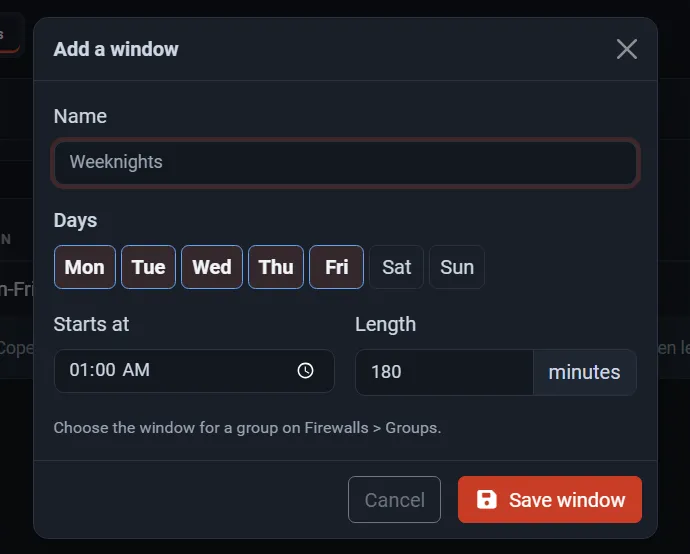
Times are in the controller’s time zone. A window may run past midnight. A rollout does not start an update when less than 60 minutes of the window are left.
Rollouts
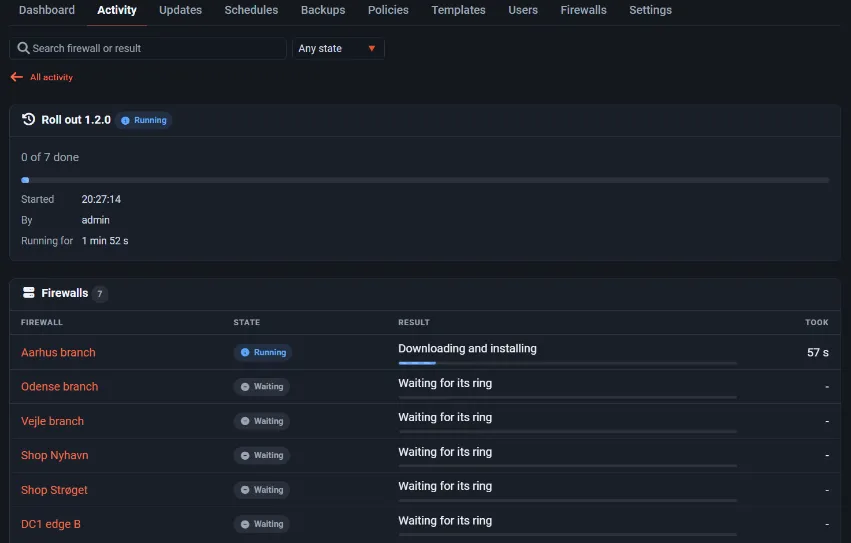
Section titled “Rollouts”Updates → Rollouts updates firewalls ring by ring, each group inside its maintenance window. The tab lists something only when at least one firewall has an update available. Firewalls without rollback protection (UFS) are left out unless you allow them in the update settings. Pinned and allowed version policies also stop updates that would break them.
To start one, select Roll out on Updates → Overview:
- Choose a group for each ring, up to five. Rings update in order; inside a ring the firewalls update one at a time. A firewall that is in an HA pair is updated after its partner, the BACKUP first.
- Select Review. The plan lists each ring, its window and its firewalls in order, and a Wait between rings field (24 hours by default; 0 starts the next ring as soon as the one before is done).
- Select Start the rollout and confirm in the window that says each firewall is backed up first and restarts, so it stops forwarding for a few minutes.
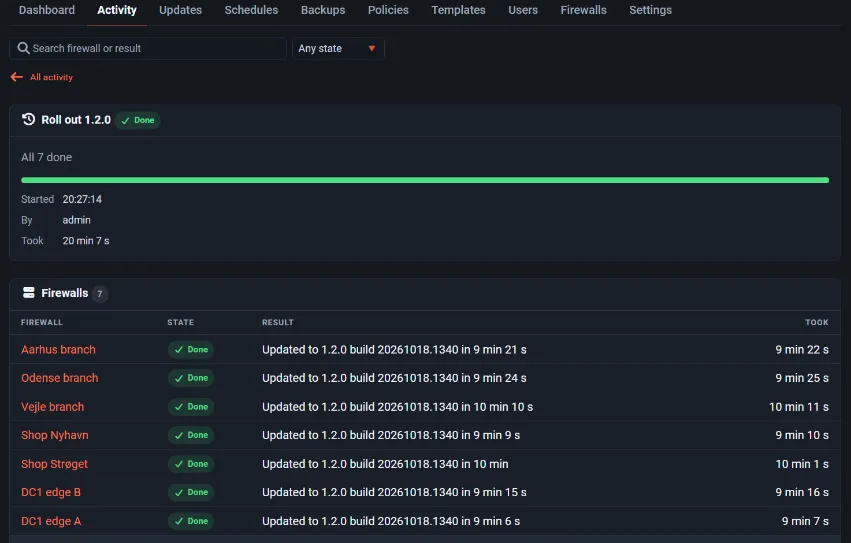
Activity then shows every firewall with its state, and a failure in a ring pauses the rollout until you resume it or cancel the rest. After a firewall restarts, Fleet reads the installed build from it and compares the full build stamp, so two Development builds with the same version number are told apart.
Templates
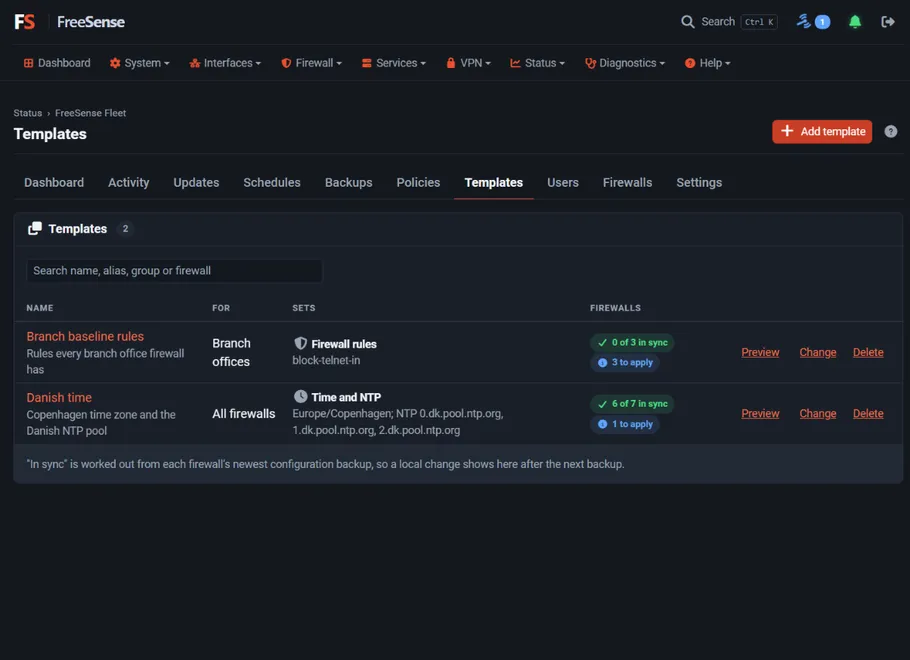
Section titled “Templates”A template pushes the same configuration to many firewalls. Fleet shows what would change on each firewall before anything is applied.
| Kind | What it sets |
|---|---|
| Aliases | Lists of servers, networks or ports. Fleet only ever changes aliases it pushed itself. |
| Firewall rules | Pass and block rules, first on their interface. |
| Port forwards | NAT port forwards with their firewall rule. |
| Time and NTP | Time zone and NTP servers. |
| DNS servers | The DNS servers the firewall itself uses. |
| SNMP | SNMP on or off, location, contact and community. |
| Remote logging | Central syslog servers. |
Rules and port forwards are applied under commit-confirm: if a change cuts Fleet off from a
firewall, the firewall puts its previous rules back by itself. They need FreeSense with API level
11 or later; older firewalls are skipped with FLEET-E401. A firewall can have one settings
template of each kind.
Add and apply a template
Section titled “Add and apply a template”- Open Templates and select Add template. In the window that opens, choose a kind, for example Time and NTP (for aliases there are also ready-made starters).
- Enter a Name and Description, choose For (all firewalls, groups or single firewalls) and fill in the settings. Rule and port-forward rows start empty, with hints in the fields.
- Select Save and preview. Saving changes nothing on the firewalls.
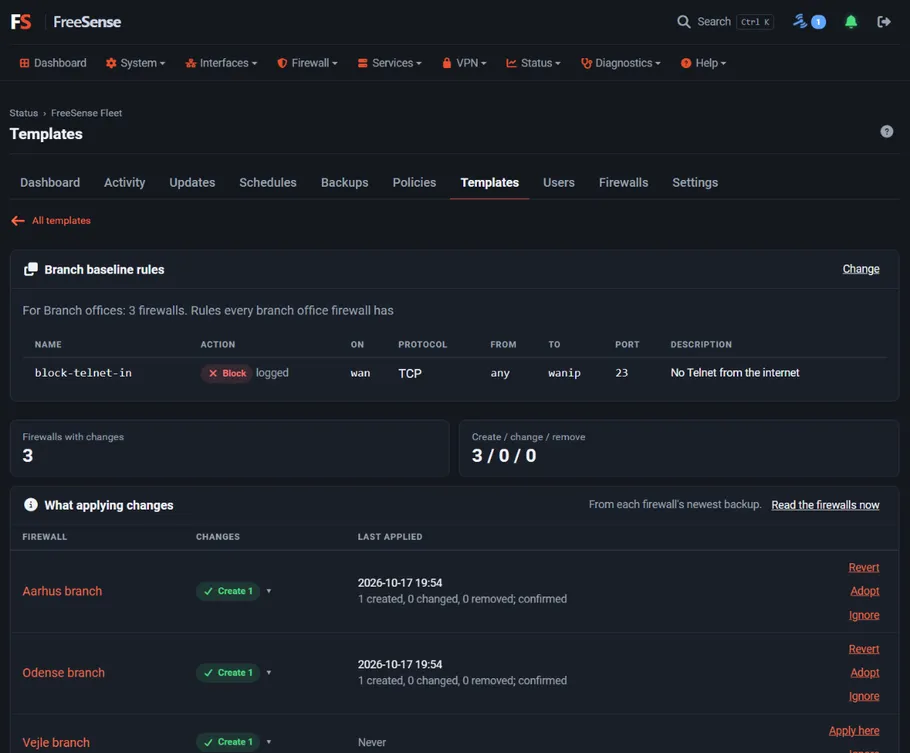
- Check What applying changes: each firewall with its changes, read from its newest backup.
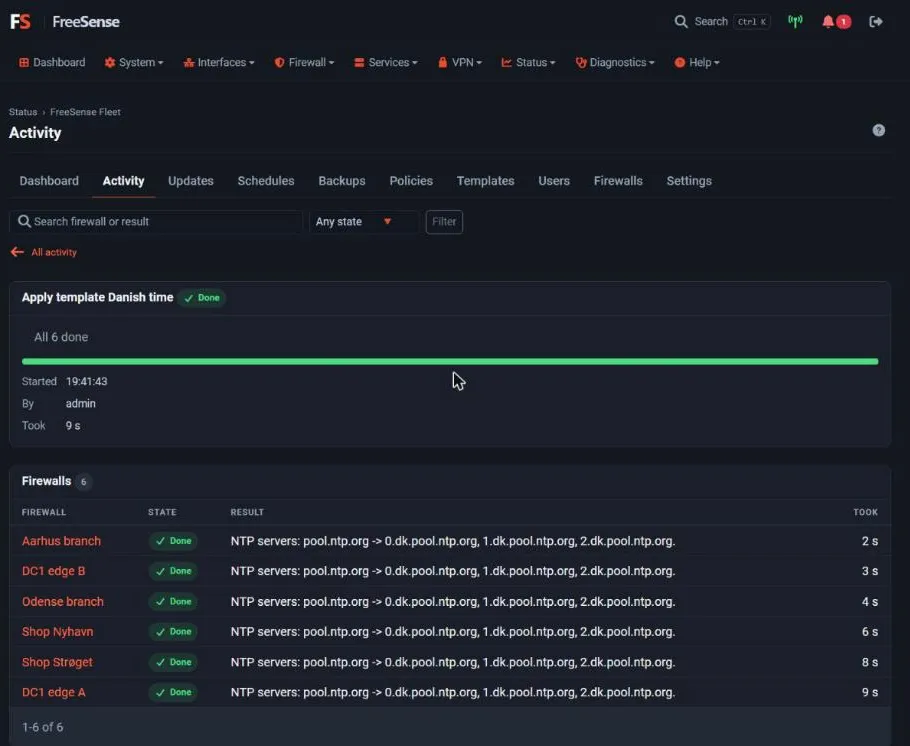
Open a row to see each change, for example
NTP servers pool.ntp.org → 0.dk.pool.ntp.org, …. Select Read the firewalls now to read them again first. - Apply per firewall with Apply here, or to all with Apply to N firewalls. Ignore leaves one firewall as it is.
Applying runs as an operation in Activity:
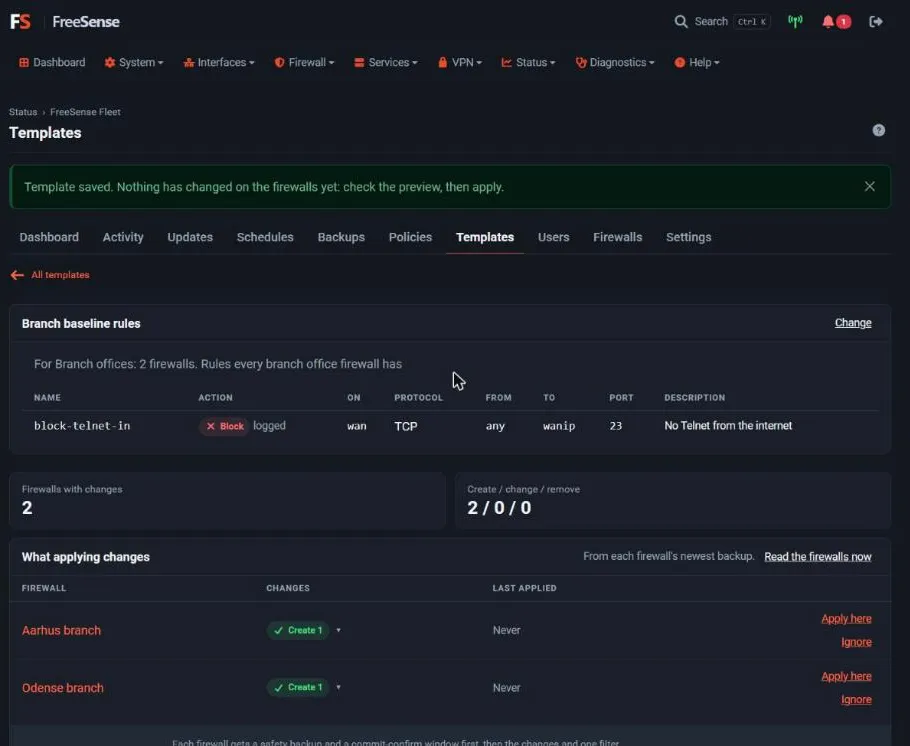
Example: a firewall rule for one group
Section titled “Example: a firewall rule for one group”A Firewall rules template for Branch offices that blocks and logs Telnet to the WAN address. The preview lists one rule to create on each of the two branch firewalls:
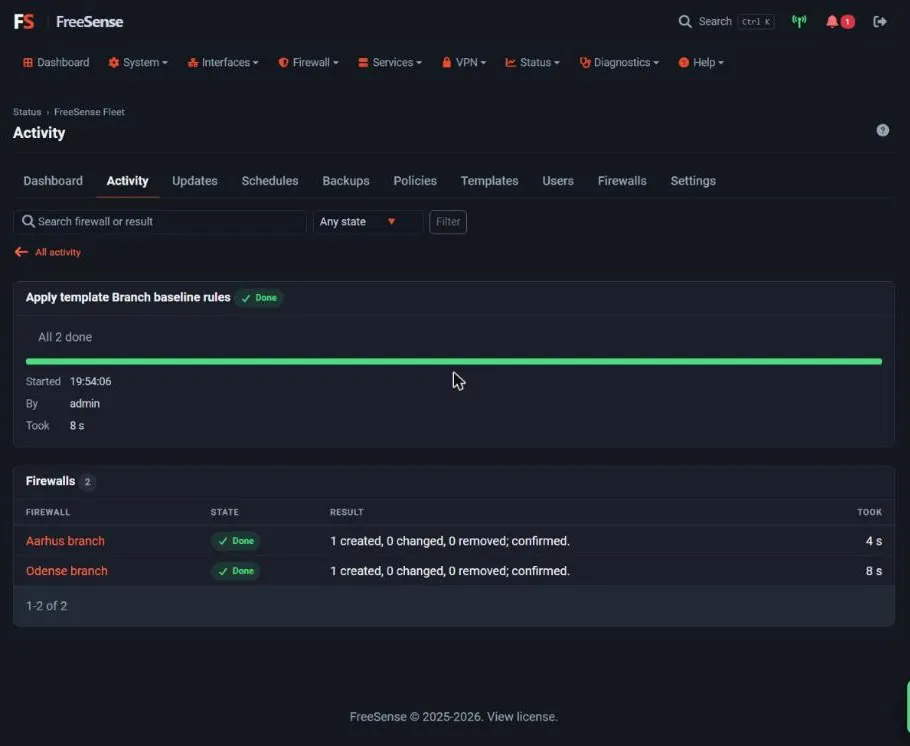
Each firewall gets a safety backup and a commit-confirm window first. The result says 1 created, 0 changed, 0 removed; confirmed:
On the firewall, the rule’s description starts with [Fleet:T<id>:<rule name>], so you can see
which template it came from.
When a firewall later drifts from its template, Fleet shows it, and you can adopt the firewall’s value, ignore it or put the template’s value back.
Schedules
Section titled “Schedules”A schedule backs up, reboots or updates firewalls at a set time.
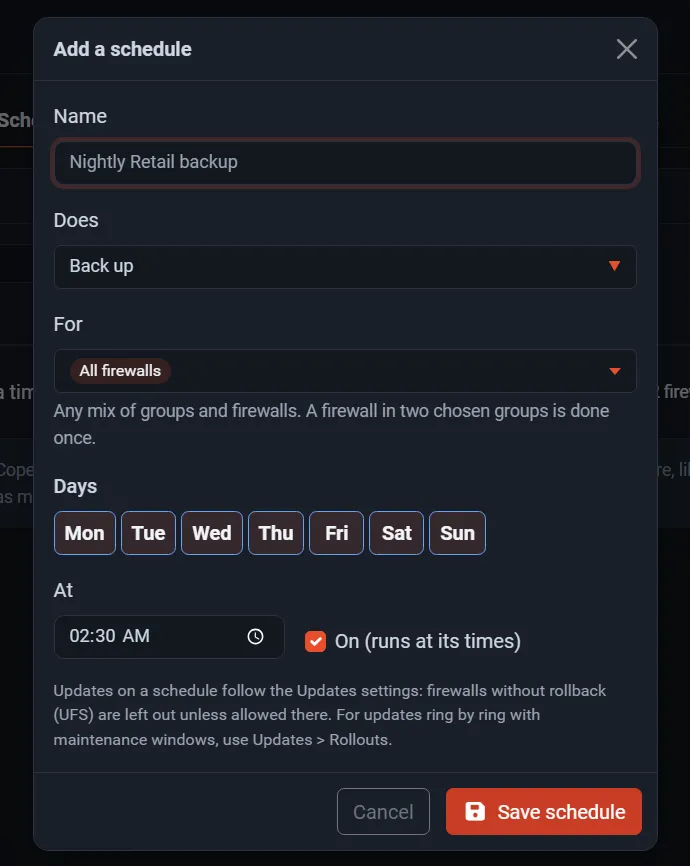
- Open Schedules and select Add schedule.
- Enter a Name and choose what it Does: Back up, Reboot one at a time or Update one at a time.
- Under For, choose any mix of groups and firewalls. A firewall in two chosen groups is done once.
- Choose the Days and the time (At). Leave On (runs at its times) ticked.
- Select Save schedule.
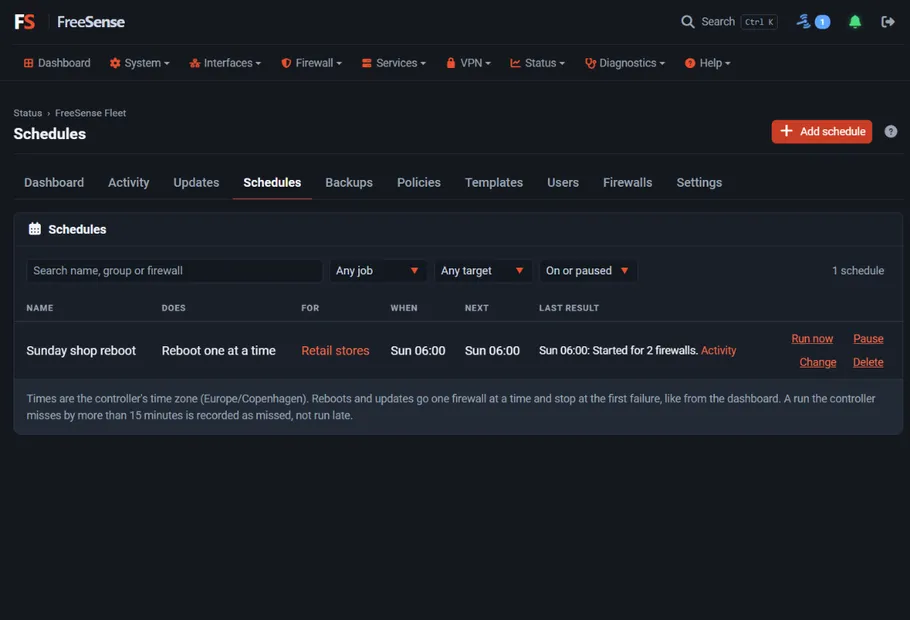
The list shows each schedule’s next run and last result, with Run now, Pause, Change and Delete. Run now asks first for a reboot or update, and starts it at once when you confirm.
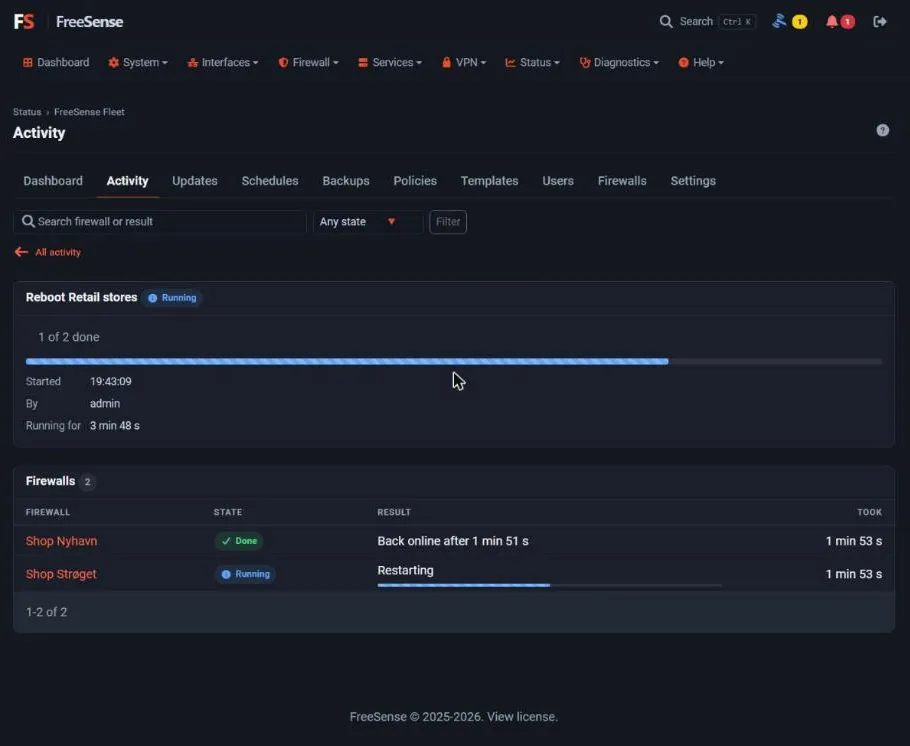
Reboots and updates go one firewall at a time and stop at the first failure. Each firewall must come back online before the next one starts:
Times are in the controller’s time zone. A run the controller misses by more than 15 minutes is recorded as missed, not run late.
Fleet can keep the same accounts on many firewalls. Local accounts on a firewall (such as
admin) are never changed.
- Open Users → Groups → Add group. Enter a name, choose For (the firewall groups or firewalls the group is for) and the Privileges its members get.
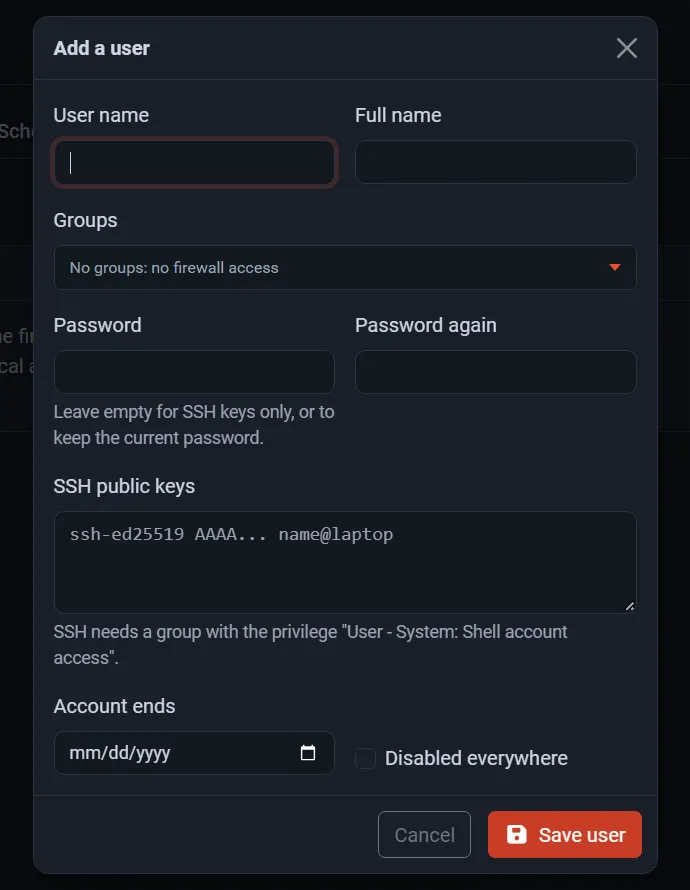
- Open Users → Users → Add user. Enter a user name, choose the groups, and a password and/or SSH public keys. With no password the user can sign in with SSH keys only. SSH needs a group with the User - System: Shell account access privilege.
- Open Users → Sync and select Sync N firewalls. Each firewall gets a safety backup first, and only accounts Fleet made are changed or removed. A firewall that was never synced shows Waiting for the first sync; only a difference that appears after a sync is shown as a change on the firewall, with Adopt and Ignore.
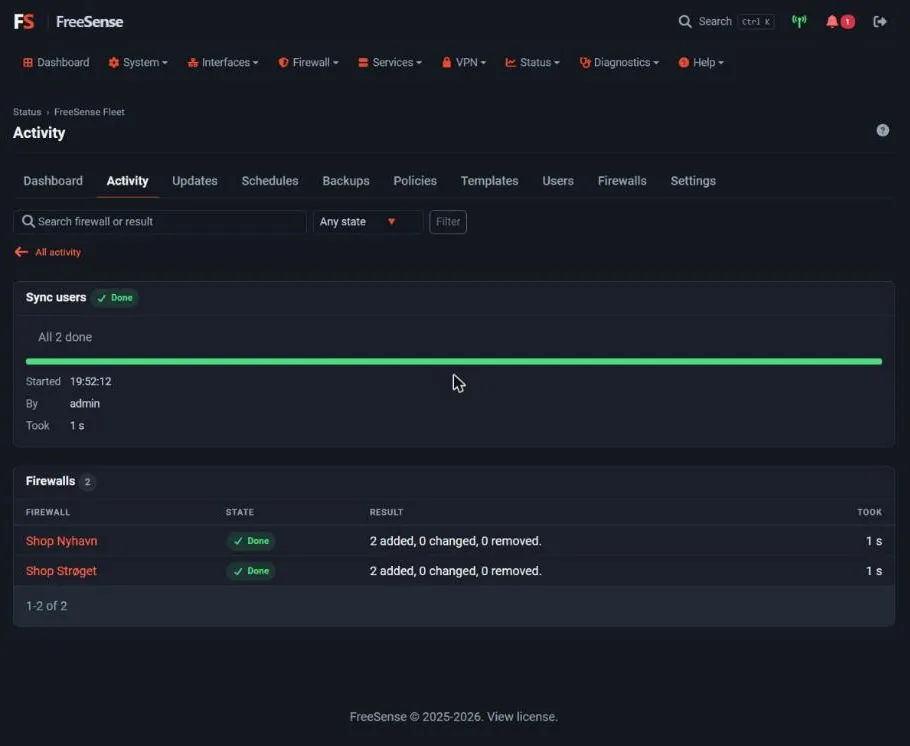
Lock Fleet users on the firewalls makes the firewalls refuse local edits to the accounts Fleet manages. A firewall that is updated is synced again by itself.
Alerts and outages
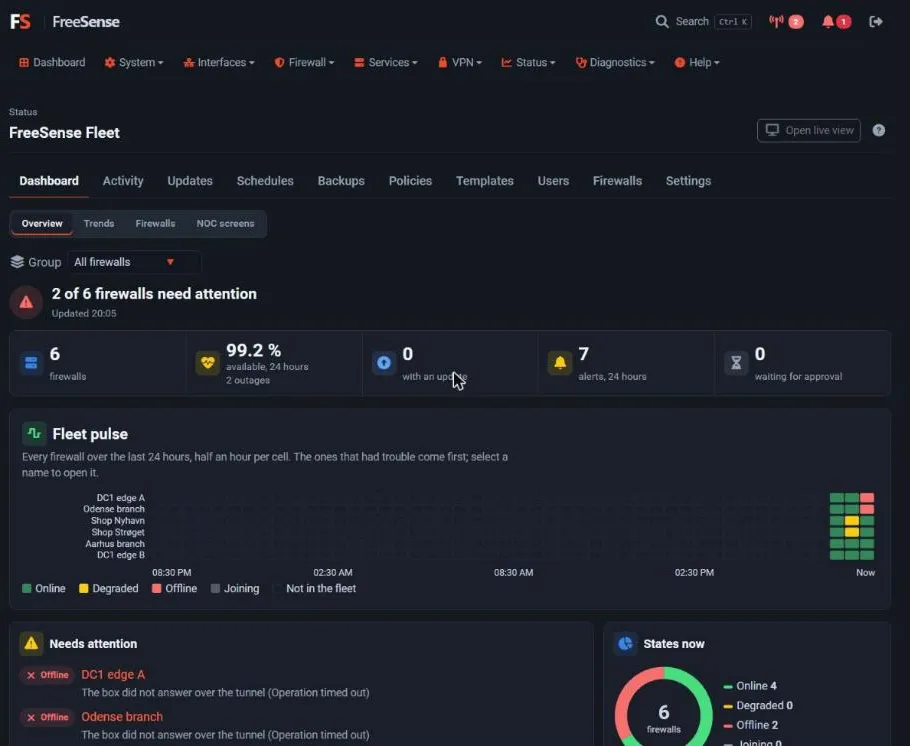
Section titled “Alerts and outages”Fleet asks each firewall for its status every 15 seconds (Settings → Monitoring). A firewall that does not answer is marked degraded after 1 minute and offline after 5 minutes; both times can be changed. An offline firewall counts as an outage in the availability figure.
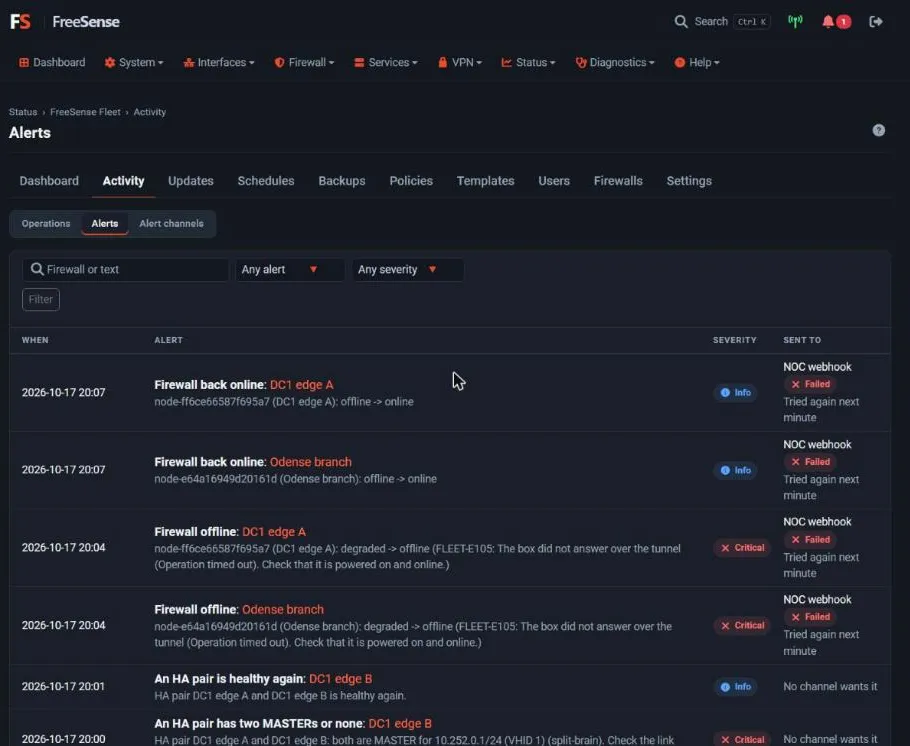
Activity → Alerts lists every alert with its severity and where it was sent:
To send alerts somewhere, add a channel under Activity → Alert channels: e-mail (it uses
System → Advanced → Notifications), a webhook, Slack or Teams, Telegram, ntfy or Gotify. Pick
the alerts the channel wants, the lowest severity, and an optional daily report, then select
Send test. Webhook addresses use https:// (http:// is accepted for a lab, but alerts then travel
unencrypted). For a receiver with a self-signed or private-CA
certificate, enter its SHA-256 fingerprint under Trust this certificate. A delivery that
fails is retried every minute.