

FreeSense Fleet
FreeSense Fleet is central management for FreeSense, and it is self-hosted by design: it is not
a cloud service and does not need one. You run the controller yourself, your firewalls connect to
it, and nothing in between is run by the FreeSense project. One firewall runs the Fleet controller
(the optional package FreeSense-pkg-Fleet); every other firewall joins it with the Fleet
agent, which is part of FreeSense itself. From the controller you see every firewall on one
dashboard and on a wall screen, and can back them up, update them, check them against policies and
set up HA pairs. A new firewall joins from its own WebUI by pasting an invitation.
To see what the package installs, what the agent does on a managed firewall and how joining works, read How Fleet is installed and works on the firewalls.
What Fleet gives you:
- One dashboard for every firewall: state, availability over 24 hours, alerts and updates.
- Groups such as Branch offices or Retail stores, used to filter lists and to target backups, updates, schedules and policies.
- Guided joining: make an invitation on the controller, paste it into Add to fleet on the new firewall, and compare a 6-digit code before you approve. Fleet tunnel, Tailscale (installed for you) or a direct connection. See Add a firewall to a Fleet.
- Connection points: choose the interfaces and ports the controller listens on; Fleet opens and closes the ports with locked firewall rules. See connection points and firewall rules.
- A live view for a wall screen: panels on one side, a paged firewall list on the other, per screen layout, groups and sound. See Fleet live view.
- Internet monitoring: packet loss, latency, jitter, a quality score and failover alerts for every firewall. See internet connectivity.
- Backups of every firewall, kept on the controller, with retention rules.
- Updates and rollouts with maintenance windows, templates and schedules. See Fleet updates, templates and schedules.
- Policies that check, fix or lock settings on every firewall. See Fleet policies.
- HA pairs set up from two firewalls in a step-by-step guide. See Fleet HA pairs.
- Activity: every action runs as an operation with live progress.
- Confirmations before deletes and other critical actions, with a warning that says what will happen. See Fleet settings.
- Settings for everything, in sections. See Fleet settings.
Firewalls open the connection to the controller, so they can sit behind NAT. Only the controller must be reachable: on its enrollment port (TCP, 8443 by default) and tunnel port (UDP, 51830 by default), or in a tailnet with no public port at all.
Self-hosted and private
Section titled “Self-hosted and private”Fleet is built so that the whole fleet stays in your hands:
- No cloud service. There is no FreeSense-hosted Fleet service, no account to create and no subscription. The controller is an optional package on a FreeSense system that you own.
- Your data stays on your controller. The inventory, history, alerts, backups, policies and keys
are stored on the controller under
/fleet(its own ZFS dataset when the controller boots from ZFS). Removing the package does not delete the fleet. - No phone home. Fleet makes no connection to FreeSense servers. The invitation a new firewall pastes points at your controller, and each firewall pins the controller’s certificate.
- Encrypted and authenticated. Firewalls reach the controller over the Fleet tunnel (WireGuard), over a tailnet, or directly. Joining needs an invitation from your controller and a 6-digit approval code that you compare on both screens.
- Optional third parties only when you choose them. Tailscale is one way to connect, and alert channels (email, a webhook, Slack or Teams, Telegram, ntfy or Gotify) reach the services you configure. Fleet works without any of them.
Where to run the controller
Section titled “Where to run the controller”The controller is an ordinary FreeSense system, so you decide where it lives:
| Setup | What it looks like |
|---|---|
| On your own network | The controller is a firewall or VM at your headquarters or lab. Firewalls reach it over your WAN, your LAN or a VPN. |
| On your own server | The controller runs on a server or VM you operate, for example a hypervisor in a rack. |
| On a public host that you control | Deploy the controller from a FreeSense cloud image on a server or cloud account that you own, give it a public address, and let your firewalls reach it as a WAN connection point. You manage the fleet from that site over a secure connection. It is still your server and your data; the project runs nothing. |
| Inside a tailnet | If you use Tailscale, the controller can sit in your tailnet and firewalls join without any public port. |
Choose where the controller is reachable under Settings → Controller (see connection points and rules). Only the controller must be reachable. Firewalls open the connection, so they can sit behind NAT.
Install the controller
Section titled “Install the controller”Only the controller needs the package; managed firewalls need nothing installed (see how Fleet is installed).
- On the firewall that becomes the controller, open System → Package Manager → Available Packages.
- Install FreeSense Fleet (
FreeSense-pkg-Fleet, category System). - Open Status → FreeSense Fleet, then Settings → Controller.
- A step-by-step guide starts. Switch on, then choose Where firewalls connect: one row per interface firewalls reach this controller on (WAN for the internet, LAN for your own networks, Tailscale for a tailnet), with the port. Leave the address empty and Fleet finds it itself; enter a public address or DNS name when the controller sits behind NAT.
- Let Fleet open the ports (Firewall rules), or manage them yourself.
- Choose whether firewalls may also connect over Tailscale, review, and select Switch on.
See connection points and firewall rules for the details.
The page confirms Saved. FreeSense Fleet is running. A Fleet icon appears in the top bar; it turns from green to a warning colour when something in the fleet needs attention, such as an offline firewall, a failing policy rule or a firewall without internet. Settings → Self-check tests that firewalls can reach and trust the controller.
The controller itself is listed first under Firewalls as Fleet server. It is not managed by Fleet and keeps a self-backup.
Create groups
Section titled “Create groups”Groups are optional, but they make a larger fleet much easier to read. A firewall can be in several groups.
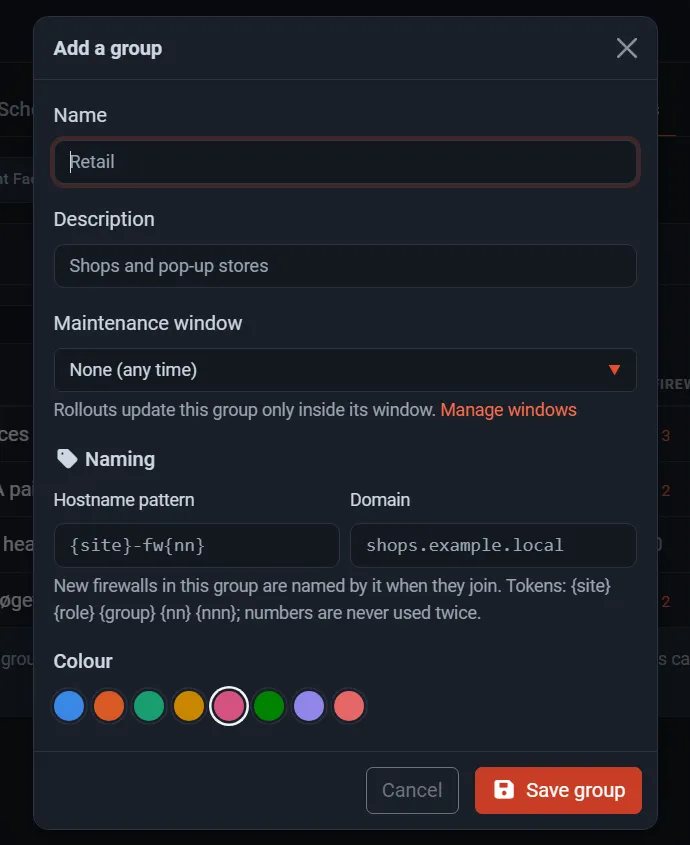
- Open Firewalls → Groups and select Add group.
- Enter a Name and a Description, and pick a Colour.
- Optionally choose a Maintenance window (rollouts update the group only inside it) and a
Naming pattern: new firewalls in the group are named by it when they join. Tokens:
{site},{role},{group},{nn},{nnn}. Numbers are never used twice. - Select Save group.
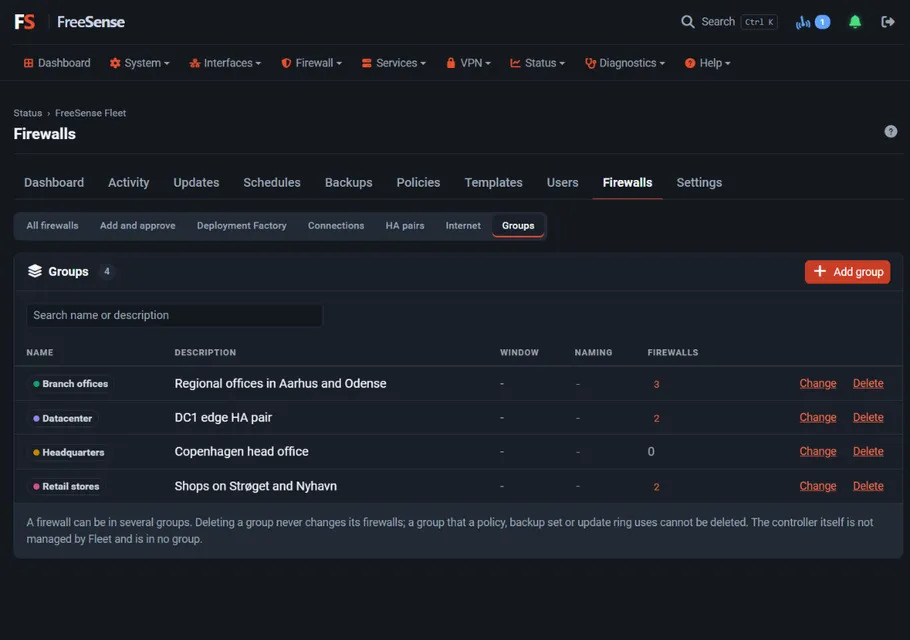
Deleting a group never changes its firewalls. A group that a policy, backup set or update ring uses cannot be deleted.
Add a firewall
Section titled “Add a firewall”Each new firewall needs an invitation.
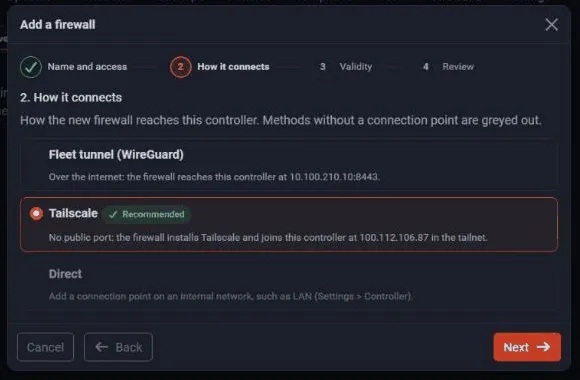
- On the controller, open Firewalls → Add and approve and select Add a firewall. The guide asks for a name and access, how the firewall connects, and how long the invitation is valid, then gives you one text to paste. It is shown once.
- On the new firewall, open System → Central Management → Add to fleet, paste the text and follow the steps. A 6-digit code appears.
- Back on the controller, approve the firewall only when the code matches.
All the details, the console route (freesense-join join), Tailscale and many firewalls at once
with the Deployment Factory are on
Add a firewall to a Fleet.
The firewall list
Section titled “The firewall list”Firewalls → All firewalls lists every firewall with its state, version, groups, last contact and last backup. Search by name, address or version, and filter by state, group or version. The quick filters at the top show firewalls waiting to join, needing attention, with an update, with policy problems or without rollback protection.
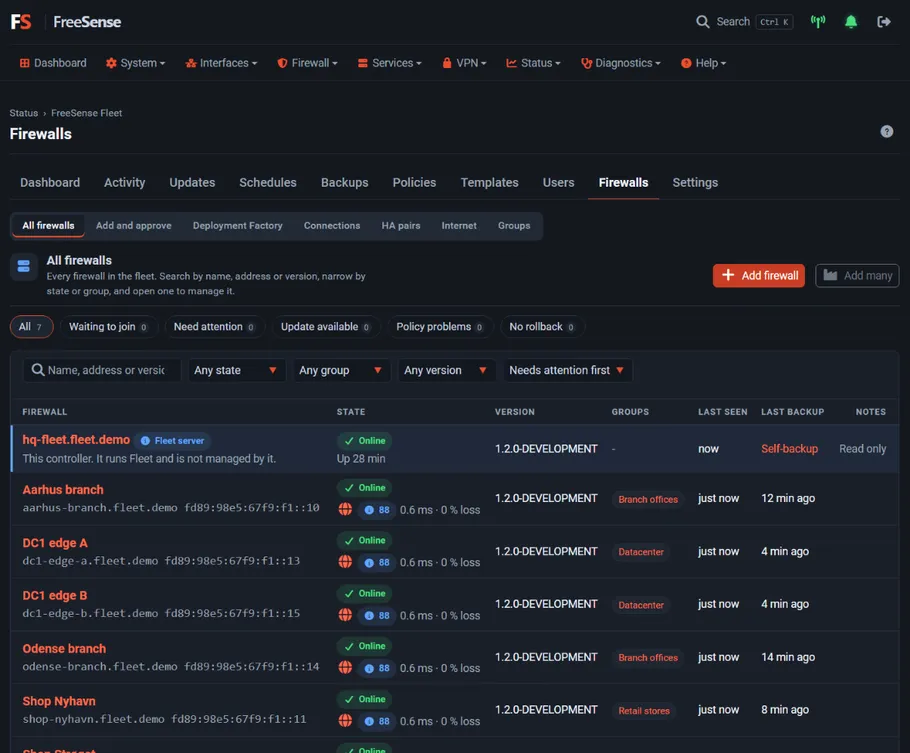
Select a firewall to open its own page: Overview, System, Stats, Updates, Policies, Backups, Manage and Events. Groups → Change on the Overview moves it between groups. Stats has one range picker (1 hour to 30 days) and four groups of charts: availability and load, network, internet and activity. Lists filter as soon as you choose a state, group or version.
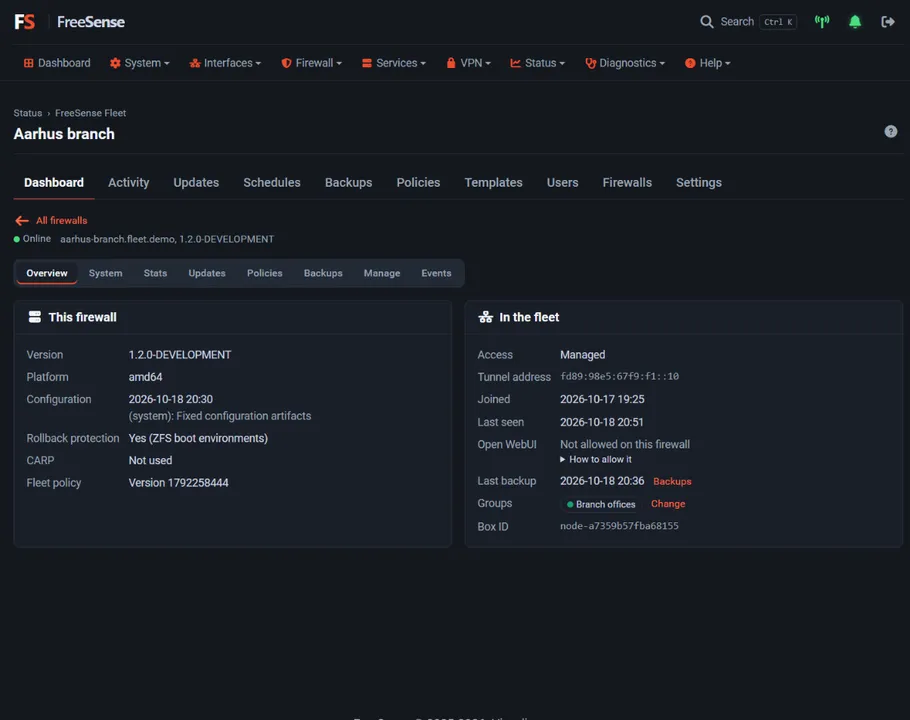
Open WebUI signs you in to the firewall’s own WebUI through the controller. It is off until a local administrator allows it, for chosen users, on the firewall’s console:
freesense-join handoff-users adminDashboard
Section titled “Dashboard”Dashboard → Overview sums up the fleet: how many firewalls are online, availability over the last 24 hours, updates waiting, alerts and firewalls waiting for approval. Fleet pulse shows every firewall over the last 24 hours, half an hour per cell, with the ones that had trouble first. Needs attention lists only firewalls with a problem. Choose a Group to narrow the whole dashboard.
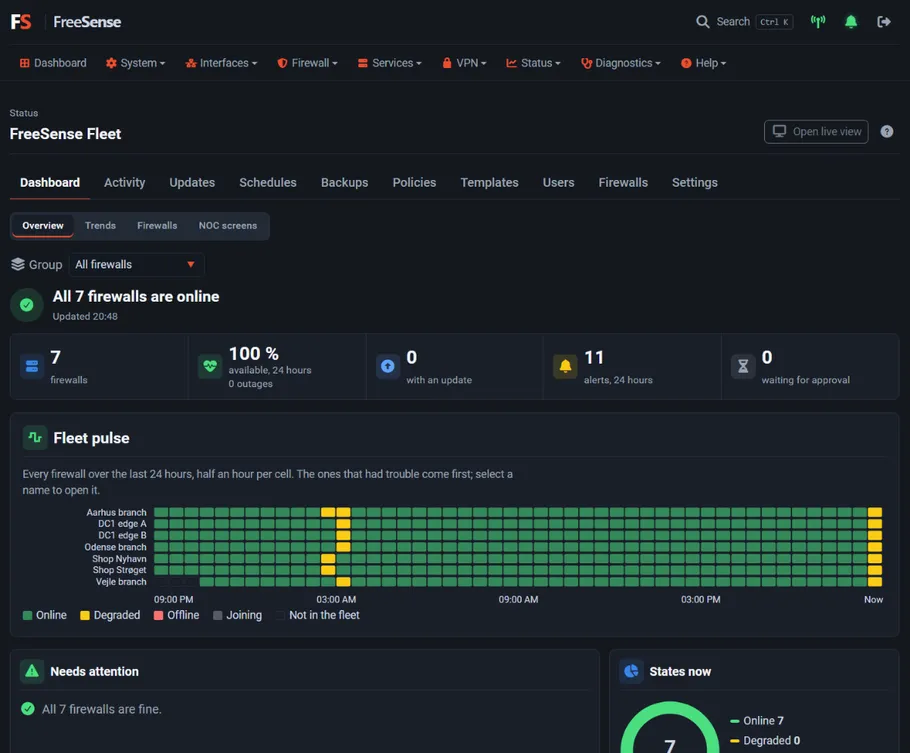
Open live view and NOC screens show the same data full screen for a wall display. See Fleet live view and NOC screens.
Backups
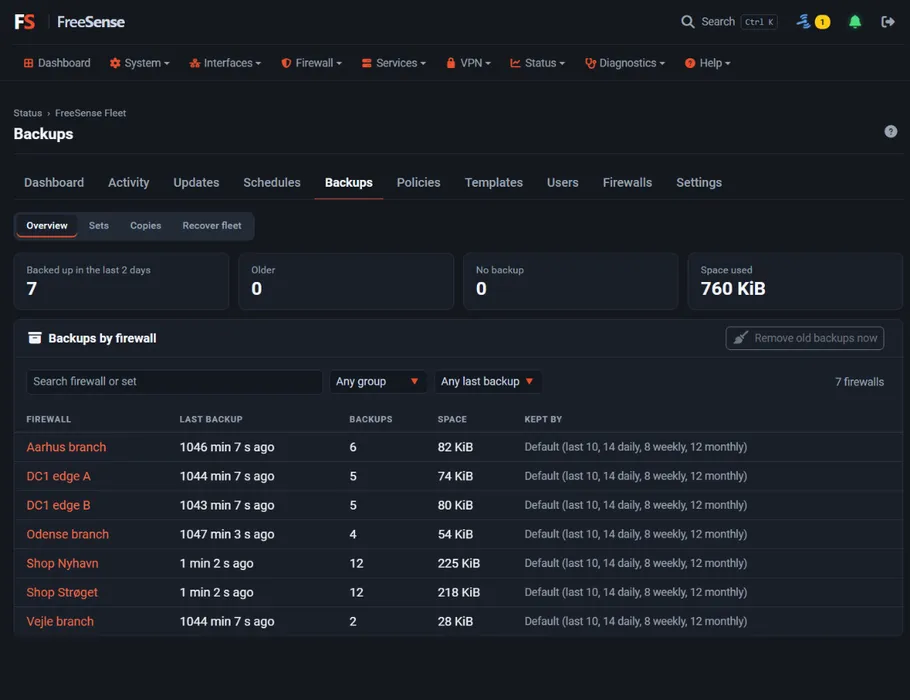
Section titled “Backups”Every firewall is backed up when it joins and then nightly. Backups → Overview shows the last backup, number of backups and space per firewall, and the retention that keeps them (default: last 10, 14 daily, 8 weekly, 12 monthly). Sets, Copies and Recover fleet add backup sets with their own schedules, copies on other firewalls and recovery of the controller.
Activity
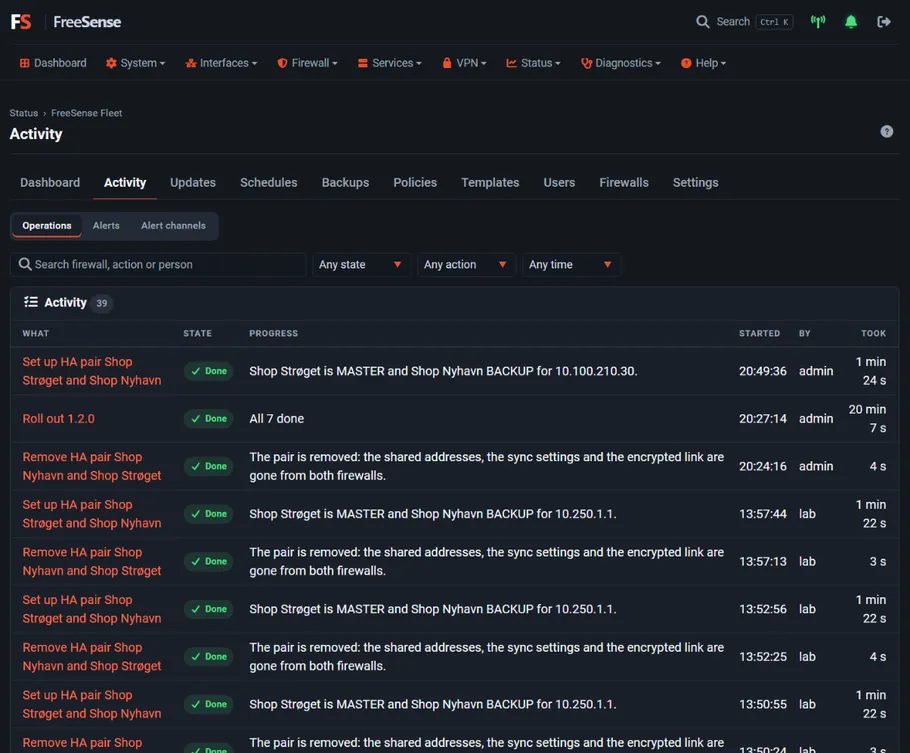
Section titled “Activity”Every action - an HA setup, a group reboot, a rollout, a restore - is an operation under Activity → Operations, with its state, progress, who started it and how long it took. Open one to follow each firewall live. Alerts and Alert channels send problems to webhooks.
Remove a firewall
Section titled “Remove a firewall”On the firewall, open System → Central Management and select Leave the fleet, or run
freesense-join leave. It leaves the fleet and keeps its last configuration.