

First boot and setup
After installation, FreeSense boots to the console menu. This page covers the first steps from there to a secured, reachable system. For cloud images, provisioning replaces several of these steps; see Cloud images.
Factory defaults
Section titled “Factory defaults”| Setting | Default |
|---|---|
| Hostname | FreeSense.home.arpa |
| WAN | First interface (em0 in the default configuration), IPv4 by DHCP, IPv6 by DHCPv6 |
| LAN | Second interface (em1), 192.168.1.1/24 |
| DHCP server on LAN | Enabled, addresses 192.168.1.100 to 192.168.1.199 |
| DNS | DNS Resolver enabled |
| Firewall | Default rule allows LAN to any destination; outbound NAT in automatic mode |
| WebUI | HTTPS with a self-signed certificate |
| WebUI account | User admin, password freesense |
| Time zone | Etc/UTC |
These values come from the factory configuration shipped with the system. Interface names depend on your hardware, so FreeSense asks you to assign interfaces if the defaults don’t exist.
1. Assign interfaces
Section titled “1. Assign interfaces”If the configured interfaces don’t match the hardware, FreeSense reports a network interface mismatch at boot and starts interface assignment automatically. To assign interfaces later, use console option 1) Assign Interfaces.
- Answer whether VLANs need to be set up first. Set up VLANs now only if WAN or LAN is a tagged VLAN.
- Enter the WAN interface name, or
ato detect it automatically. Auto-detection asks you to plug in the cable and watches for link-up. - Enter the LAN interface name, or
a. Press Enter without a name to run with WAN only. - Assign optional interfaces, or press Enter to finish.
- Check the summary and confirm with
y.
To change an address without reassigning interfaces, use option 2) Set interface(s) IP address.
2. Connect a computer to LAN
Section titled “2. Connect a computer to LAN”Connect a computer to the LAN interface. With the defaults it receives an address between
192.168.1.100 and 192.168.1.199, with 192.168.1.1 as gateway and DNS server.
3. Open the WebUI
Section titled “3. Open the WebUI”Open a browser on the LAN computer and go to:
https://192.168.1.1The browser warns about the self-signed certificate. This is expected on a new installation. Check that you are connecting to the address you expect, then continue. You can replace the certificate later under System → Certificates.
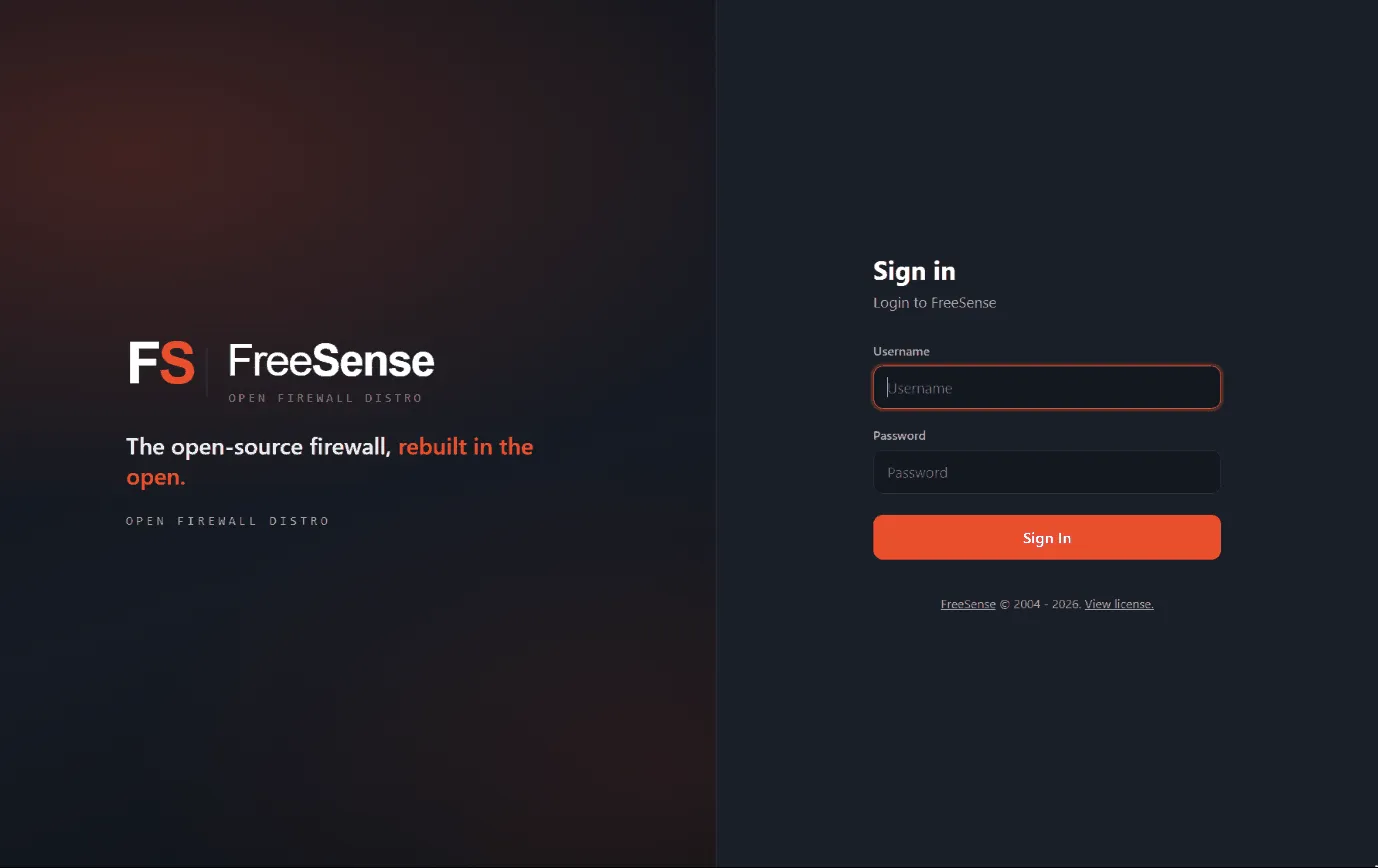
4. Sign in
Section titled “4. Sign in”| Field | Value |
|---|---|
| Username | admin |
| Password | freesense |
5. Run the setup wizard
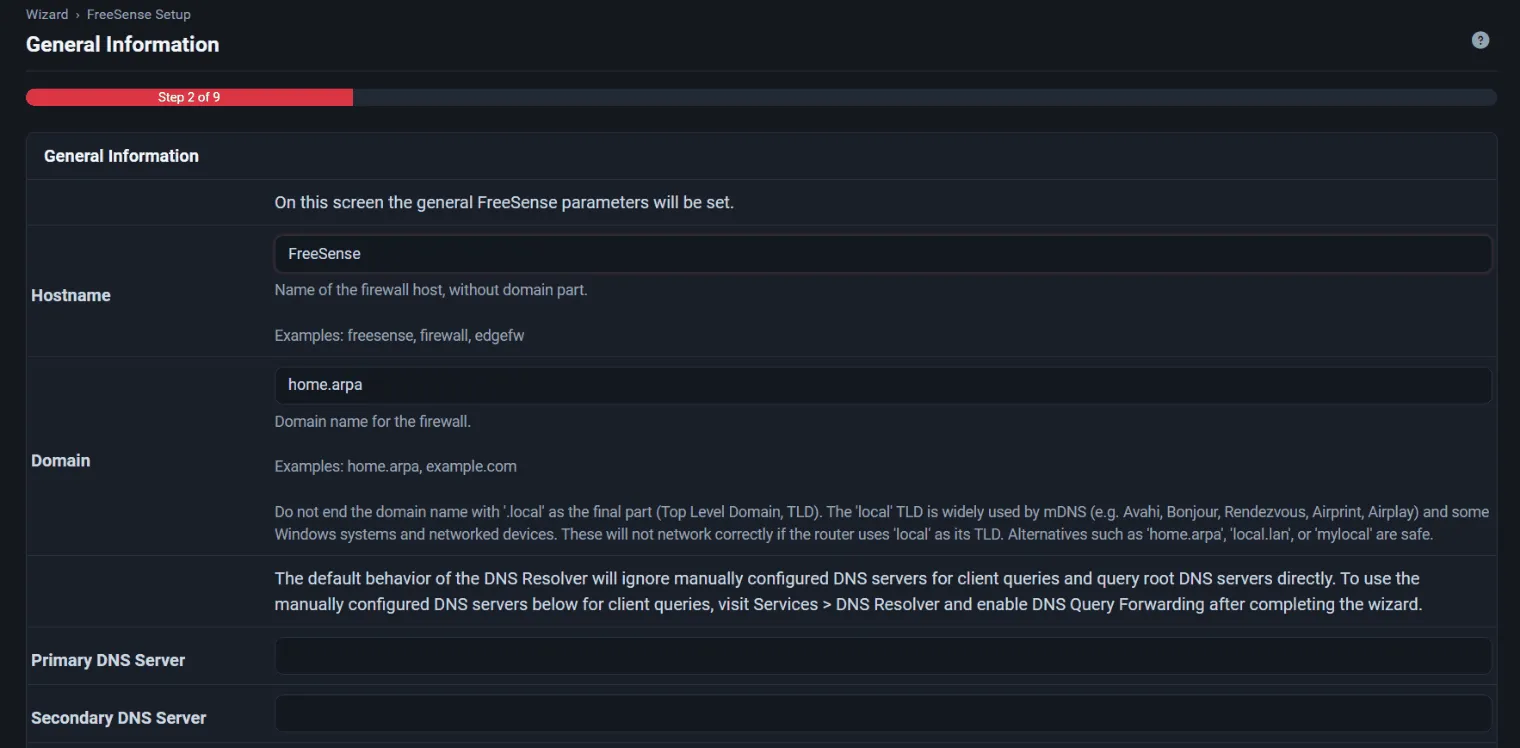
Section titled “5. Run the setup wizard”On a new installation, the first sign-in opens the setup wizard. It sets the hostname and domain, DNS servers, time server and time zone, WAN and LAN configuration, and the administrator password. You can run it again at any time from System → Setup Wizard.
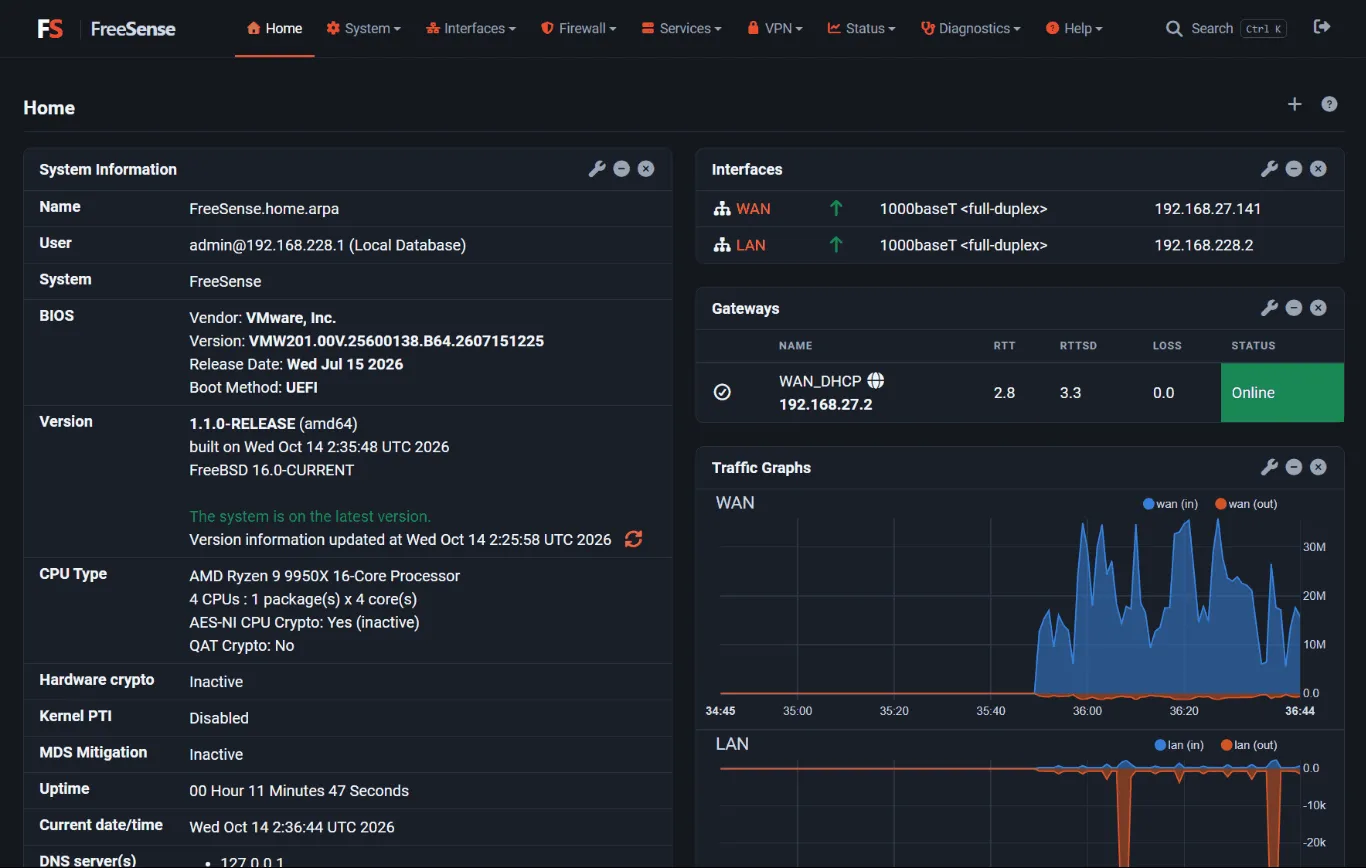
After the wizard, the WebUI opens Home, the dashboard. The top menu groups pages by area: System, Interfaces, Firewall, Services, VPN, Status, Diagnostics, and Help. Press Ctrl+K (or select Search in the menu bar) to find any page by name. See the WebUI menu reference.
Check the new system
Section titled “Check the new system”Before you add packages or expose services, confirm the basics:
- The console shows the intended WAN and LAN assignments, and link state matches the cables.
- A LAN client gets the expected address and gateway and can reach the WebUI.
- The administrator password is no longer the default.
- Time, time zone, hostname, and DNS are correct. Accurate time is required for certificates, VPNs, log correlation, and updates.
- The dashboard’s System Information widget shows the version, and under System → Update the system reports that it is up to date or offers an update.
- You have saved a configuration backup from Diagnostics → Backup & Restore and stored it off the appliance. Protect it: it can contain keys and passwords.
Choose the update channel only after you have confirmed you have console access for recovery. Stable is the supported channel. Moving to Development is one-way. See Updates and release channels.
If you lose management access
Section titled “If you lose management access”Use the local console instead of repeatedly changing switch ports or WAN settings remotely. The console menu offers:
| Option | Use it to |
|---|---|
| 1) Assign Interfaces | Reassign WAN, LAN, and optional interfaces. |
| 2) Set interface(s) IP address | Change an interface address and the LAN DHCP range. |
| 3) Reset admin account and password | Restore the admin account and reset its password. |
| 4) Reset to factory defaults | Restore the factory configuration. This erases your configuration. |
| 15) Restore recent configuration | Roll back to one of the recently saved configurations. |
A factory reset restores the LAN address, the DHCP defaults, and the admin account, but it
deletes your configuration. Restore a saved backup only after you have confirmed that it belongs to
this appliance and release line. More recovery steps are in
Access and recovery.