

Installing and managing packages
Optional Packages add services and WebUI pages to FreeSense: VPNs, intrusion detection, DNS filtering, monitoring agents and more. They are installed and managed from the Package Manager. This page covers the whole package lifecycle in FreeSense 1.1. To choose a package, start with the package catalog.
How Optional Packages are delivered
Section titled “How Optional Packages are delivered”FreeSense ships software in two independent package sets:
- System packages make up the firewall itself: the base OS, kernel, WebUI and built-in services. You install them through System → Update.
- Optional Packages are the integrations in the catalog. Each one is a
FreeSense-pkg-<name>package that you install yourself from the Package Manager.
The two sets are planned, built and published separately:
- A change that touches only the System does not rebuild Optional Packages.
- Optional Packages are rebuilt when their own sources or build configuration change, or when the pinned FreeBSD platform changes. The platform pin normally stays fixed for 14 days.
- ISO and cloud-image releases are a third, separate step. Each image pairs one verified System build with one verified Optional Packages build.
As a result, a package update can arrive without any system update, and a system update does not always bring new package versions. The firewall reads both sets from the signed FreeSense repositories for its release channel. Stable 1.1 systems get Stable packages, and Development (1.2) systems get Development packages.
The Package Manager
Section titled “The Package Manager”Open System → Package Manager. It has three tabs:
| Tab | Page | Purpose |
|---|---|---|
| Installed Packages | pkg_mgr_installed.php |
Installed packages, their versions and status, and the Manage, Update, Reinstall and Remove actions. This tab opens first. |
| Available Packages | pkg_mgr.php |
Packages you can install, with category, resource profile, capabilities and dependencies. |
| Repositories | pkg_mgr_repos.php |
Where packages come from, including custom repositories. |
A fourth page, Package Installer (pkg_mgr_install.php), opens when you start an
install, update, reinstall or removal. It shows a review first and then the progress.
Available Packages
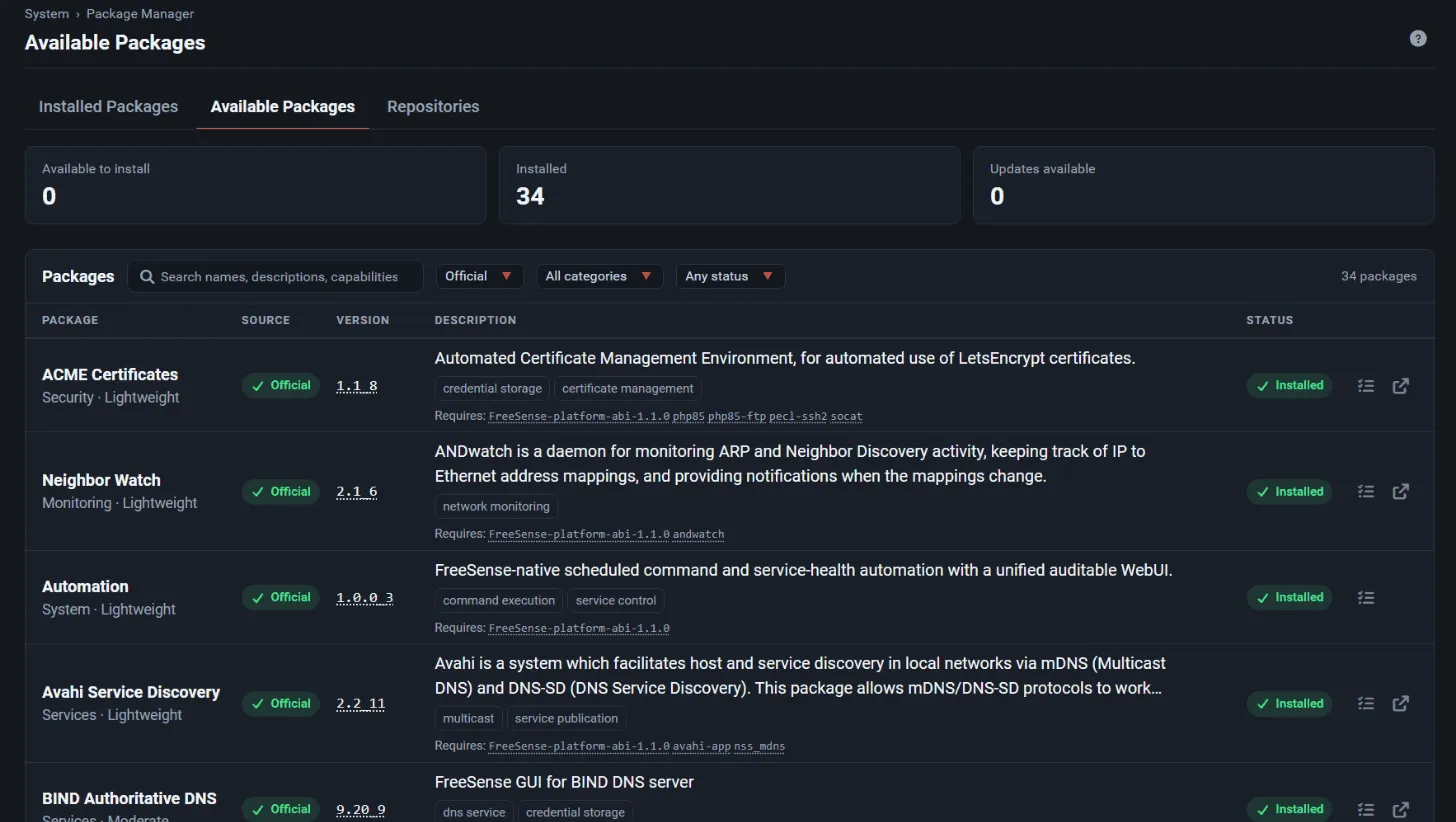
Section titled “Available Packages”The tiles at the top show Available to install, Installed and Updates available. The list has these columns:
| Column | Shows |
|---|---|
| Package | Display name, category and resource profile (Lightweight, Moderate or Intensive) |
| Source | Official for FreeSense packages, or the name of a custom repository |
| Version | The version in the repository. The number links to the package changelog. |
| Description | Repository description, capability chips (for example firewall modification or credential storage) and the packages it Requires |
| Status | Not installed, Installed or Update available |
The search box searches names, descriptions and capabilities. Use the Source, Category and Status filters to narrow the list. The tab opens filtered to Not installed packages, so you see what you can still add. Switch the status filter to Any status to see everything. If every package is already installed, the filter is not applied.
The row actions are Review and install (for packages that are not installed), Show in installed packages (for installed ones), and links to more information and the project website.
Installed Packages
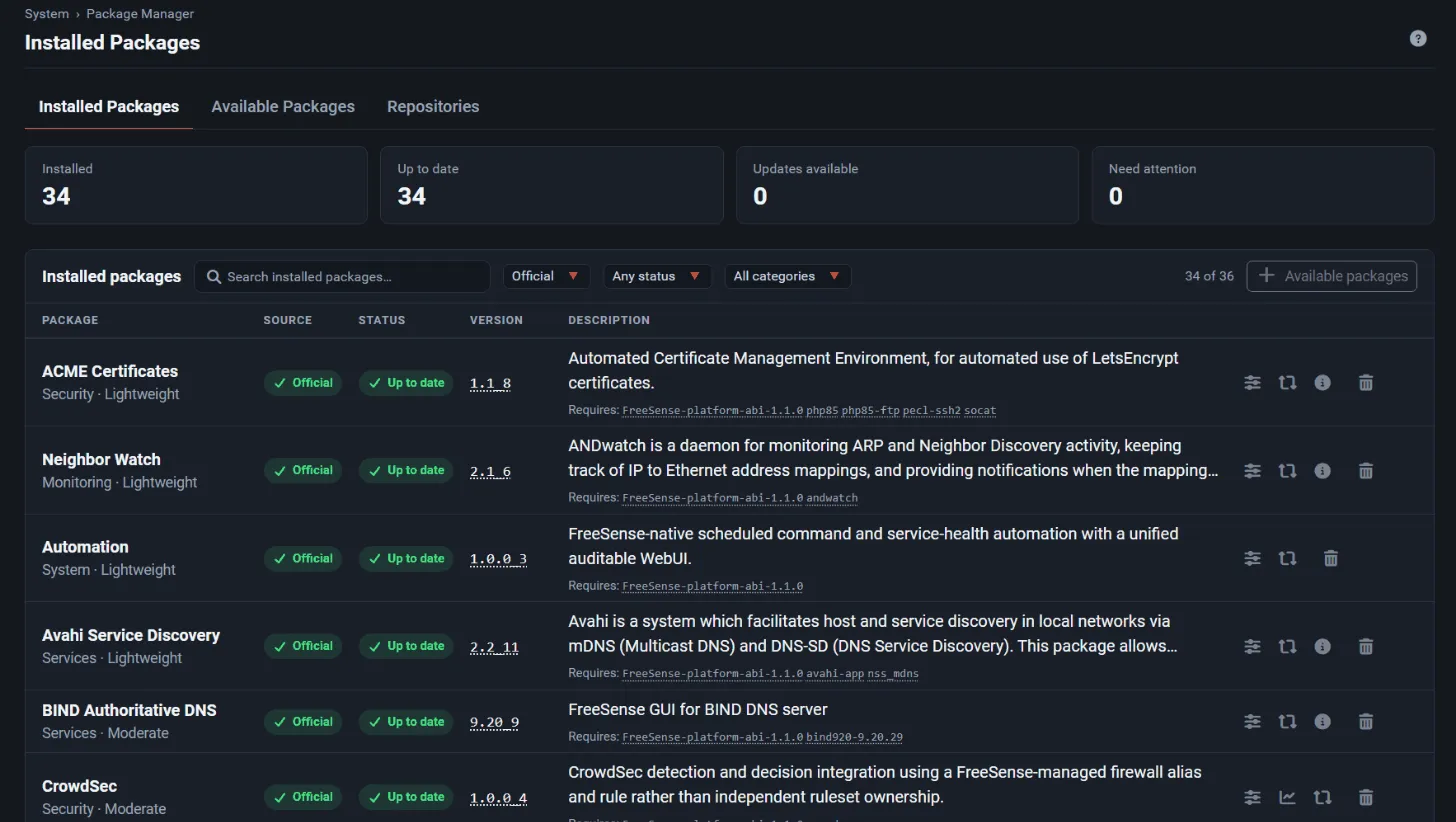
Section titled “Installed Packages”The tiles show Installed, Up to date, Updates available and Need attention. Each row shows the installed version, and an arrow to the available version when an update exists. The status badges are:
| Badge | Meaning |
|---|---|
| Up to date | The installed version matches the repository. |
| Update available | The repository has a newer version. |
| Newer | The installed version is newer than the repository’s. |
| Missing | The package is in the configuration, but its software is not installed. |
| Not in repository | The package is installed, but the repository no longer offers it. |
| Unknown | The versions could not be compared. |
Missing and Not in repository both count toward Need attention. You can filter by Source, Status and Category. The list opens filtered to Official packages. Choose All sources to also see packages installed from custom repositories.
Each row has these actions:
- Manage opens the package’s control page (
pkg_control.php). It shows the integration version, category, support state, declared capabilities, runtime dependencies, and the package’s services with Start, Stop and Restart buttons. Open configuration goes to the package’s settings page. - Status goes to the package’s status page, for packages that have one (for example Suricata events or CrowdSec decisions).
- Update appears when a newer version is available. Otherwise the row shows Reinstall. Not in repository packages have neither, because there is nothing to install from.
- More information opens the project website.
- Remove uninstalls the package.
Install a package
Section titled “Install a package”- Read the package’s entry in the catalog and its guide. Find out what traffic, interfaces, credentials and outbound access it needs.
- Back up the configuration, and make sure you can still reach the firewall from the console or the local LAN.
- Go to System → Package Manager → Available Packages, find the package, and choose Review and install.
- Check the review page. Its header reads Review the installation and shows:
- the package summary and description from the repository;
- Version, Resource use, Support and Tested on tiles;
- What it adds: the capabilities the package declares;
- Background services: the services it registers;
- Recent updates: up to three recent notes for the package, if any have been published.
- Choose Install package. To back out, choose Cancel.
- A progress window opens at once and shows what the Package Manager is doing, a progress bar and the elapsed time, until the status changes from In progress to Completed. Use Show details to follow the output. The operation runs on its own: if you reload the page, it reattaches to the running operation.
- When it finishes, the page reloads so the package’s menu entries appear. Configure the package from its own page, or from Installed Packages → Manage → Open configuration.
Before an install, update, reinstall or removal starts, the Package Manager saves the configuration with the note “Creating restore point before package installation.”
Services that a package starts from its install script are queued and started after the install finishes. Without this, pkg would stop them when the install script exits. You shouldn’t need to reboot to get a newly installed service running.
Update a package
Section titled “Update a package”When Installed Packages shows Update available for a package:
- Choose Update on the row and confirm Continue.
- The review page reads Review the update and shows the version change as
old → new. - Choose Update package and wait for Completed.
A system update (System → Update) also upgrades installed Optional Packages if the repository has newer versions for them.
Optional Packages are published on their own schedule, though. Check Installed Packages for updates even when the system itself is up to date.
Reinstall a package
Section titled “Reinstall a package”If a package’s files or registration need repair, use Reinstall on its row. The review page reads Review the reinstallation. Choose Reinstall package. The package is reinstalled from the repository, and its settings are kept.
To reinstall every installed package at once, go to Diagnostics → Backup & Restore and use Reinstall Packages under Package Functions. This can take several minutes. If a package operation was interrupted and left the Package Manager locked, the same panel shows Clear Package Lock.
Remove a package
Section titled “Remove a package”- On Installed Packages, choose Remove and confirm Continue.
- The review page reads Review the removal. Choose Remove package.
- Wait for Completed. The page reloads, and the package’s menu entries are gone.
Packages that are vital to system operation cannot be removed. The Package Manager and the API both refuse to remove them.
What happens to the configuration on removal
Section titled “What happens to the configuration on removal”When a package is removed, FreeSense:
- stops each service the package registered, then removes the service entries;
- removes the package’s menu entries;
- runs the package’s own deinstall steps, if it has any;
- removes the package’s syslog configuration but keeps its log files;
- removes the package’s entry from the installed-package list in the configuration;
- saves the configuration with the note “Removed name package.”
The generic removal does not delete the package’s own settings section in the configuration. Whether those settings remain depends on the package’s deinstall steps. Some packages clear generated state or their settings, and others leave them so a later reinstall picks them up. Before you remove a package, check its guide, and take a configuration backup if you might want the settings back.
Package settings
Section titled “Package settings”Each package keeps its settings in the FreeSense configuration (config.xml). As a result:
- a configuration backup includes the settings of every installed package;
- the settings are kept across system updates and package updates or reinstalls;
- the Package Manager never edits package settings itself. Change them on the package’s own pages, which you reach from its menu entry or from Manage → Open configuration.
Don’t edit the generated files a package writes, such as daemon configuration files. The next save or service restart rebuilds them from the configuration.
Restoring packages after a configuration restore
Section titled “Restoring packages after a configuration restore”Restoring a backup in FreeSense 1.1 doesn’t simply copy package settings back. Restored package data is treated as untrusted until the matching package is actually installed again.
- Go to Diagnostics → Backup & Restore and restore a configuration as usual.
- If the backup contains package settings, a Review Optional Packages step appears. It lists each package in the backup with its status and the settings sections it owns. Packages that the current repository still offers are selected. Packages the repository doesn’t offer are shown as unavailable and can’t be selected.
- Choose the packages whose settings you want to restore, then Apply Sanitized Restore. The configuration is replaced and the firewall reboots.
What happens next:
- Package menus and services are never restored from a backup. They are generated again when each package installs.
- The selected packages are reinstalled in the background after the reboot. Each package’s settings are merged back only after that package installed and registered successfully.
- Settings of packages that are unavailable, not selected, or not recognized are moved to a quarantine record instead of the active configuration.
- Settings of packages that could not be installed yet stay pending. The firewall needs working DNS and access to the repository. If the reinstall doesn’t finish, a notice tells you so.
The Restored Package Settings panel on Diagnostics → Backup & Restore lists the quarantine records with their creation time, source and packages. From there you can:
- Retry Package Restore, while any packages are still pending;
- download a quarantine record to review its contents;
- delete a quarantine record you no longer need.
Some packages store a daemon name rather than the package name in their configuration, for
example BIND (named) and FreeRADIUS (radiusd). The restore review matches these by package
name too, so they are restored normally instead of being reported as missing.
Settings from a package that is no longer in the catalog, such as pfBlockerNG from 1.0, are quarantined rather than restored. See Changes in 1.1.
Packages and system updates
Section titled “Packages and system updates”A system update keeps your installed packages and their settings. After any system update:
- Open System → Package Manager → Installed Packages and check that every package is Up to date and nothing is listed under Need attention.
- Open each package’s Manage page and confirm that its services are Running.
- Test one representative workflow per package, such as a VPN handshake, an IDS alert, or a DNS block.
For the full upgrade procedure from 1.0, see Upgrading from 1.0.
Check package versions
Section titled “Check package versions”You can see package versions in several places:
- Installed Packages: the installed version, and the available version when an update
exists. Each version number links to the package changelog. From 1.1.5 versions are shown
without the port revision (
1.1for1.1_8); the full version is in the tooltip. An update that only changes the revision shows as1.0.0 (build 7). - Available Packages: the version the repository currently offers.
- Manage (
pkg_control.php): the installed Integration version. - The console or SSH shell:
pkg info -x FreeSense-pkglists installed Optional Packages and their versions, andpkg rquery -r FreeSense-packages %n-%vlists what the repository offers. - The REST API, described below.
The Tested on tile on the install review comes from the package catalog’s
last_tested_release field.
REST API
Section titled “REST API”The Package Manager has REST API equivalents. Paths are relative to https://<firewall>/api.
See the API overview for authentication and scopes, and the
API reference for the full schemas.
| Method and path | Does the same as |
|---|---|
GET /v1/packages/installed |
Installed Packages: installed and available version, plus a status (up_to_date, upgrade_available, newer_than_available, not_installed, not_in_repository, compare_error, unknown). Add ?offline=true to skip contacting the repository. |
GET /v1/packages/available |
Available Packages: packages that are not installed yet, with category, resource profile, capabilities, description and dependencies |
POST /v1/packages/{name}/install |
Install package |
POST /v1/packages/{name}/reinstall |
Reinstall package, which also installs a newer version if one is available |
DELETE /v1/packages/{name} |
Remove package (not for vital packages) |
GET /v1/packages/operation |
Progress and log of the running or last package operation. Add ?lines= to set the number of log lines (default 50, maximum 1000). |
GET /v1/system/version |
Installed and latest System version, and the channel |
Notes on the API:
- Packages are addressed by their full name, for example
FreeSense-pkg-nut. - Install, reinstall and remove need the
packageswrite scope, the body{"confirm": true}, and an administrator. The key’s user must beadminor hold WebCfg - All pages. - These operations start in the background and return
202 Accepted. PollGET /v1/packages/operationuntil it reports that the operation finished. The first status read after the end reloads the filter and restarts package services, just like the Package Installer page does. - While another package operation runs, the API answers
409. - Packages from custom repositories can’t be installed
through these routes. They are WebUI-only. The repositories themselves are managed with
/v1/packages/repositories.
Troubleshooting package operations
Section titled “Troubleshooting package operations”If an operation fails, the Package Installer shows Failed and keeps the output. Use Copy to save the log before you try again. Then check:
- the firewall has working DNS, a default route, and access to the package repository;
- there is enough free disk space and memory, especially for Intensive packages;
- no other update or package operation is running. The progress window says so when one is; wait for it to finish and try again. On 1.1.1 to 1.1.4, “Another instance of FreeSense-upgrade is running” appears for every operation; see the 1.1.9 notes;
- Need attention packages on Installed Packages. Use Reinstall for a Missing package.
When you report a problem, include the FreeSense version, the package name and version, the operation log, and whether it failed during install, service start, or under real traffic.
Building your own packages
Section titled “Building your own packages”Package recipes are open source. The Optional Packages are in
freesense-packages. To change or add
a package, start with Building optional packages.
Package integration explains what happens during install,
reinstall and removal, and the WebUI menu system explains how
package pages appear in the menu.