

Add a firewall to a Fleet
A firewall joins a FreeSense Fleet in two steps: the controller makes an invitation, and the new firewall pastes it into Add to fleet. The invitation says how the firewall will connect (Fleet tunnel, Tailscale or direct), so there is nothing else to configure on the new firewall. Both sides are step-by-step guides, and the console route stays available.
Before you start
Section titled “Before you start”- The controller is running and has at least one connection point. See Fleet connection points and firewall rules.
- The new firewall runs FreeSense 1.2 (Development) and can reach the controller. With the Tailscale method it only needs internet access; no port has to be opened.
- You can sign in to the WebUI of both firewalls.
Step 1: make the invitation on the controller
Section titled “Step 1: make the invitation on the controller”Open Firewalls → Add and approve and select Add a firewall. A guide with four steps opens in a window.
-
Name and access. Enter a Name (how the firewall is shown in Fleet), choose Monitor only (Fleet reads status and backups) or Managed (Fleet may also change the configuration, for example with templates, users and updates), and optionally a Group, a Site and a Hostname. An empty hostname follows the group’s naming pattern.
-
How it connects. Choose how the new firewall reaches the controller:
Method What happens Fleet tunnel (WireGuard) The firewall builds an encrypted tunnel to the controller’s public address and port. It only connects out. Tailscale The firewall installs Tailscale if it is missing, joins your tailnet with a one-time key from the invitation and reaches the controller there. No public port is needed. Direct The controller reaches the firewall on an internal network both share. A tunnel is built as well, as the fallback. A method without a matching connection point is greyed out, with a hint about what to add. The method that suits the controller best is marked Recommended: Tailscale when the controller is in a tailnet, otherwise the Fleet tunnel.
-
Validity. Choose how long the invitation works (1 hour to 30 days). For the Fleet tunnel and Direct you can also enter Its public address: the enrollment port accepts that address until the invitation expires, even when Settings → Access allows only a list.
-
Review. Nothing is made until you select Create invitation.
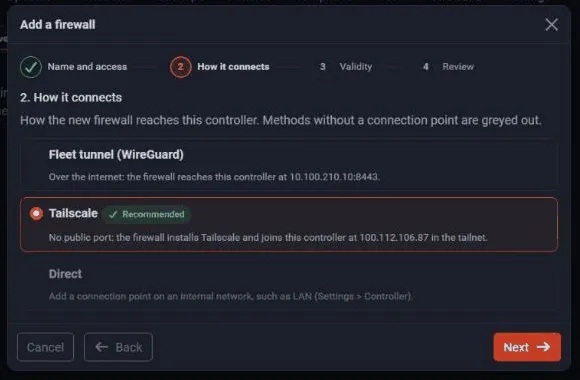
The last step shows Copy for the firewall: one text with the link and the join key. It is shown only once. Copy it and send it to whoever sets up the firewall the way you would send a password. An invitation works once and only until it expires. Under Open invitations you can Revoke it, or select New key to withdraw it and make a fresh text with the same settings.
Step 2: paste it on the new firewall
Section titled “Step 2: paste it on the new firewall”On the new firewall, open System → Central Management. A firewall that is in no fleet shows Add to fleet (and a dismissable notice on its dashboard points there). The guide has these steps:
- Paste. Paste the whole text. A link alone works too; you then type the key in step 3.
- Check. The firewall asks the controller for its certificate and compares it with the one the invitation names. It shows the controller, whether it answers, how it will connect and whether the join key came with the invitation. Nothing is changed yet. Over Tailscale the firewall can reach the controller only after it is in the tailnet, so that check happens during the join.
- Join key. Type the key if it was not in the pasted text. The step is struck through when it is not needed.
- Review. It lists what Join does: a WireGuard key is made, a 6-digit code is shown, and the controller gets access and takes a first backup. If any step fails, everything is undone.
- Join. The steps run in the background with live progress. With the Tailscale method this includes installing Tailscale and logging in. The key is handed to the join through a file that only the administrator can read, and it is deleted before the join starts.
- Approve. A large 6-digit code appears.
- Done.
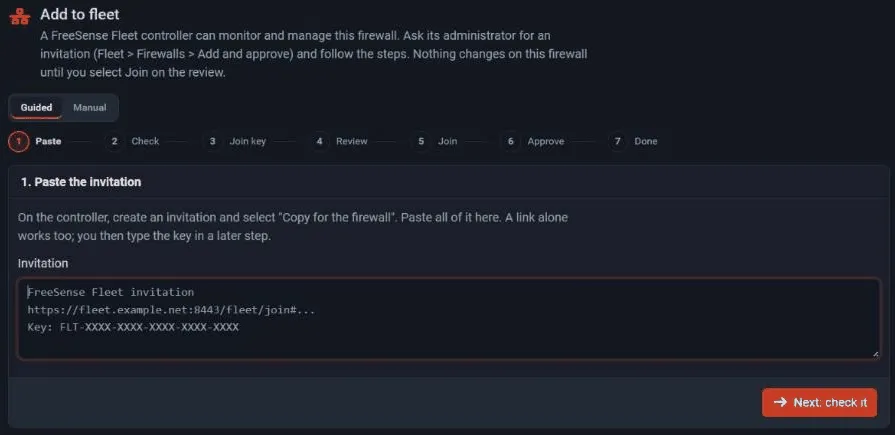
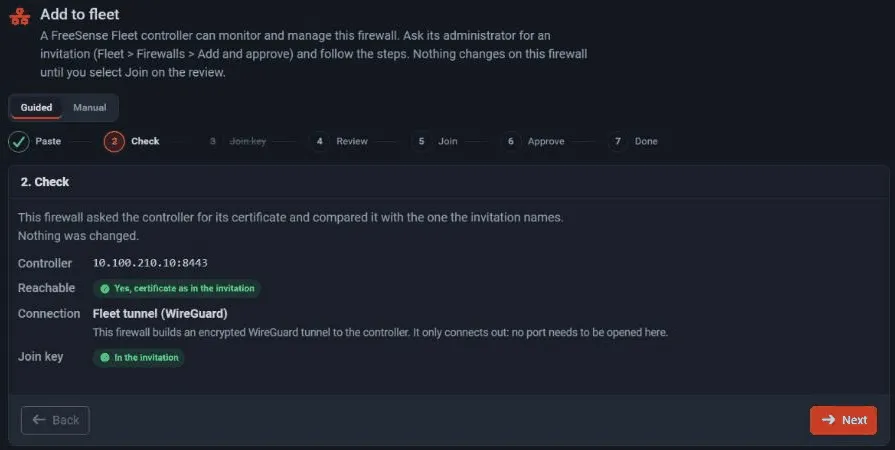
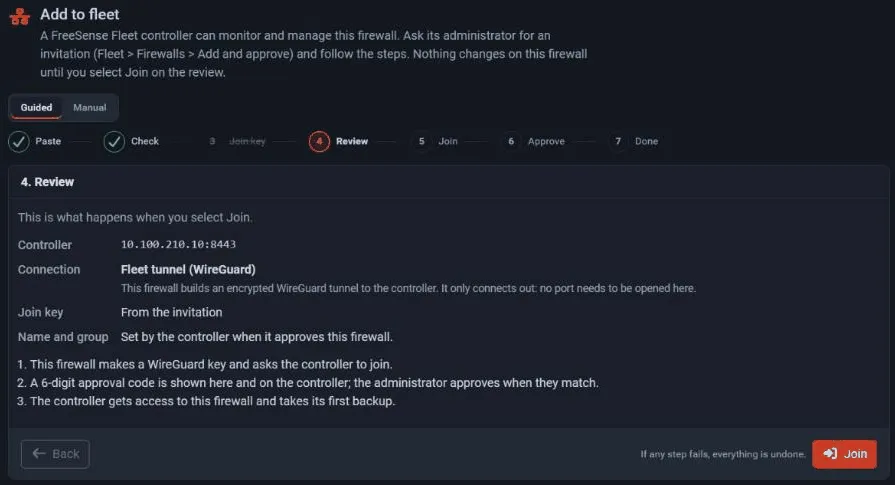
The Manual tab takes the link and the key in separate fields. A firewall that is already in a fleet shows its membership instead, with Leave the fleet.
Step 3: approve on the controller
Section titled “Step 3: approve on the controller”On the controller, Firewalls → Add and approve lists the firewall under Waiting for approval with the same 6-digit code. Approve it only when the codes match; a different code means someone else is using the invitation. Select Reject in that case.
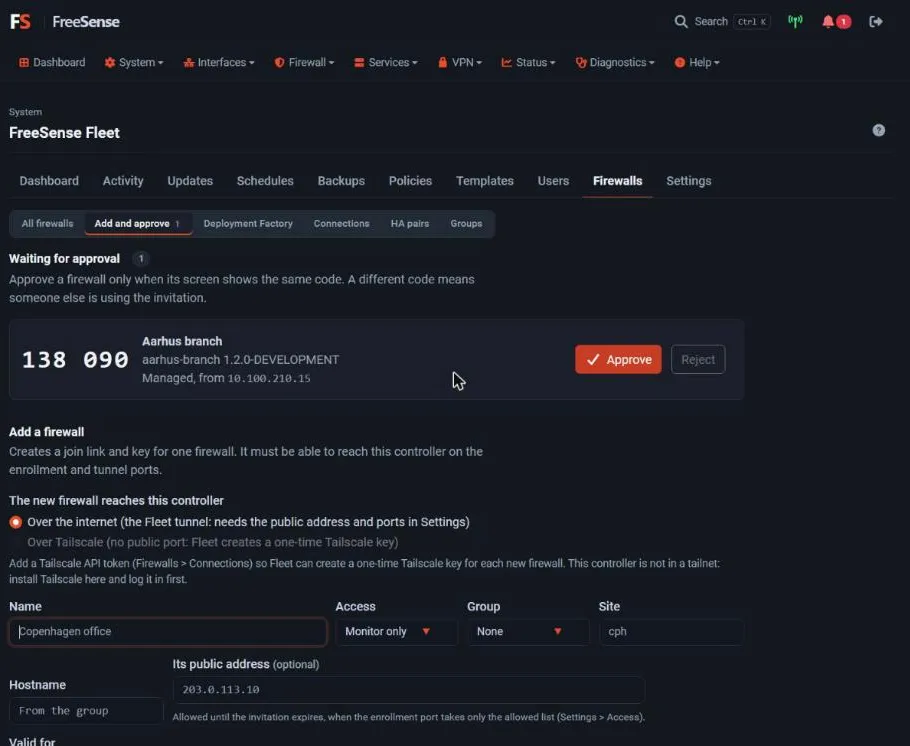
After approval the firewall sets up its tunnel, sends its first heartbeat and appears in the firewall list, in the group you chose. When the method is Tailscale, the controller moves the connection to the tailnet by itself and keeps the Fleet tunnel as the fallback. For Tailscale paths, Fleet also turns off the key expiry of that device (Settings → Access), so the path does not drop after the key’s usual six months.
Without the web interface
Section titled “Without the web interface”At the console choose option 17, or run:
freesense-join join '<link>'Paste the link and type the join key when asked. The console shows the same steps and the same 6-digit code as the guide, and it installs Tailscale in the same way when the invitation asks for it. The invitation’s last step also lists the link and the key separately under Without the web interface.
Many firewalls at once
Section titled “Many firewalls at once”Firewalls → Deployment Factory makes seed disks and cloud-init seeds that join by
themselves. Every firewall in a batch also gets a paste-on-the-firewall.txt with the same
one-paste text, for an administrator who prefers the guide. It holds the join key: keep it like a
password.
Leave a fleet
Section titled “Leave a fleet”On the firewall, open System → Central Management and select Leave the fleet, or run
freesense-join leave. The firewall keeps its last configuration.