

Fleet connection points and firewall rules
Firewalls open the connection to the controller, so only the controller must be reachable. This page covers how you choose where it is reachable, how Fleet opens and closes the ports for you, and how to check that it works.
Connection points
Section titled “Connection points”A connection point is an interface the controller listens on, with the port firewalls join on and the address they use there. Open Status → FreeSense Fleet → Settings → Controller, turn on Run this firewall as a FreeSense Fleet controller and fill in Where firewalls connect:
| Column | Meaning |
|---|---|
| Interface | WAN for firewalls on the internet, LAN or another internal interface for your own networks, or Tailscale (tailnet). |
| Port (TCP) | The enrollment port firewalls join on. The default is 8443. |
| Address firewalls use | Leave it empty and Fleet finds it itself: the interface’s own address, its dynamic DNS name, or the tailnet address. Enter a public address or DNS name when the controller sits behind NAT, or the address of a port forward to this firewall. |
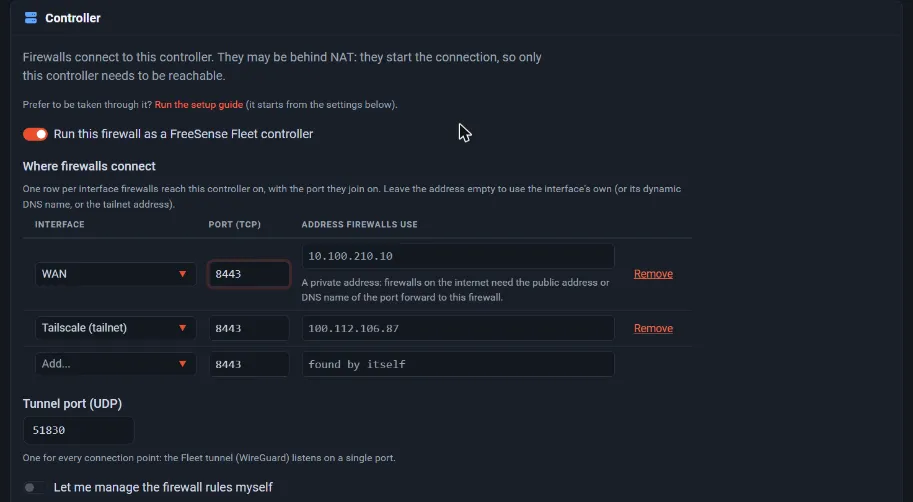
Select the empty Add… row to add another point, and Remove to delete one. A WAN address that is private gets a hint: firewalls on the internet need the public address or DNS name of the port forward to this firewall.
Below the table, Tunnel port (UDP) is the port of the Fleet tunnel (WireGuard), default 51830. WireGuard listens on one port only, so it is set once for all connection points.
The enrollment server listens only on the addresses of the interfaces you chose. An invitation takes its address from these points: the Fleet tunnel method uses the first point that is not Tailscale, Tailscale uses the Tailscale point, and Direct an internal point. A method without a matching point is greyed out when you make an invitation.
Firewall rules
Section titled “Firewall rules”Fleet opens the ports itself. For every connection point it keeps real firewall rules and aliases under Firewall → Rules → Floating:
- a pass rule for the enrollment port (TCP) and one for the tunnel port (UDP), on the chosen
interfaces, from the allowed addresses (alias
FleetEnrollandFleetTunnel); - two block rules for addresses blocked after too many wrong join keys (alias
FleetBlocked).
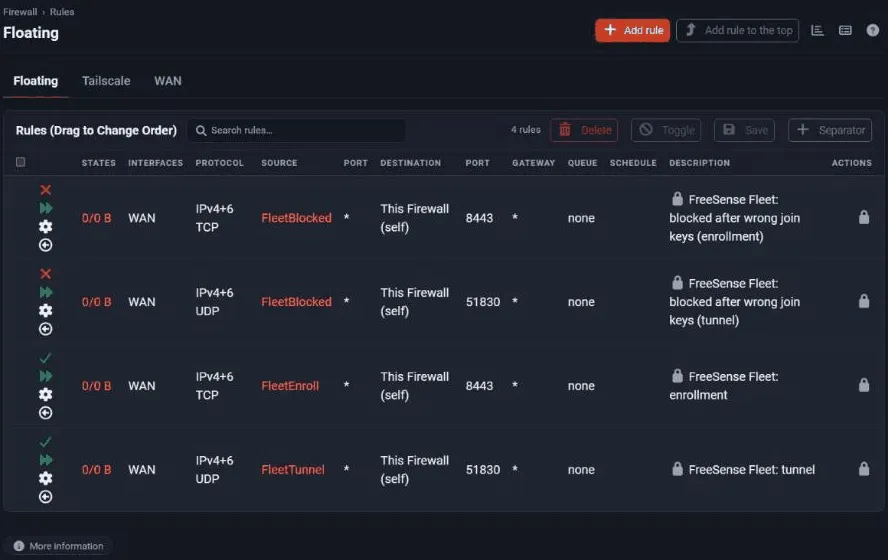
The rules show a lock and Managed by Fleet. They cannot be edited, copied, switched, deleted or dragged, and the REST API refuses to change them: change the connection points instead. Fleet removes the rules again when you remove an interface from the list, switch the controller off, or uninstall the package.
To keep full control, turn on Let me manage the firewall rules myself. Fleet then adds no rules and shows a checklist: TCP to this firewall on the enrollment port, and UDP on the tunnel port, on the same interfaces. Use Settings → Self-check afterwards to test them.
Who may reach the enrollment port is set under Settings → Access, in two views: Exposure (open for joining or only an allowed list) and Allowed list.
Tailscale
Section titled “Tailscale”When the controller is in a tailnet, firewalls can join without any public port.
The easy way is the first-run guide (or Run the setup guide on
Settings → Controller): on the Tailscale step, tick Set it up for me and paste a Tailscale
API access token (tskey-api-..., made in the Tailscale admin console under Settings → Keys).
When you apply, Fleet:
- keeps the token sealed (it uses it to make a one-time key for each invitation and to turn off the key expiry of the devices it connects);
- installs the Tailscale package on the controller if it is missing, which needs internet and can take a few minutes;
- logs the controller in to the tailnet with a one-time key it makes, and removes the key from the configuration afterwards;
- adds a Tailscale (tailnet) connection point.
If that fails, for example without internet or when the token may not create keys, Fleet keeps running and shows why; run the guide again after fixing it. To do it by hand instead, install the Tailscale package and log in (Tailscale), add the API token under Firewalls → Connections, and add a Tailscale (tailnet) connection point.
Settings → Self-check shows whether the controller is in the tailnet and ready.
How Fleet reaches a firewall
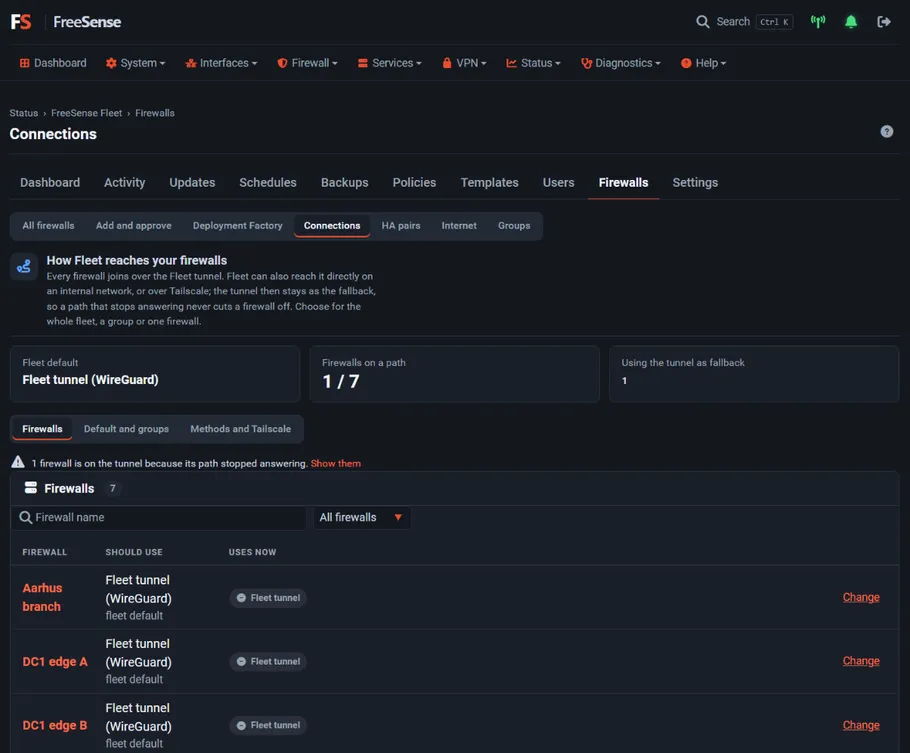
Section titled “How Fleet reaches a firewall”Firewalls → Connections shows how Fleet reaches each firewall. Every firewall joins over the Fleet tunnel (WireGuard): a WAN connection point is how a firewall on the internet joins, and it then keeps the tunnel open. Direct is for a network the firewall and the controller share (LAN, MPLS, VPN), so it needs a connection point on such an interface, never on the WAN. Fleet can also reach a firewall over Tailscale. The tunnel stays as the fallback, so a path that stops answering never cuts a firewall off. Choose the method for the whole fleet, a group or one firewall.
First-run guide
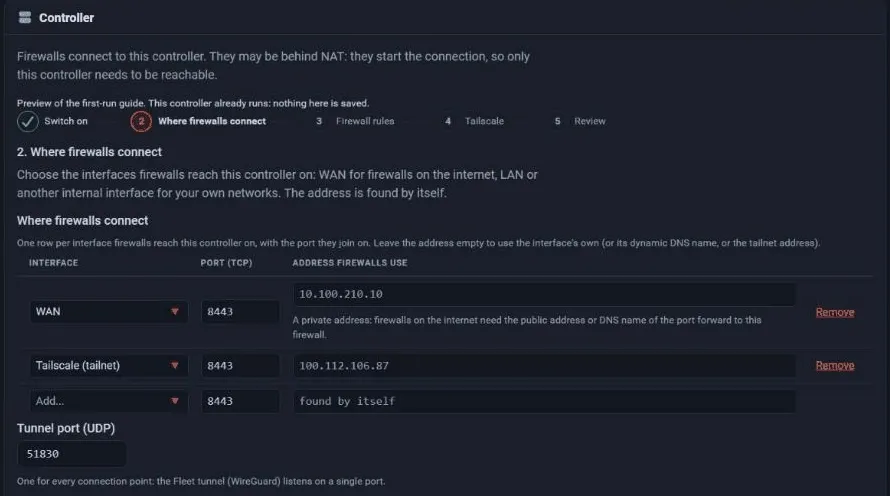
Section titled “First-run guide”Until the controller is switched on, Settings → Controller shows a step-by-step guide. Later, Run the setup guide at the top of that page opens it again, filled in with the current settings; the last button then reads Apply and saves what you chose.
- Switch on.
- Where firewalls connect. The connection point table, with addresses found automatically.
- Firewall rules. Fleet opens the ports for you, or you manage them yourself.
- Tailscale. Optional; shows whether the controller is in a tailnet, and can set it up (see Tailscale).
- Review. What Switch on does.
The last screen links to Add your first firewall.
Self-check
Section titled “Self-check”Settings → Self-check tests everything firewalls need to reach and trust the controller, right now:
- the enrollment endpoint is running and which addresses it listens on;
- the public address, and that the enrollment certificate is valid (firewalls pin it, so Fleet never replaces it by itself);
- the ports from outside: Test the ports from outside asks a firewall in the fleet to try the enrollment port and reports what it saw;
- the firewall rules, and whether you manage them yourself;
- the tunnel, and whether any firewall has joined;
- Tailscale, when you use it.
Where Fleet can repair something safely there is a button, for example Write them again for the rules and Restart the tunnel.