

Core services
Core services make the firewall useful to clients, but they also define availability and trust boundaries. Configure them after interfaces and firewall policy have a known-good baseline. For the list of built-in services and how they relate, see built-in services.
Set up DHCP for a network
Section titled “Set up DHCP for a network”FreeSense uses Kea for DHCP and DHCPv6.
- Make sure the interface has a static address, for example
192.168.10.1/24on a VLAN. - Open Services → DHCP Server. The Settings tab holds server-wide options; each interface with a static address has its own tab.
- On the interface tab, enable the DHCP server, set the address pool range, and leave room outside the pool for infrastructure devices.
- Leave DNS Servers (under Server Options) and Gateway (under Other DHCP Options) empty unless clients should use something other than the firewall’s interface address.
- Add Static Mappings for devices that need a fixed address.
- Save and check Status → DHCP Leases after a client connects.
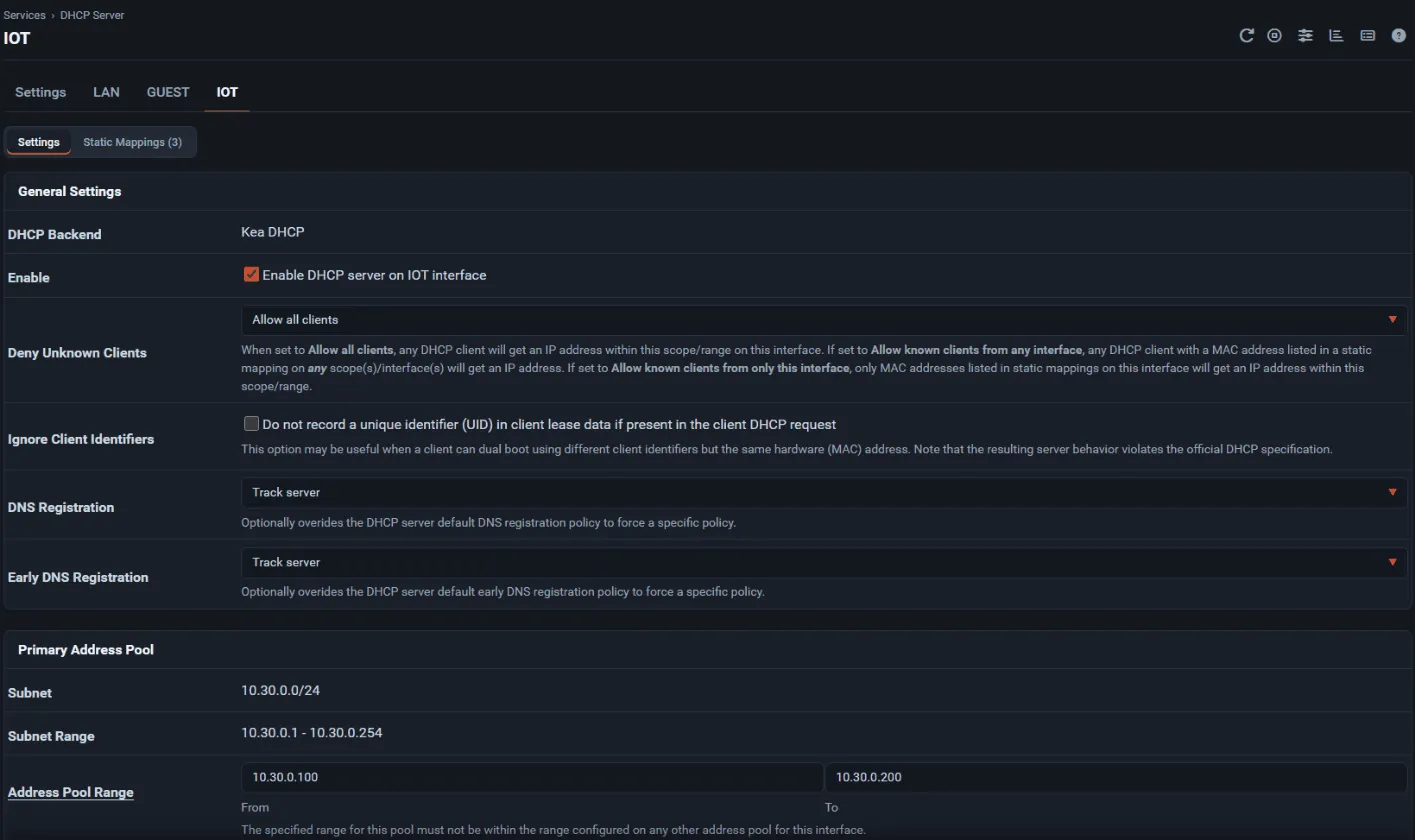
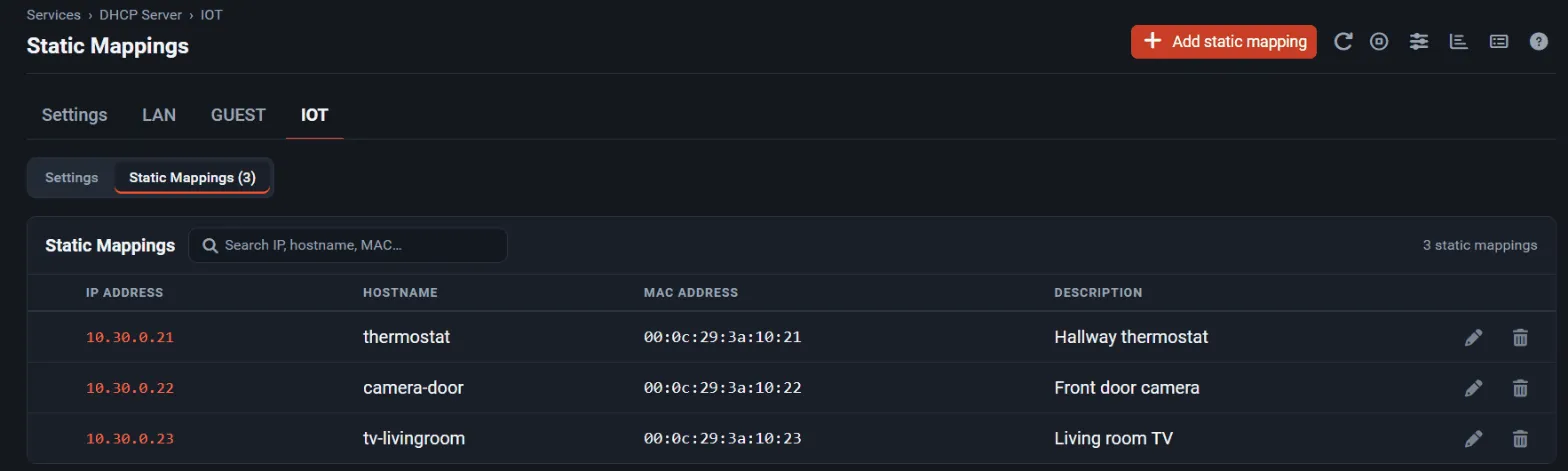
On the Settings tab:
- DNS Registration registers leases with the DNS Resolver; Early DNS Registration registers static mappings in advance. Registration only works while the DNS Resolver is enabled.
- Log Level (new in 1.1) sets the minimum severity of Kea messages sent to the DHCP log (default WARN). Raise it temporarily when you troubleshoot.
- High Availability configures a Kea peer for redundant DHCP.
The Custom Configuration sections take raw Kea JSON. In 1.1 only the admin account or users
with WebCfg - Services: DHCP Server: Edit Custom Kea Configuration can change them; for everyone
else they are read-only. Grant that privilege only to people you would trust with full control of the
firewall.
For IPv6, configure Services → DHCPv6 Server and Services → Router Advertisement together on the same interface, so the RA flags match the DHCPv6 design.
Choose a DNS model
Section titled “Choose a DNS model”Pick one model and write it down:
| Model | Setup |
|---|---|
| Local recursive resolver | Services → DNS Resolver enabled; clients use the firewall as DNS server |
| Forwarding resolver | DNS Resolver with Enable Forwarding Mode and upstream servers in System → General Setup |
| Authoritative zones | The BIND Optional Package for zones you host |
| DNS filtering | Threat Shield on top of the resolver design |
Use Host Overrides and Domain Overrides on the DNS Resolver for local names and split DNS, and Access Lists when networks other than the directly connected ones must query it. Avoid loops between the firewall and another internal resolver that forwards back to it.
Keep time accurate
Section titled “Keep time accurate”- Enter reachable time servers under System → General Setup → Localization → Timeservers.
- Open Services → NTP to serve time to clients, and select the interfaces it listens on.
- Check Status → NTP for a selected peer and a small offset.
Fix time before you troubleshoot TLS, VPN authentication, or log correlation problems.
Publish a changing WAN address
Section titled “Publish a changing WAN address”Use Services → Dynamic DNS for provider-based clients or the RFC 2136 Clients tab for your own DNS server. Update only the names that should follow the WAN address, and check the cached address on the client list after the WAN address changes.
Certificates for services
Section titled “Certificates for services”Create or import certificates under System → Certificates. For publicly trusted certificates with automatic renewal, use the ACME Optional Package. Treat account keys and private keys as secrets, include them in your encrypted backups, and test a renewal before the current certificate expires.
Verify
Section titled “Verify”- Status → Services shows the DHCP, DNS, and NTP services running.
- A client on each network gets an address, resolves names, and reaches the internet.
- Status → System Logs (DHCP, NTP, and system tabs) shows no repeating errors.