

Fleet live view and NOC screens
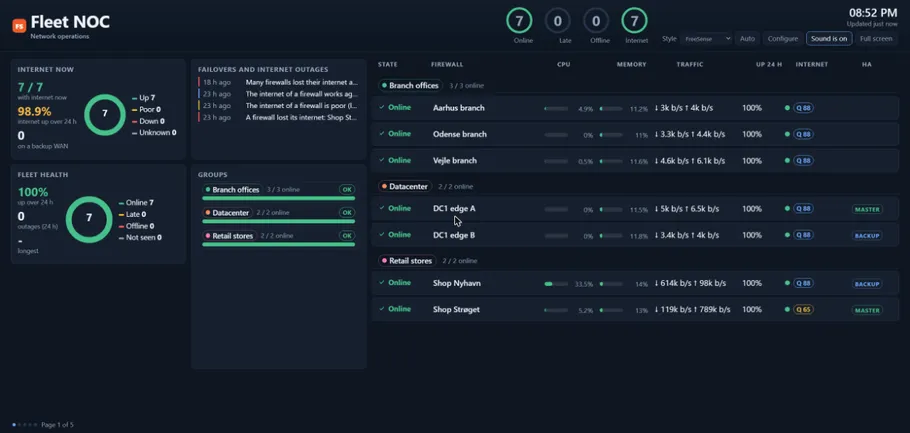
The live view shows the whole fleet full screen: general information and charts on one side, the list of firewalls on the other. It is made for a wall screen in a network operations room, and every screen can have its own layout.
What the screen shows
Section titled “What the screen shows”- Header. The header text on the left (and an optional second line), then status rings: the share of the fleet that is Online, Late and Offline, and Internet while internet monitoring is on. Policy fails and HA problems appear as amber rings only when there are some. A ring with offline firewalls glows red. On the right are the clock, how fresh the data is, the sound button, Style and Full screen.
- Panels (left). General information and charts. When they do not fit, the screen turns to the next page of panels by itself.
- Firewall list (right). One row per firewall with its state, groups, version, CPU and memory, traffic, availability over 24 hours, internet quality and HA role. Offline and late firewalls always come first. The list turns its pages by itself too, and stays on page 1 while a firewall is offline so a problem is never on a hidden page.
The data is read again every 10 seconds.
Panels
Section titled “Panels”| Panel | Shows |
|---|---|
| Fleet health | Availability over 24 hours, outages, the longest outage and the share of firewalls online, late and offline |
| Groups | One line per firewall group: online, late and offline share, and its internet, HA and policy problems. Groups with a problem come first. |
| HA pairs | Each pair with the role of both firewalls, its state and the last change |
| Fleet server | Uptime, load, memory, free disk, size of the Fleet database, the last poll round, tunnel peers, the standby controller and firewalls waiting to join |
| Availability | Every firewall over the last 24 hours, with the ones that had trouble first |
| CPU and memory, Traffic, State tables, Temperature | Fleet-wide charts for the chosen range |
| Alerts, Operations, Backups, Policy compliance, Versions, Busiest firewalls, Outages | The latest alerts, running operations with progress, backup freshness, the rules that fail most, the versions in the fleet, the firewalls under most load, and outages per day |
| Internet now, Internet quality, Worst internet connections, Connection quality, Internet availability, Failovers and internet outages | The internet panels, shown while internet monitoring is on |
The live view and NOC screens
Section titled “The live view and NOC screens”There are two ways to open it:
- Dashboard → Open live view opens the live view for the administrator who is signed in. Rows link to the firewall’s page. Dashboard → NOC screens → Configure live view sets its layout.
- Dashboard → NOC screens → Add screen makes a wall screen: a screen that never signs in. Each screen has its own link, works only from its allowed networks, has its own layout and can hide names when it is in a public place.
When you add a screen, enter a name and the networks it may be opened from, choose a
style and a theme, and tick hide names if needed. The screen’s link is shown only
once: copy it before you leave the page and treat it like a password. The key sits in the part
of the link after #, so the browser never sends it to a web server. Revoke a link at any
time; the screen shows not connected within 10 seconds. A change to a screen’s layout reaches it
within 10 seconds, and it keeps its link.
Styles
Section titled “Styles”| Style | For |
|---|---|
| FreeSense | The FreeSense colours; calm until something breaks |
| Pro | Flat and compact: the most firewalls on one screen |
| Hacker | A green terminal with scanlines |
| Control room | Amber and very large type, readable from across a room |
| Blueprint | A technical drawing on grid paper |
Each style has a dark and a light theme; Follow the screen picks one from the screen’s own setting.
Layout of a screen
Section titled “Layout of a screen”Open a screen’s layout with Layout next to it (or Configure live view). The settings are in four tabs and one Save layout stores them all:
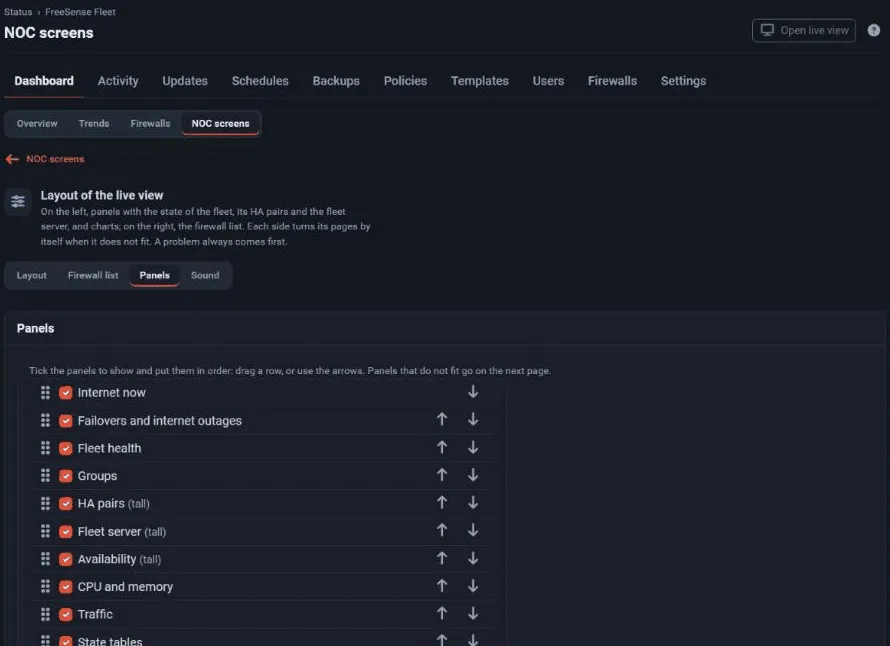
- Layout. The header text and a second line (for example an on-call number), whether the screen shows panels and the firewall list, the list only or panels only, how much width the panels take (25 to 75 %), which side they are on, and whether firewalls are shown as a list (most details) or as tiles.
- Firewall list. The columns (state and name are always shown), the order (problems first, name or group), rows per page (0 means as many as fit), the seconds before the next page, whether to stay on page 1 while a firewall is offline, Group the list by firewall group and Only these groups.
- Panels. Tick the panels to show and put them in order by dragging a row or with the arrows. Choose how often the next panels appear and which range the charts show (24 hours, 7 days or 30 days). Tall panels are marked.
- Sound. Whether sound is on when the screen opens and what makes it beep: a firewall goes offline, a firewall answers late, an HA pair has a problem, or a firewall loses its internet. A browser plays sound only after someone has clicked on the page once.
Groups
Section titled “Groups”When the list is grouped by firewall group, each group gets a heading with how its firewalls are, for example 2 / 2 online · 1 no internet, and the group with a problem comes first. A heading never stays alone at the bottom of a page. A firewall in several groups is listed under the first of them.
Only these groups limits a screen to some groups. Its counts, rings, panels and charts then cover only those firewalls, so a screen for the Retail stores shows nothing about the datacenter.
Hidden names
Section titled “Hidden names”A screen with hide names shows firewalls as Firewall 1, Firewall 2, and groups as Group 1. Names, hostnames, addresses and error texts are left out of the data the screen receives, and rows do not link to firewall pages.