

Fleet settings
Status → FreeSense Fleet → Settings holds every setting of the controller. Every tunable value in Fleet is a setting, with its allowed range and default in the help text under it.
The sections
Section titled “The sections”| Section | What it holds |
|---|---|
| Controller | Switches the controller on and sets where firewalls connect. See connection points and firewall rules. |
| Monitoring | How often the controller asks each firewall for its status (15 seconds by default), when a silent firewall counts as degraded (1 minute) or offline (5 minutes), and the internet monitoring option with its thresholds. |
| Actions and notices | Reboots, backups and restores started from Fleet: whether you are told when an action is done or fails, how long a failed action shows in the top bar and how long a result stays on the firewall’s tile, and when a reboot counts as failed. |
| Backups | When a changed configuration is backed up, how long backups are kept, how many firewalls are backed up at once, and how long a restored firewall waits before it goes back by itself. |
| Updates | How often the controller checks for updates, when an update counts as done or failed, how long rollouts wait between rings, and whether firewalls without rollback protection (UFS) are included in group updates. See updates, templates and schedules. |
| Schedules | How late a missed schedule may still run (15 minutes by default). |
| Access | Who may reach the enrollment port: Exposure (open for joining, or only an allowed list) and the Allowed list, and whether Fleet turns off the key expiry of firewalls on a Tailscale path. |
| Standby server | A second FreeSense with the Fleet package keeps a verified, encrypted copy of this controller and can take over. Firewalls learn its address automatically and move to it by themselves. |
| Self-check | Everything firewalls need to reach and trust the controller, checked now, with repair buttons. See Self-check. |
| Advanced | Values you rarely change: how long invitations are valid, how many wrong join keys burn an invitation, and rows per page in lists. |
How a settings page reads
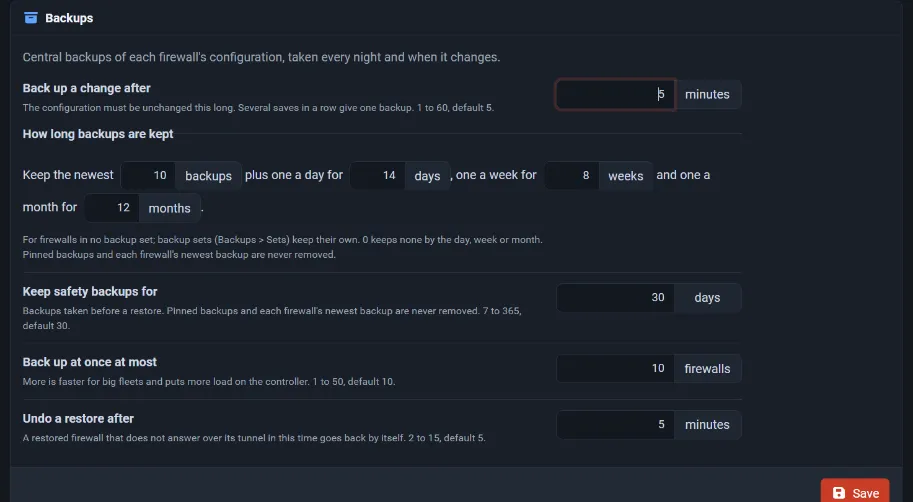
Section titled “How a settings page reads”Each setting is one row: its name and a short help text on the left, the control on the right. Numbers show their unit next to the field (“minutes”, “days”, “firewalls”), and the help text says the allowed range and the default. A setting that only matters when another is on, such as the internet thresholds, appears only while that one is on. Save is always the last button on the right.
Backups → how long backups are kept is one sentence you fill in: Keep the newest 10 backups, plus one a day for 14 days, one a week for 8 weeks and one a month for 12 months. A 0 keeps none by the day, week or month. Pinned backups and each firewall’s newest backup are never removed.
Guides and windows
Section titled “Guides and windows”Where something takes several steps, Fleet uses a step-by-step guide: a bar shows the steps, one step is shown at a time, Back is on the left and the forward button on the right, and a Review step lists what will happen before anything changes. Short guides open in a window, such as Add a firewall and Add template; longer ones are a page, such as Add to fleet on a new firewall, the HA pair wizard and the first-run guide of the controller. Buttons in windows, guides and forms are always in one row on the right, with Cancel or Back first and the main button last.
Lists filter as you choose: pick a state or a group and the list updates at once, and the filter is kept in the address so you can bookmark it.
Confirmations
Section titled “Confirmations”Fleet asks first before anything that deletes, revokes or removes, and before the actions that change firewalls, stop a service or end access. A window opens with an icon, what will happen and two buttons in one row: Cancel on the left, which has the focus so that pressing Enter never confirms by accident, and the action on the right.
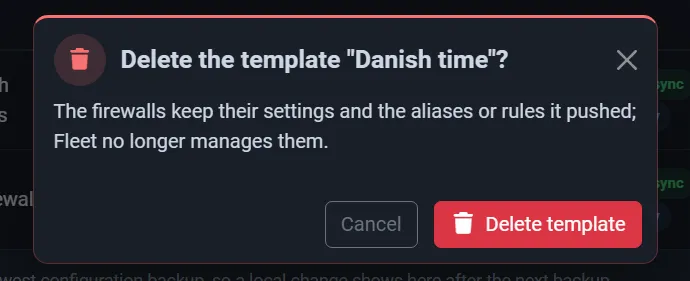
- Red (a trash can or a ban icon): it cannot be undone. Deleting a group, policy, template, schedule, update window, user, user group, backup set or alert channel; revoking an invitation or a screen link; rejecting a firewall; removing the standby, a connection point or an HA pair.
- Amber: it changes firewalls or settings. Starting a rollout, applying or adopting a template, syncing users, applying connection changes, fixing policy rules, setting up pairs for a whole group, restarting or stopping a service, closing joining, recovering the fleet.
- Promote to controller also asks you to type
PROMOTE, because two controllers can split the fleet. The button stays off until you have.
Rebooting a firewall, restoring a backup and the group actions already end in their own review page, so they do not ask twice. Without JavaScript the buttons do what they say; the confirmation only gives you a moment to think, and Fleet checks everything on the server as before.