

Threat Shield inbound protection
Inbound protection guards services that are reachable from the internet, such as SSH on the firewall, a VPN, or a mail or web server behind a port forward. It adds two things on top of your firewall rules:
- Reputation checks (DNSBL): the address of every new outside source is looked up in one or more DNS block lists, such as Spamhaus ZEN. Listed addresses are blocked. Answers are cached for hours, so a repeat visitor is not looked up again.
- Flood protection: limits on connections per source. A source that goes over a limit is cut off and blocked for a while.
Inbound protection is part of Threat Shield package 1.1.0 and is off until you add a policy. It does not affect DNS filtering.
How it works
Section titled “How it works”Each policy describes one service: the WAN interfaces, protocol, destination and ports. For a new source address on that service, Threat Shield does one of two things, chosen per policy with Mode:
| Mode | What happens on the first connection | Use it for |
|---|---|---|
| Check first (greylist) | The first connection attempt is held back for about a second while the address is looked up. Listed addresses never get in. TCP clients retry on their own, so a clean client connects on its second attempt. | TCP services (SSH, mail, VPN over TCP, web) |
| Let through, check in the background | The connection goes through at once. If the address turns out to be listed, its connections are cut off and it is blocked. | UDP services (WireGuard, OpenVPN over UDP) and anything that cannot wait |
When a lookup fails (timeouts, resolver errors, refused lookups) decides what happens to a source whose address could not be checked: Allow the connection or Block the connection. The decision is kept only for a short time (Retry failed lookups after, 60 seconds by default), then the address is looked up again, so a failure never becomes a long-term block.
When lookups keep failing for longer than the Outage time, Threat Shield stops looking up new addresses, applies each policy’s failure action, and shows a notice. It tries again every 15 seconds and resumes on its own when lookups work.
Addresses on the Allowlist → IP addresses list, private networks and your own networks are never looked up and never blocked.
Guide: protect SSH on the firewall
Section titled “Guide: protect SSH on the firewall”- Open Services → Threat Shield → Inbound protection → DNSBL zones & settings.
- Tick Enable. Under Add from the catalog, add Spamhaus ZEN (or another zone; see Choose zones).
- Select Save.
- Open Policies and select Add policy.
- Fill in:
- Name:
SSH - Interfaces: WAN
- Protocol: TCP
- Destination:
self(a service on this firewall) - Ports: the SSH port, for example
22 - Mode: Check first (greylist)
- When a lookup fails: Allow the connection
- Name:
- Select Save.
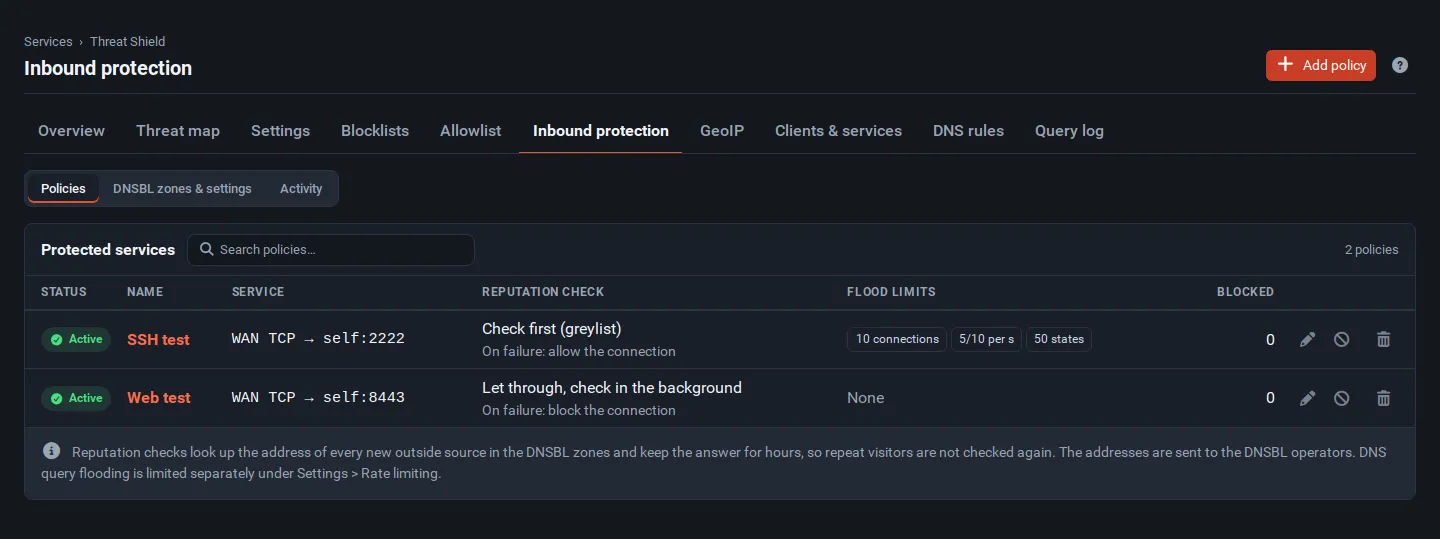
Your existing firewall rule that allows SSH stays in charge: inbound protection only removes bad sources before that rule is reached.
Protect a service behind a port forward
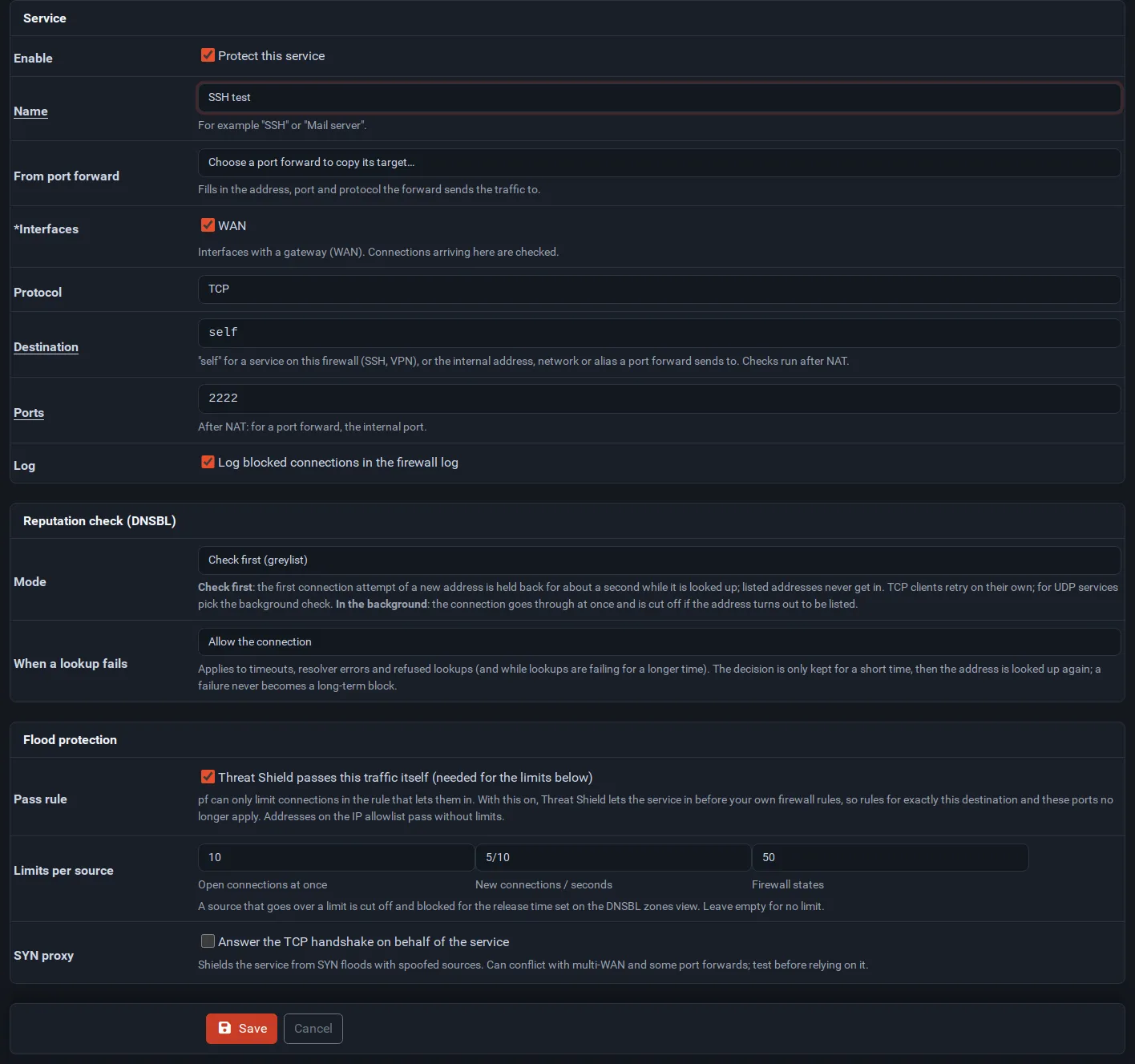
Section titled “Protect a service behind a port forward”Inbound protection runs after NAT, so a policy uses the address and port the forward sends traffic to, not the public port. From port forward fills these in: pick the forward and the destination, port and protocol are copied from it.
Flood protection
Section titled “Flood protection”The firewall can only limit connections in the rule that lets them in. To use the limits, tick Threat Shield passes this traffic itself under Flood protection. Threat Shield then lets the service in with its own rule, before your firewall rules, so your own rules for exactly this destination and these ports no longer apply. Addresses on the IP allowlist pass without limits.
| Field | Meaning |
|---|---|
| Open connections at once | Connections one source may have open at the same time. |
| New connections / seconds | For example 5/10: at most 5 new connections in 10 seconds. |
| Firewall states | Firewall states one source may hold. |
| SYN proxy | The firewall answers the TCP handshake for the service, which shields it from SYN floods with spoofed sources. Can conflict with multi-WAN and some port forwards; test before relying on it. |
A source that goes over a limit is disconnected and blocked for Release flood offenders after (minutes) (60 by default). Leave a field empty for no limit.
Firewall rules of your own with Max. src. conn. Rate options put offenders in the system’s
virusprot table. Threat Shield shows those addresses too, so you can release them from the same
place.
Watch and test
Section titled “Watch and test”Activity shows the counters, a test field and the cache.
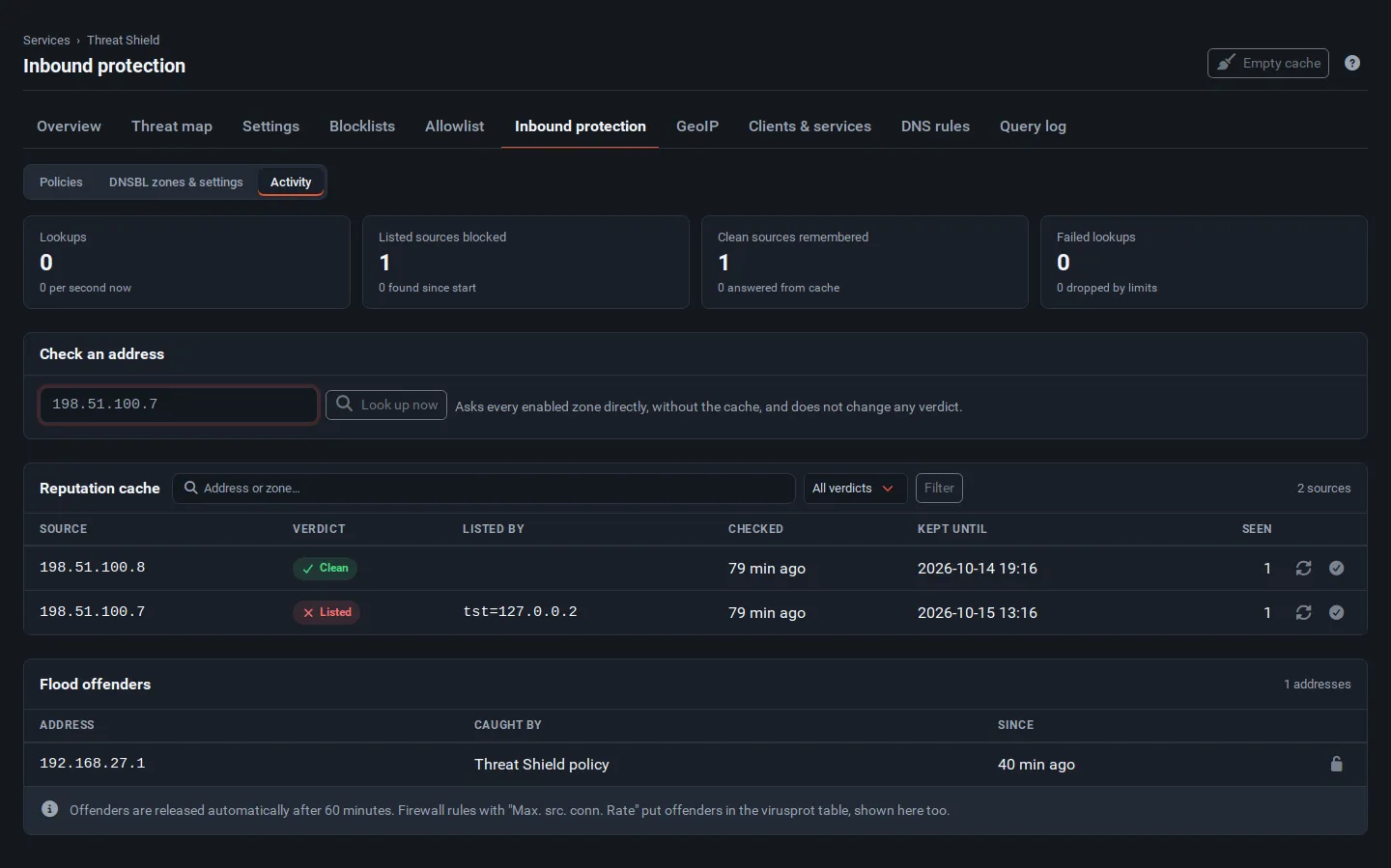
- Check an address asks every enabled zone directly, without the cache, and does not change any verdict. Use it to see why an address is blocked or to test a zone.
- Reputation cache lists every checked address with its verdict, the zones that list it, and how long the verdict is kept. The rotate button (Check … again) forgets the verdict so the next connection is looked up again; the check-mark button (Always allow …) adds the address to the IP allowlist, so no reputation check, IP list, GeoIP policy or flood limit blocks it.
- Flood offenders lists blocked sources with the policy that caught them; the lock button releases one at once.
- Empty cache forgets every verdict.
Blocked and allowed connections of protected services also appear on the threat map.
Choose zones
Section titled “Choose zones”| Zone | Notes |
|---|---|
Spamhaus ZEN (zen.spamhaus.org) |
Widely used. Threat Shield only treats answers 127.0.0.2 to 127.0.0.9 as listed, so home connections on Spamhaus’s policy list (PBL) are not blocked. Spamhaus refuses lookups that arrive through large public resolvers. |
| Spamhaus ZEN (DQS key) | The same data through Spamhaus Data Query Service. Needs a free or paid access key (Access key); works through any resolver. |
| DroneBL | Botnets, open proxies and abusive hosts; lists IPv6 too. |
| blocklist.de | Addresses reported for attacks on SSH, mail and web servers. |
| Barracuda Reputation | Needs a free registration of the resolver address with Barracuda. |
Listed by at least sets how many zones must list an address before it is blocked (1 by default). A higher value avoids false positives when you use several zones.
Resolver
Section titled “Resolver”Resolver is the DNS server used for lookups. The default (auto) uses the DNS Resolver on the
firewall (127.0.0.1:5335 in primary mode), which asks the zones directly. If the DNS Resolver
forwards to a public resolver, Spamhaus lookups fail; use a DQS key or point Resolver at a
resolver that queries the zones itself. Answers in the range 127.255.255.x are the zone’s error
codes (“refused”, “over the limit”) and count as failed lookups, never as listed.
Settings reference
Section titled “Settings reference”All on Inbound protection → DNSBL zones & settings.
| Field | What it does | Default |
|---|---|---|
| Enable | Runs the reputation service. Only policies with a reputation check use it. | Off |
| Resolver | DNS server for lookups: auto, an address, address:port, or [IPv6]:port. |
auto |
| Listed by at least | Zones that must list an address. | 1 |
| Clean / Listed | How long a clean / listed verdict is kept (minutes). | 360 / 1440 |
| Retry failed lookups after (s) | How long a failed lookup’s decision is kept. | 60 |
| Per second, Parallel, Queue | Lookup rate, addresses checked at once, addresses waiting. A flood of new sources beyond these limits is handled by the failure action instead of queueing without end. | 20 / 8 / 2000 |
| Timeout, Retries | Per query (ms) and retries per query. | 2000 / 1 |
| Outage | Seconds of failing lookups that count as an outage. | 30 |
| Release flood offenders after (minutes) | How long a flood offender stays blocked. | 60 |
The service is threatshield_dnsbl. It keeps its cache in /var/db/threatshield/dnsbl/, and the
blocked and checked addresses survive a filter reload and a reboot. From the console,
freesense-threatshield-update dnsbl-check 198.51.100.7 runs the same check as Check an
address.
Troubleshooting
Section titled “Troubleshooting”| Symptom | Cause and fix |
|---|---|
| Failed lookups grows and nothing is listed | The resolver cannot reach the zones, or the zone refuses it. Try Check an address with a test address; the result shows each zone’s answer. Use a DQS key for Spamhaus or another Resolver. |
| A legitimate client cannot connect | Find its address in Reputation cache and select the Always allow button, or add its network to the IP allowlist. |
| A UDP service drops new clients | Use Let through, check in the background for UDP; UDP clients do not retry the way TCP clients do. |
| Reputation checks fails in the health panel | Select Start. If it stops again, check Status → System Logs for “Threat Shield DNSBL”. |