

Users, certificates, and backup
Administrator access, certificates, and backups are the control plane of every FreeSense deployment. Protect them before you add remote access or complex services. For the concepts behind these procedures, see system administration.
Create a named administrator
Section titled “Create a named administrator”- Open System → User Manager → Users and select Add.
- Enter a Username, a strong Password and Confirm Password, and a Full name for the role (for example “Network operations”).
- Add the user to a group, or assign privileges directly. Members of the built-in
adminsgroup have full access. - Save, log out, and log in as the new user to confirm access.
- Disable or restrict any shared account that is no longer needed. Keep the
adminaccount’s password strong and stored safely even if nobody uses it day to day.
For operators who need only part of the WebUI, create a group under System → User Manager → Groups with just those privileges. Privileges that the User Manager marks as root-equivalent (for example WebCfg - Diagnostics: Backup & Restore: Remote Backup or WebCfg - Services: DHCP Server: Edit Custom Kea Configuration) effectively grant full control.
To authenticate against a directory, add an LDAP or RADIUS server under System → User Manager → Authentication Servers and test it with Diagnostics → Authentication before you rely on it.
Restrict management access
Section titled “Restrict management access”- Open System → Advanced → Admin Access.
- Under webConfigurator, use HTTPS with a certificate your browsers trust (see below).
- Under Secure Shell, enable SSH only if you need it, and prefer key-only authentication.
- Under Login Protection, keep blocking of repeated failed logins on.
- Allow WebUI and SSH only from a management network with firewall rules on that interface, and do not open them on the WAN.
Keep console access available while you change access, authentication, or networking settings.
Manage certificates
Section titled “Manage certificates”- Create or import a certificate authority under System → Certificates → Authorities.
- Create or import server and user certificates under System → Certificates → Certificates.
- Revoke lost or retired certificates under System → Certificates → Revocation and select that revocation list where it is used (for example on an OpenVPN server).
- Record each certificate’s owner, expiry date, renewal method, and where it is deployed.
Certificates and private keys affect the WebUI, VPN, proxies, and package services. Never paste private keys into tickets, recipes, or public documentation. For automatic public certificates use ACME.
Back up and restore locally
Section titled “Back up and restore locally”Download a backup before upgrades, interface changes, package removals, and broad policy edits:
- Open Diagnostics → Backup & Restore.
- Under Back up configuration, leave Backup area at all, decide whether to Skip RRD data or Include extra data, tick Backup SSH keys if SSH clients should keep recognising the firewall after a restore, and tick Encrypt this configuration file. with a password.
- Select Download configuration as XML.
- Store the file and the password in different places, outside the firewall.
To restore, use Restore Backup on the same page: choose the Restore area, select the Configuration file, tick Configuration file is encrypted. and enter the password if needed, and select Review / Restore Configuration. The review step lists the package settings in the backup so you can choose which to restore; package menus and services are never restored from the file. A full restore reboots the firewall.
For a recent mistake, Diagnostics → Backup & Restore → Configuration History lists previous versions of the configuration with their change descriptions. You can compare two versions and restore one.
Test a restore in a lab or maintenance window: a backup that has never been restored is only a hypothesis.
Set up remote backups
Section titled “Set up remote backups”Remote Backup (new in 1.1) keeps encrypted copies of the configuration off the firewall
automatically. You need the WebCfg - Diagnostics: Backup & Restore: Remote Backup privilege or
the admin account.
1. Turn it on and set the passphrase
Section titled “1. Turn it on and set the passphrase”- Open Diagnostics → Backup & Restore → Remote Backup and switch to the Settings view.
- Tick Enable and enter an Encryption passphrase of at least 12 characters. Store it somewhere other than the firewall: without it the backups cannot be restored. Changing it later only affects new backups.
- Under Schedule, choose No schedule, Hourly, Daily, or Weekly and the time.
- Tick On change to also back up within five minutes after each configuration change.
- Optionally tick Notify on success. Failures always raise a notice and use the channels in System → Advanced → Notifications.
- Save.
2. Add a target
Section titled “2. Add a target”Switch to the Targets view and select Add target. Choose the Storage type, enter a Description, and set Keep (how many backups of this firewall to retain; default 30). Optionally include RRD graph data, the firewall’s SSH host keys, or extra data such as DHCP leases.
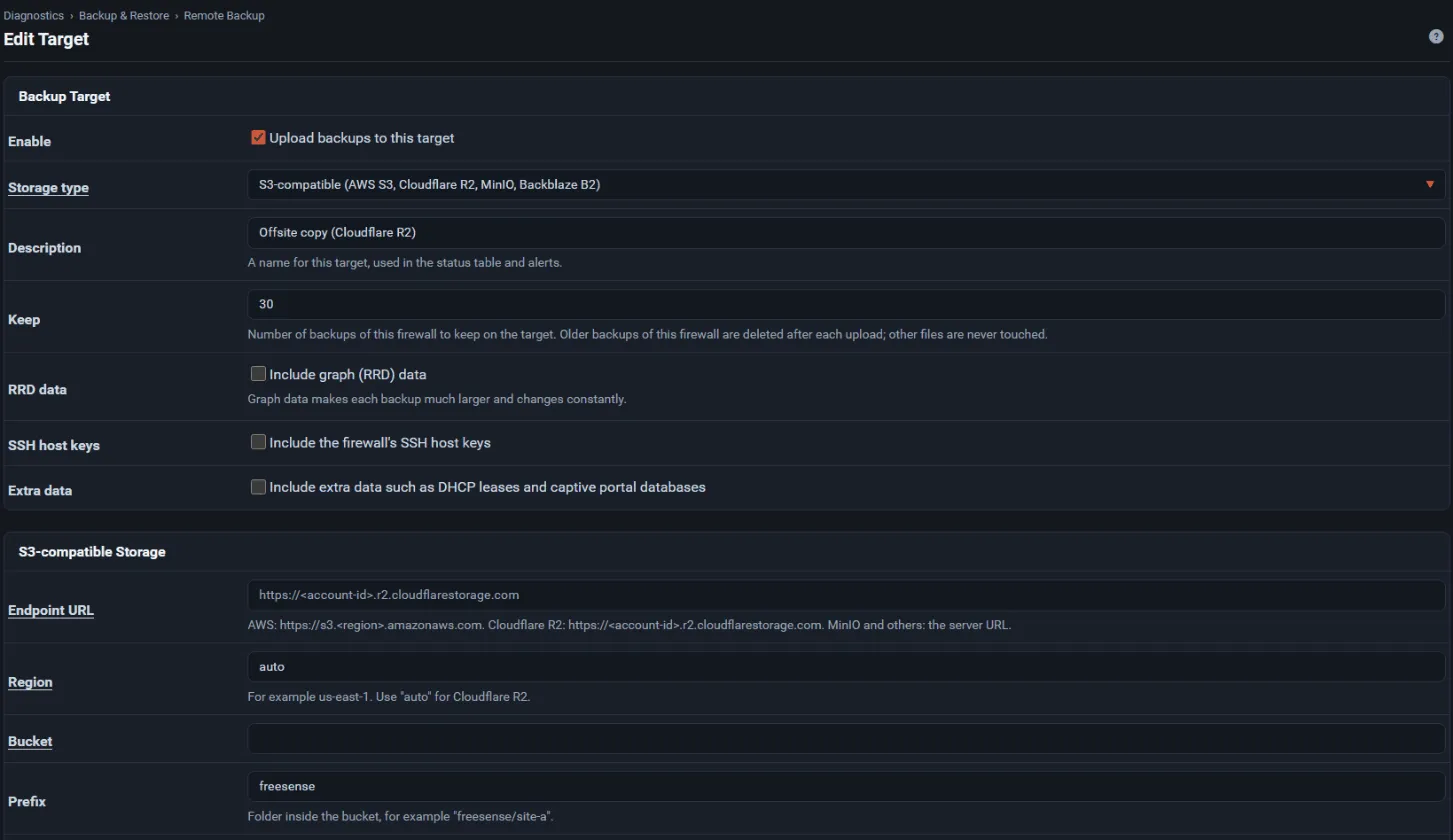
| Storage type | Fields | Notes |
|---|---|---|
| S3-compatible | Endpoint URL, Region, Bucket, optional Prefix, Path-style URLs, Access key ID, Secret access key | AWS: https://s3.<region>.amazonaws.com. Cloudflare R2: https://<account-id>.r2.cloudflarestorage.com with region auto. Most MinIO setups need path-style URLs. Use a key limited to the bucket with read, write, list, and delete permissions. |
| WebDAV | Folder URL, Username, Password | Prefer an app password limited to that folder. |
| SFTP | Host, Port, Username, optional Remote directory, Trusted host key | Select Fetch host key, compare the fingerprint with the server (ssh-keygen -lf /etc/ssh/ssh_host_ed25519_key.pub on the server), then save. A key pair is generated on the firewall when the target is saved; add the shown Firewall public key to ~/.ssh/authorized_keys of the backup user. Connections fail if the server’s host key ever changes. |
Save the target, then use its test action (Test the connection to the target).
3. Run and check
Section titled “3. Run and check”- Use the target’s Back up to … now action, or run
freesense-remote-backup run --target <id> --forcefrom a shell.freesense-remote-backup statusprints the last result per target. - The Backup Targets list shows each target’s status, last success, and last result.
- Scheduled runs skip a target when the configuration has not changed since its last upload.
Backups are encrypted with AES-256 (OpenSSL, PBKDF2) before they leave the firewall. The .sha256
file uploaded beside each backup detects corruption but does not prove who wrote the file, so restrict
write access to the storage location.
Restore from a remote backup
Section titled “Restore from a remote backup”- On the target, select Browse and restore backups on that target.
- Select Restore on a backup. The firewall downloads it, decrypts it with the current passphrase, and opens the normal restore review on the Backup & Restore tab.
- Review and confirm the restore.
A downloaded file can also be restored by hand on Backup & Restore with Configuration file is
encrypted and the passphrase, or decrypted with openssl on another machine. If you changed the
passphrase, older backups need the old passphrase.
Recover from a lockout
Section titled “Recover from a lockout”- From the console menu, Restore recent configuration (option 15) restores an earlier
configuration version, and Reset admin account and password (option 3) resets the
adminaccount. - A ZFS installation also keeps earlier boot environments; see ZFS boot environments. A boot environment is not a substitute for a configuration backup.