

What's new in FreeSense 1.1
FreeSense 1.1.0 was released on 2026-10-13 and replaces 1.0.x as the supported Stable line. This page walks through the main changes, why they matter, and where to find them. The 1.1.0 release notes list every change in short form, and Upgrading from 1.0 explains how to move an existing firewall.
REST API
Section titled “REST API”What it is. FreeSense 1.1 adds a versioned JSON API at /api/v1 on the WebUI server. Requests
authenticate with a per-user API key sent as Authorization: Bearer fsk_<id>_<secret>. The firewall
stores only a SHA-256 hash of each key secret, so a key is shown once, when it is created.
Why it matters. Configuration and status can be scripted without screen-scraping the WebUI.
Every endpoint requires the same page privilege as the WebUI screen it mirrors, so an API key never
grants more than its owner could do in the browser. Read-only keys, and users with Deny Config
Write, cannot call endpoints that change state. Changes made through the API appear in
Configuration History as user@address (API key <id>). Writes accept If-Match with the
configuration ETag and answer 412 if the configuration changed in the meantime, and several
operations can be sent in one POST /api/v1/batch request.
How to use it.
- Open System → REST API and enable the API. It is off until you enable it. On the same page you choose the allowed source networks; HTTPS-only access is the default.
- Give the user the WebCfg - System: REST API access privilege, directly or through a group, in System → User Manager.
- Create a key under System → REST API → My API Keys (your own keys) or the All Keys view (administrators).
- Open the API Explorer from System → REST API to browse every endpoint of the installed system, read the built-in guide, or download the OpenAPI document. Status → REST API shows API activity.
Packages can register their own endpoints. See the API overview and Getting started with the API.
Custom package repositories
Section titled “Custom package repositories”What it is. A new System → Package Manager → Repositories tab lists the built-in FreeSense repositories (locked, with their fixed priorities) and lets an administrator add custom pkg repositories over HTTPS. A repository can be verified by fingerprint or public key, or added unsigned after an explicit acknowledgement. The same tab can switch on FreeBSD’s own package repository.
Why it matters. You can install software that is not in the curated FreeSense catalog without
putting the firewall’s own packages at risk. Official repositories always win: FreeSense
repositories have priorities 10 to 100, custom repositories 5 to 1, and FreeBSD 0. The custom
repository files live in their own directory that the system upgrader never reads, and every
install, update, or removal from a custom source first runs a dry run that refuses any change that
would replace or remove a FreeSense or base package. The list is stored in config.xml and the
repository files are rewritten from it whenever packages start, so it survives firmware updates.
How to use it. Add the repository under System → Package Manager → Repositories, then pick it in the Source filter on Available Packages. Packages from other sources are marked separately from the official ones and are never upgraded automatically. See Custom package repositories.
Package Manager
Section titled “Package Manager”What it is. Installed Packages and Available Packages under System → Package Manager are now searchable lists with category, status, and source filters and per-row actions. Available Packages opens on the packages that are not installed yet. The installer adds a review step before anything changes, a progress header, and a monospace output console.
Why it matters. It is clearer what is about to happen before you confirm, and long operations show their progress. Package services are now started after installation when a package’s install script queues them, and stopped when the package is removed.
How to use it. See Installing packages and the package catalog.
What it is. The 1.1 WebUI keeps the existing page addresses and the light and dark themes, but restyles and reorganises most screens:
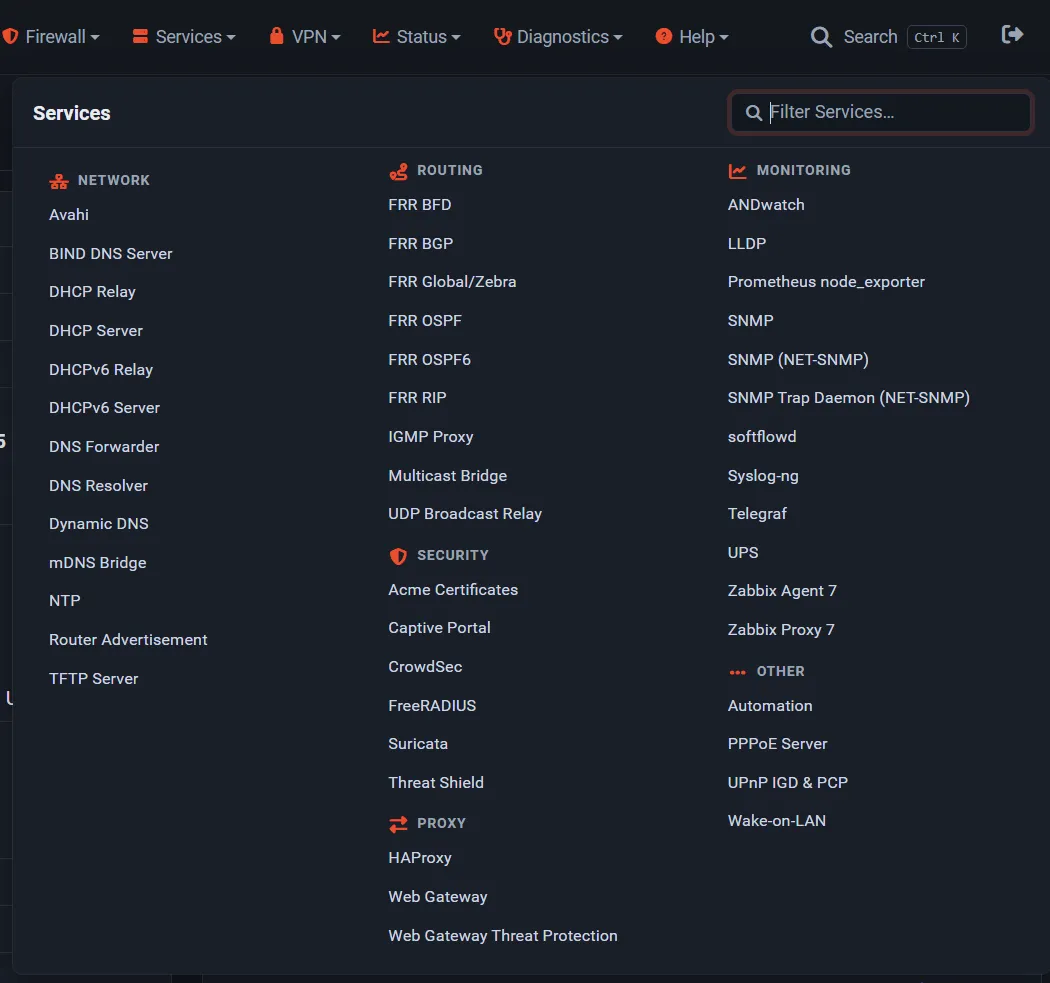
- Grouped menus. System, Services, Status, and Diagnostics open as wide panels with labelled groups and a filter box. For example, Services is grouped into Network, Routing, Security, Proxy, Monitoring, and Other. Firewall, VPN, Interfaces, and Help stay single columns. No menu item moved to a different top-level menu.
- Menu search. Press Ctrl+K (or Cmd+K), or use the navbar search button, to search every menu. Results show as Menu > Group and Enter opens the page.
- Rebuilt pages. Lists, editors, status pages, logs, diagnostics, the traffic shaper, captive portal, IPsec, OpenVPN, L2TP, and the package pages use one consistent set of tables, forms, and dialogs. Interface Assignments is a searchable list with an Add dialog, NIC Settings shows link speed and duplex, and System → Boot Environments is a single list with create, edit, and clone dialogs.
- Package pages. Suricata, Threat Shield, CrowdSec, Secure Web Gateway, WireGuard, ACME, FRR, Automation, syslog-ng, and OpenVPN Client Export were rebuilt in the same style. Packages declare which menu group they belong to; a third-party package without a group still appears, under Other.
Why it matters. Pages are faster to find and behave the same way everywhere. The WebUI also does less work per page: the configuration cache works again after the first save, parsed menu data is cached, and dashboard widgets no longer stack requests or poll from hidden browser tabs.
See the menu guide.
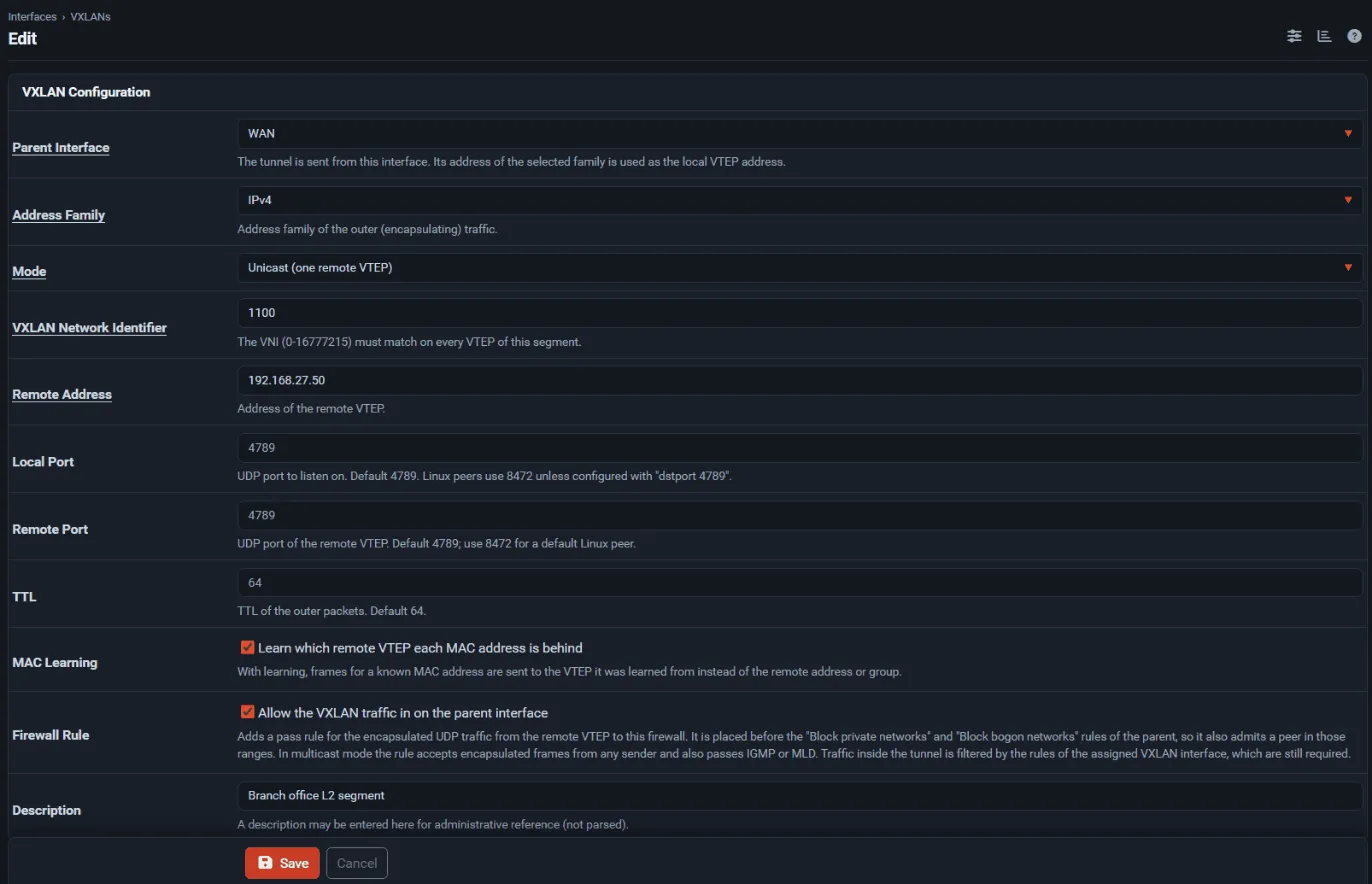
What it is. VXLAN tunnels carry Layer 2 Ethernet frames over UDP between two or more endpoints. FreeSense 1.1 adds them as a native interface type next to VLAN, QinQ, bridge, LAGG, GIF, and GRE.
Why it matters. You can stretch a network segment across a routed network, for example between sites or to a hypervisor host. A VXLAN interface can be assigned, addressed, and made a bridge member like any other interface. The default MTU is the parent MTU minus 50 bytes (IPv4) or 70 bytes (IPv6), the MAC address stays stable when the tunnel is recreated, and an optional pass rule admits the outer tunnel traffic on the parent interface.
How to use it. Open Interfaces → Assignments → VXLANs, add a tunnel (parent interface or virtual IP, address family, unicast peer or multicast group, VNI, ports), then assign it on Interface Assignments. See VXLAN.
Remote backups
Section titled “Remote backups”What it is. Diagnostics → Backup & Restore → Remote Backup uploads encrypted configuration backups to S3-compatible storage (such as AWS S3, Cloudflare R2, MinIO, or Backblaze B2), WebDAV, or SFTP. Uploads run on a schedule, within about five minutes of a configuration change, or both.
Why it matters. An off-box copy of the configuration is the fastest way back after a failed disk
or a lost appliance. Backups use the same encrypted format as a manual encrypted download, so they
restore on the Backup & Restore page or with openssl and the passphrase. A SHA-256 manifest is
uploaded beside each file, retention keeps only the newest backups of this firewall, and SFTP uses a
key generated on the firewall with a pinned host key. Saving the configuration never waits for the
network; failures raise a notice through your configured notification channels.
How to use it. Add a target on the Remote Backup tab, test it, and choose a schedule. Remote
files can be listed, downloaded, or restored from the same tab. On the console,
freesense-remote-backup run|test|list|status does the same. See
System administration.
Boot environments
Section titled “Boot environments”What it is. On a ZFS installation the updater does not change the running system. It renames the current boot environment, clones it, upgrades the clone, and boots the clone once. A first-boot health check then decides whether to keep it.
Why it matters. If the upgraded system does not come up healthy within the health timeout, it is marked failed and the firewall reboots into the pre-upgrade environment automatically, at most once. The settings are under System → Boot Environments: automatic rollback, the number of automatically created environments to keep (default 3), and the health timeout (default 300 seconds). In 1.1 the boot-environment page was rebuilt, the dashboard update check reports available updates correctly again, and the REST API refuses to activate a boot environment that holds an older release.
Upgrades are one-way. The pre-upgrade environment is an emergency recovery point for the moments right after a failed upgrade, not a supported way to return to an older release. See ZFS boot environments and Upgrading from 1.0.
Threat Shield
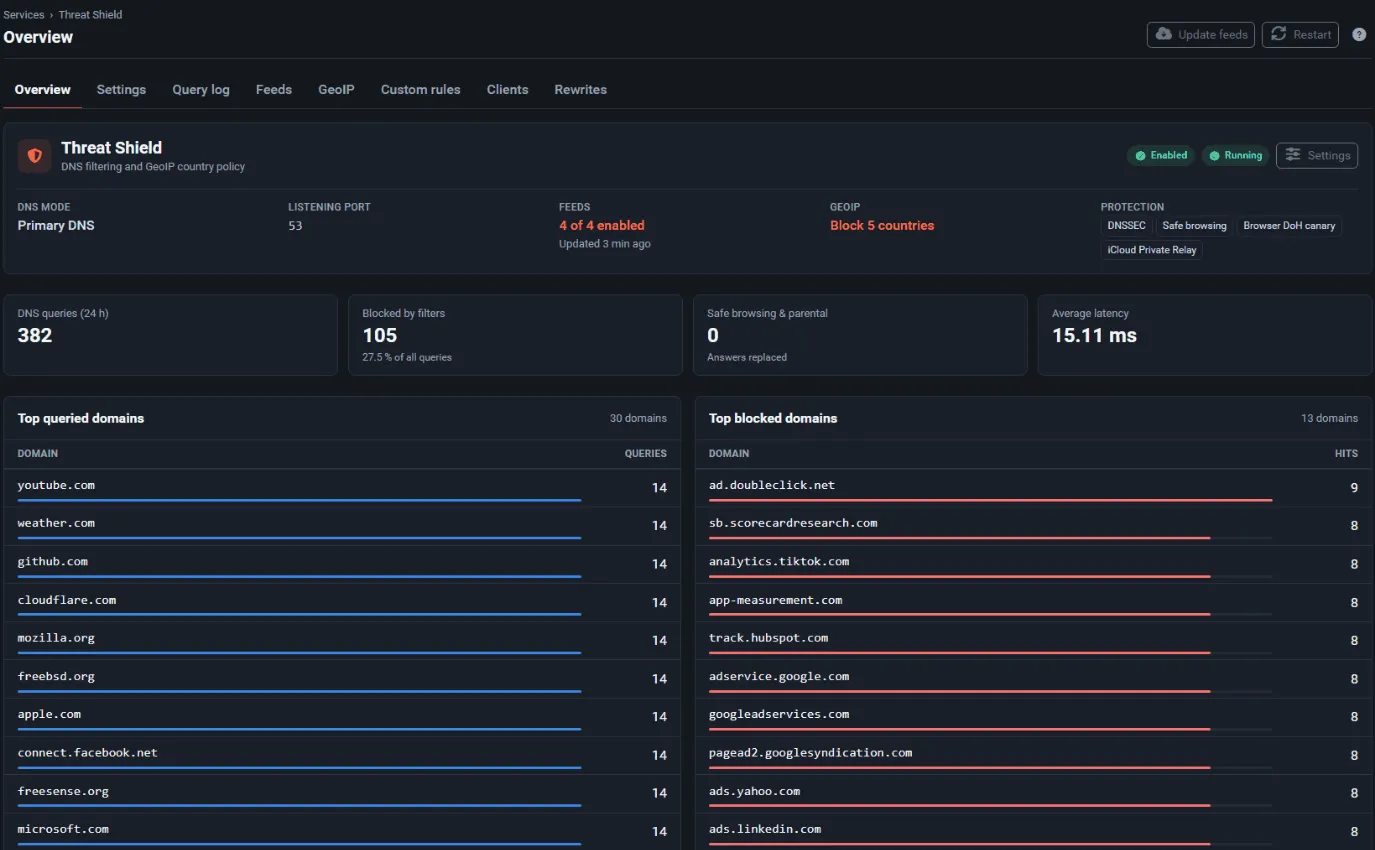
Section titled “Threat Shield”What it is. Threat Shield & DNS Protection is an optional package for DNS filtering with automatically updated threat feeds. It uses a native AdGuard Home build alongside the DNS Resolver. Its GeoIP country blocking and DNS redirect options do not take effect in 1.1.0 (see the known issues).
Why it matters. Threat Shield replaces pfBlockerNG, which is no longer offered in 1.1. Many fixes landed before 1.1.0: settings that never saved, a generated configuration that stopped AdGuard Home from starting in proxy and standalone modes, and DNS outages when the package was switched off or between modes.
How to use it. Install Threat Shield from System → Package Manager → Available Packages, then configure it under Services → Threat Shield and watch it under Status → Threat Shield Status. See Threat Shield.
Web Gateway
Section titled “Web Gateway”What it is. The Secure Web Gateway package is a forward proxy with web access policies, with an optional local antivirus add-on (Web Gateway Local Antivirus).
Why it matters. In 1.1 local antivirus scanning works: previously every proxied request failed with an ICAP error once local antivirus was enabled. The parent-proxy password is no longer printed back into the page, and the diagnostics view no longer writes on page load.
How to use it. Configure it under Services → Web Gateway and check it under Status → Web Gateway. See Secure Web Gateway.
Security
Section titled “Security”FreeSense 1.1.0 includes fixes for the WebUI issues covered by advisories SA-26_05 through SA-26_21, written for FreeSense from the advisory descriptions. They cover command execution through proxy settings, unsafe OpenVPN push values, dashboard layout include paths, custom Kea configuration, a leaked backup passphrase, and a series of cross-site scripting issues. Custom Kea JSON now requires administrator access or the new WebCfg - Services: DHCP Server: Edit Custom Kea Configuration privilege. See the security section of the release notes.
Other changes worth knowing
Section titled “Other changes worth knowing”- No device identifier. Download and pkg requests identify only as
FreeSense/<version>. The Do NOT send Device ID option is gone from System → Advanced → Miscellaneous because there is no device ID to send. - PHP 8.5. The base system runs on PHP 8.5.
- FreeBSD platform. 1.1.0 is built on a FreeBSD 16.0-CURRENT snapshot (source
a52c50b4,osversion1600027). - WireGuard. The
if_wgkernel module now ships with the System, which the WireGuard package needs to create tunnels.