

Threat Shield threat map
The threat map shows where the connections that reach your firewall come from: blocked sources blink red, allowed ones green, and arcs run from each source to your firewall. Counters, top lists and a live feed sit around the map. It is part of Threat Shield package 1.1.0 and comes in three places:
- Status → Threat Map: the full page, with filters and an address card.
- Full screen: a view for a wall display or a second monitor, in three styles with light and dark themes.
- A small map on the Threat Shield Overview and a Threat Map dashboard widget.
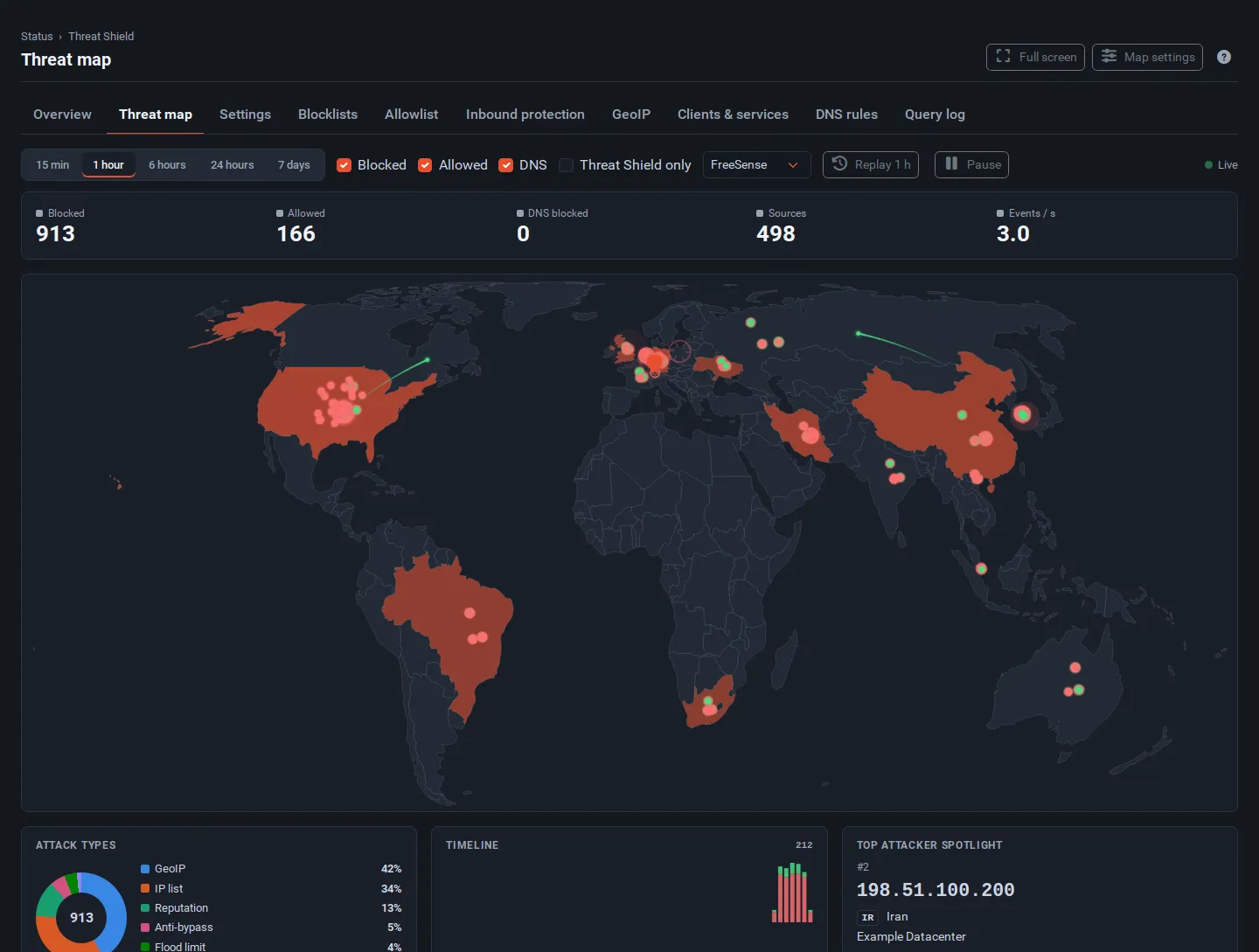
Guide: turn on the map
Section titled “Guide: turn on the map”The map works from the firewall log. To place sources on the map it needs location data, which is off until you turn it on, because it is downloaded from an outside service.
- Open Status → Threat Map and select Map settings.
- Under Location data, choose Countries and networks (DB-IP Lite, about 12 MB a month), or Countries for about 5 MB a month without network names.
- Check Firewall location. From the time zone places your firewall from its time zone (or, for UTC, from the country of its public WAN address). Choose Enter coordinates to set it exactly.
- Select Save. The location database downloads and the map fills in within a minute.
The location database is the free DB-IP Lite database, downloaded once a month (at 03:51) and built into a compact local file. Lookups happen on the firewall; no address is sent anywhere to find its location. Positions are approximate: a source is placed in its country, not its city.
What the map shows
Section titled “What the map shows”The map is built from the firewall log, so it shows the connections your rules log:
- Blocked: everything blocked by Threat Shield (IP lists, GeoIP, anti-bypass, reputation checks, flood limits) and by your own rules that log, including the default deny rule.
- Allowed: connections let in by Threat Shield’s inbound protection policies when Log allowed connections of protected services is on, and by your own pass rules that log.
- DNS: blocked DNS queries, pulsing at your firewall, and the places allowed answers point to. Turn this off with Show DNS in the settings.
Each event is classified by the rule that matched it: GeoIP, IP list, Reputation, Anti-bypass, Flood limit, Firewall rule or DNS.
Controls
Section titled “Controls”| Control | What it does |
|---|---|
| 15 min … 7 days | The time window for counters, dots and top lists. |
| Blocked, Allowed, DNS | Show or hide each kind of event. |
| Threat Shield only | Hide events from your own firewall rules. |
| Style | FreeSense, Professional or Hacker. |
| Replay 1 h | Plays the last hour at 60 times speed, then returns to live. |
| Pause | Freezes the animation; data keeps being collected. |
Below the map are Attack types (the mix as a ring), Timeline, Top attacker spotlight (cycles through the busiest sources), a top list with a view picker (Countries, Sources, Networks, Ports, Rules, Domains), the Live feed and Protection status.
The address card
Section titled “The address card”Select a dot, a feed row or a top-list entry to open the address card.
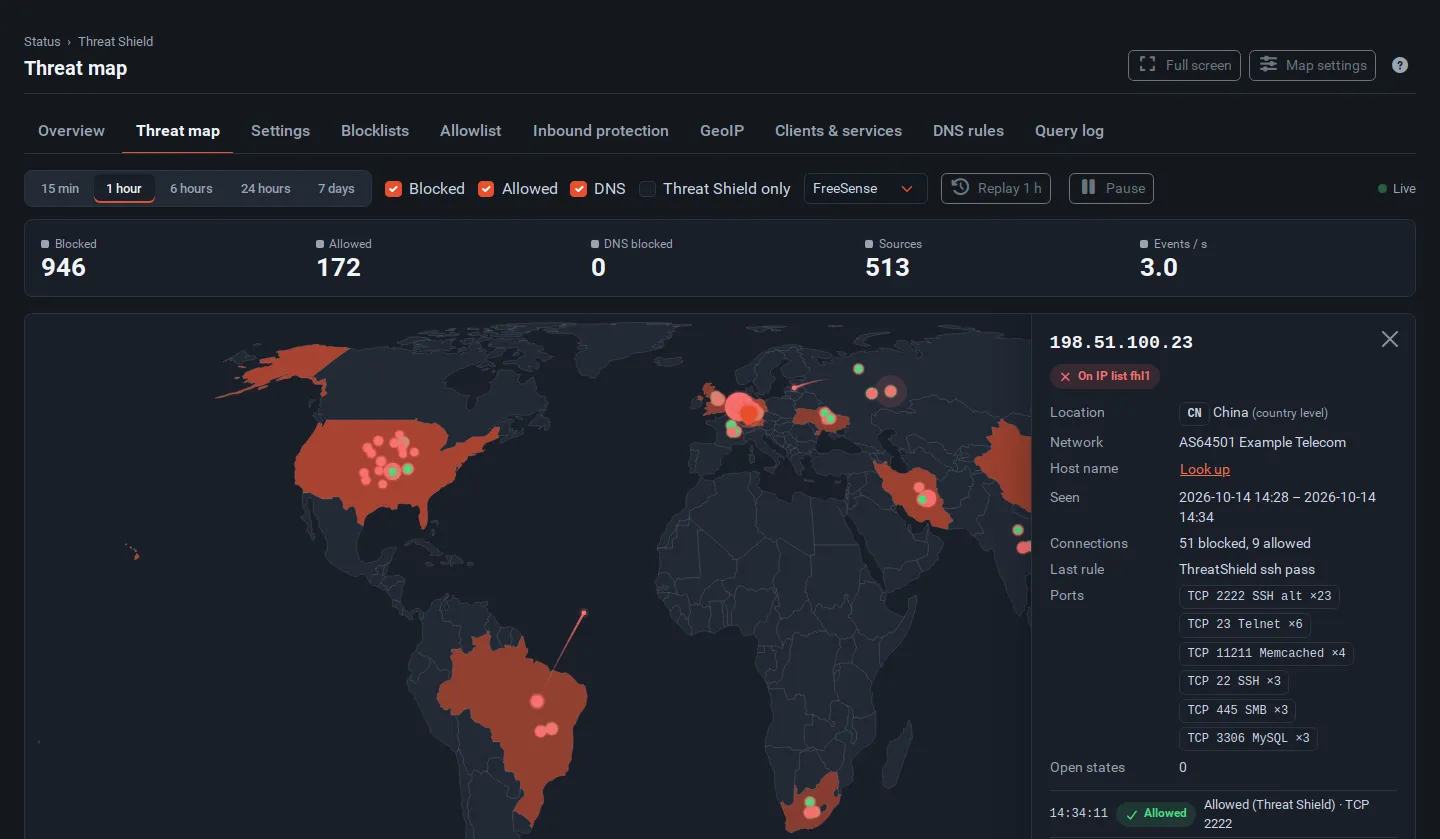
It shows the country and network, when the address was first and last seen, how many connections were blocked and allowed, the last rule, the ports it tried, which Threat Shield tables list it, its open firewall states and its recent events. With the right privileges it has buttons to allow the address (add it to the IP allowlist), check its reputation again, and release it from the flood table.
Look up resolves the host name. It is a separate step because the reverse lookup tells the address owner’s DNS server that someone looked.
Full screen
Section titled “Full screen”Select Full screen on the map page or on the Overview. The view has its own page without the WebUI menus, so it suits a TV or a second monitor.
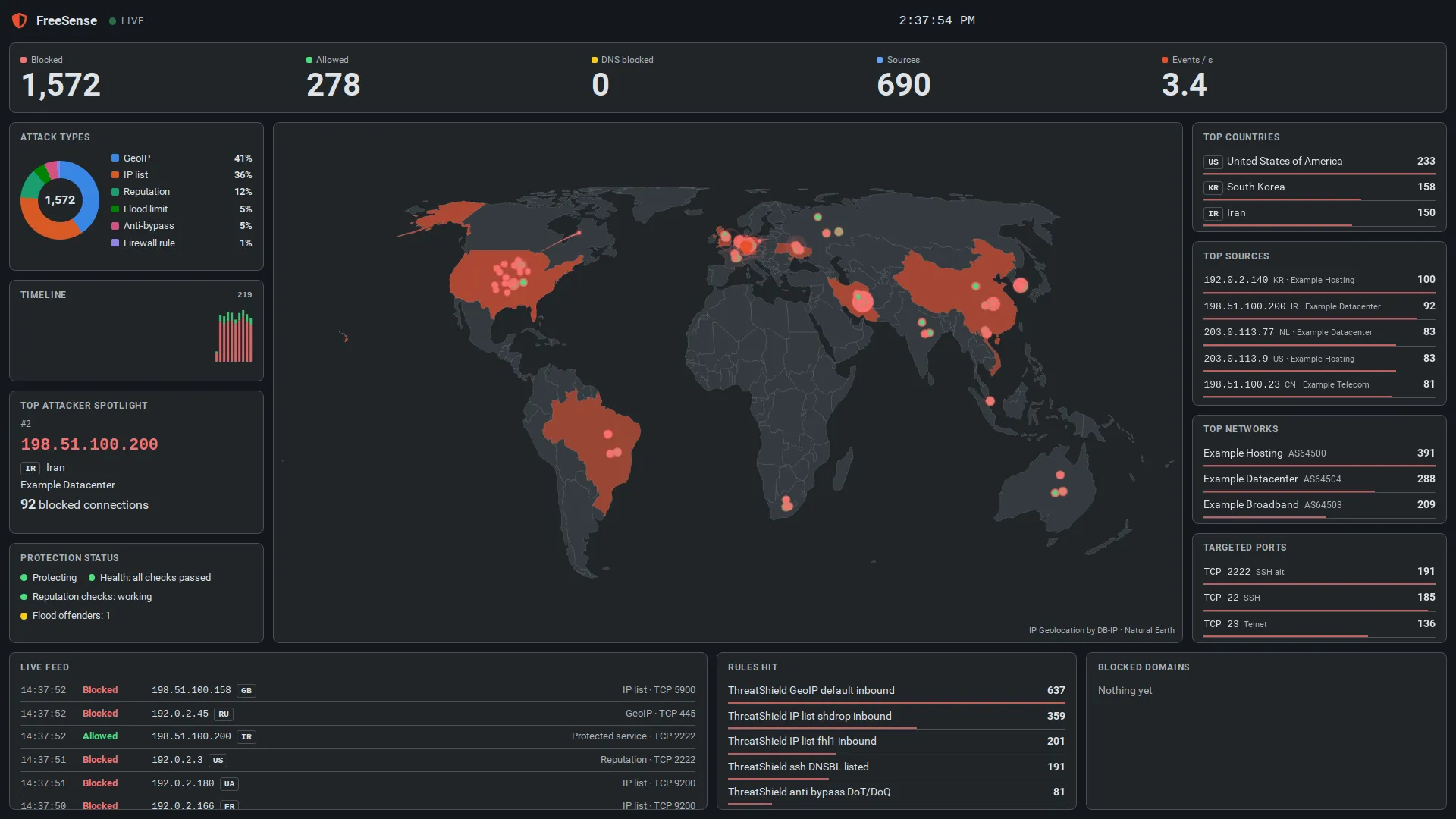
Styles
Section titled “Styles”| Style | Look |
|---|---|
| FreeSense | The FreeSense colours: coral and warm red on a dark or light background. |
| Professional | A quiet security-operations look: thin lines, blue land, no glow. |
| Hacker | A terminal look: a dotted map, green on black, a radar sweep at your firewall and a scrolling log. |
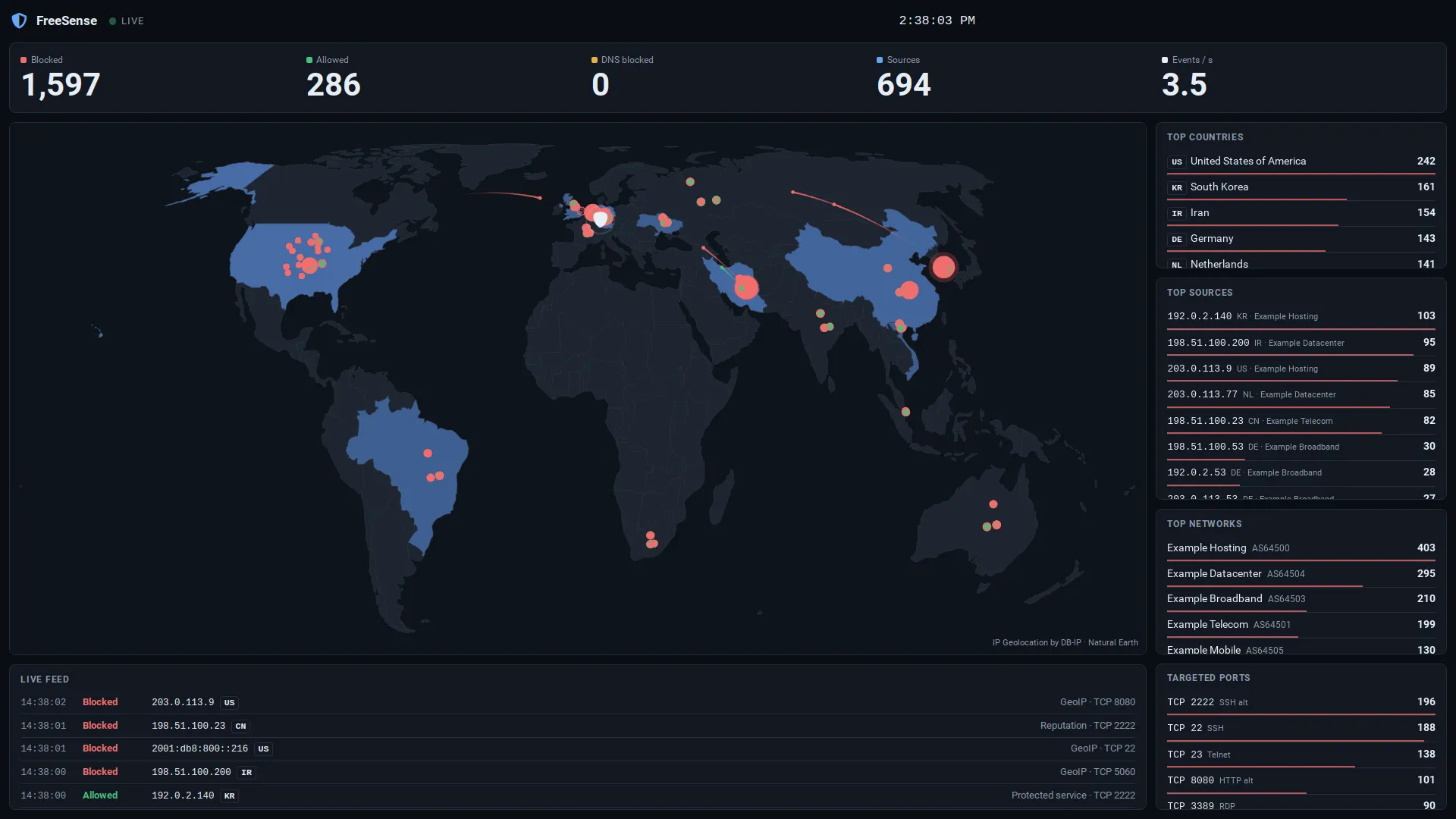
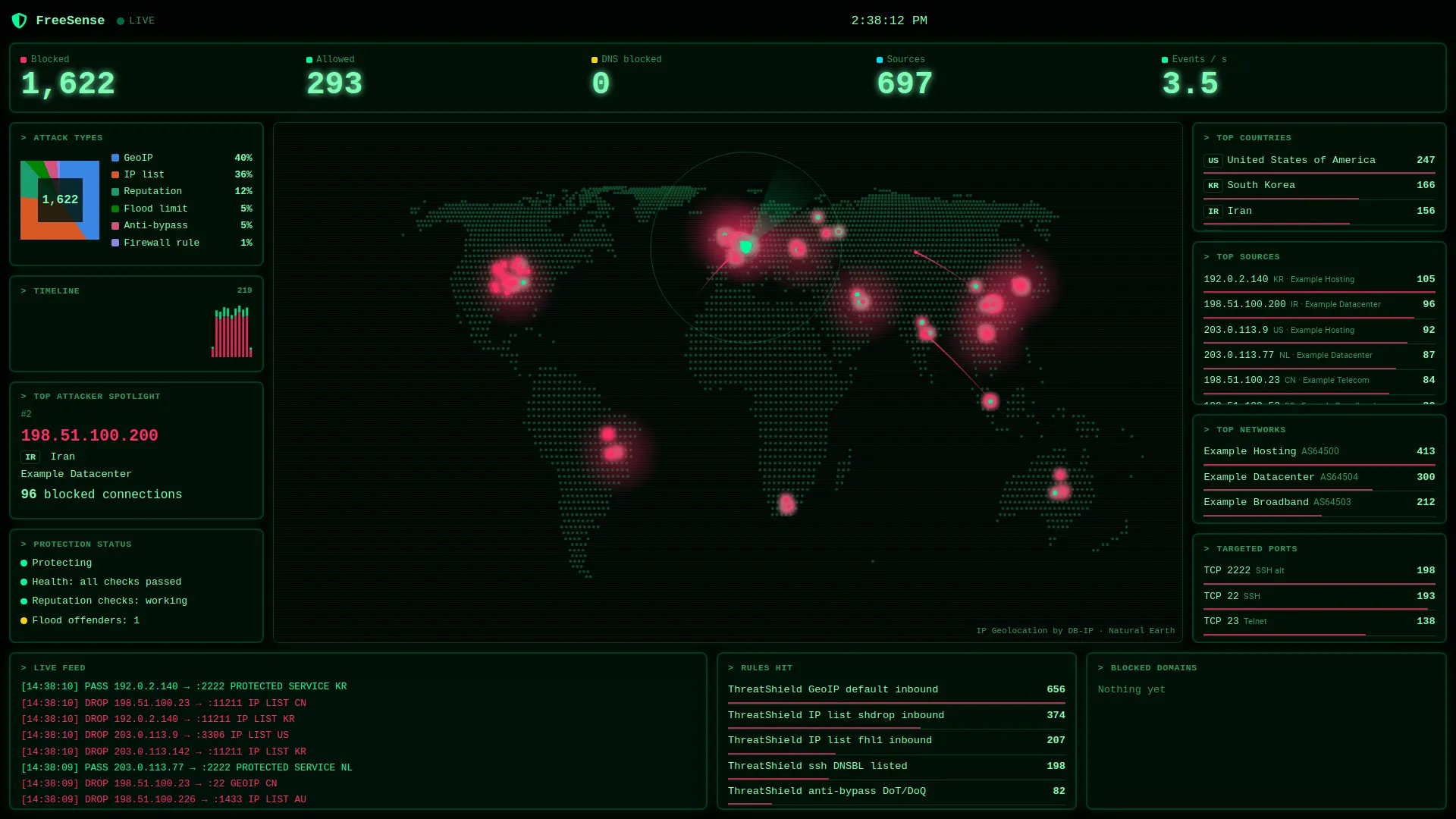
Every style has a light and a dark theme, and three layouts:
- Wall: map in the middle, panels on both sides and along the bottom.
- Map and side panel: a large map with one column of top lists.
- Map only: the map with the counters and a live ticker.
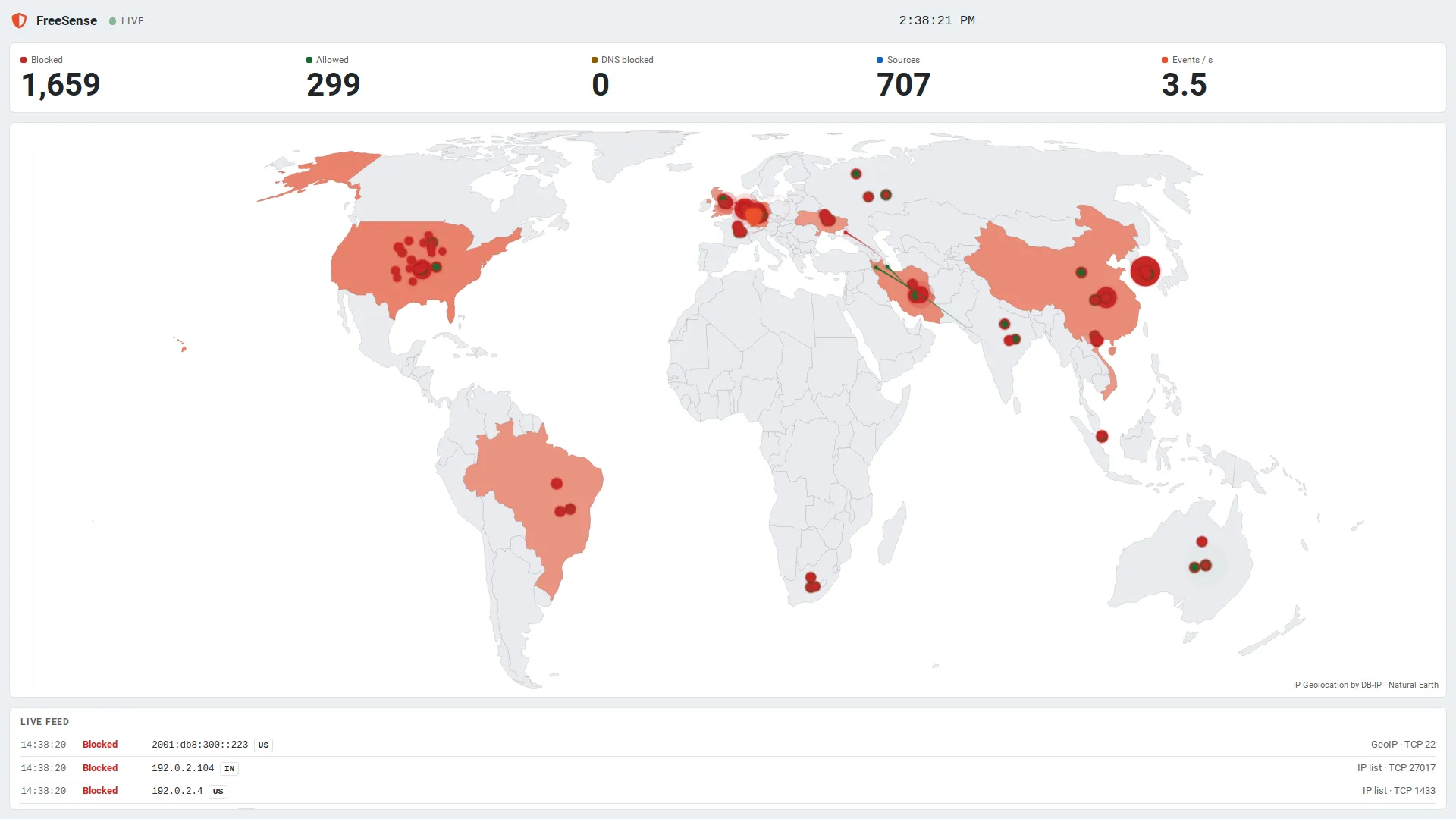
The tools at the top (they hide with the mouse cursor after a few seconds) switch Style, Layout, Light or dark and Time window, start a replay, pause the animation, enter browser full screen and go back to the WebUI.
Guide: a wall display
Section titled “Guide: a wall display”-
Create a user for the display under System → User Manager and give it only the WebCfg - Status: Threat Shield threat map privilege. That user can see the map and its widget but cannot change anything.
-
On the display, sign in as that user and open the full-screen address with the look you want, for example:
https://firewall.example.lan/threatshield/threatshield_map.php?view=kiosk&style=hacker&theme=dark&layout=wall&window=1h -
If people who should not see addresses can see the screen, add
&mask=1or turn on Mask addresses in the settings. Addresses are then shown as198.51.100.x(IPv6 as the /48 network) and client names are hidden. -
Put the browser in kiosk or full-screen mode.
The full-screen page keeps the screen awake where the browser allows it, hides the cursor and reloads itself twice a day. Check the WebUI session timeout under System → User Manager → Settings so the display is not signed out.
| URL option | Values |
|---|---|
style |
freesense, pro, hacker |
theme |
auto (follow the screen), light, dark |
layout |
wall, side, map |
window |
15m, 1h, 6h, 24h, 7d |
mask |
1 masks addresses |
Settings
Section titled “Settings”Map settings on the map page (it needs the Threat Shield settings privilege).
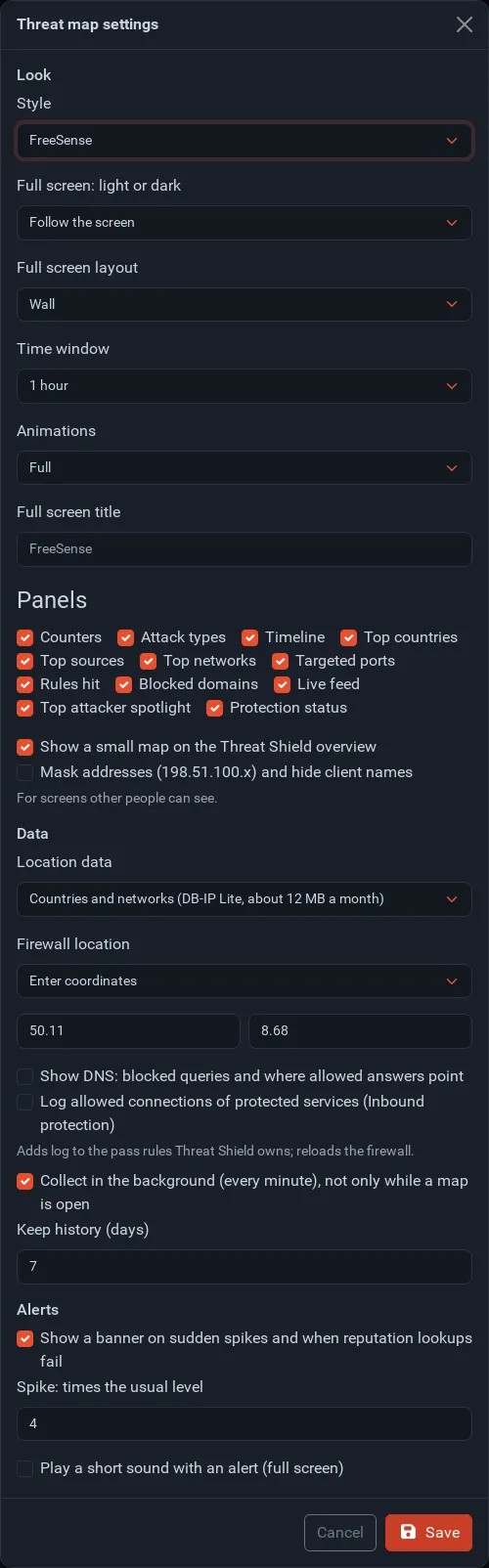
| Field | What it does | Default |
|---|---|---|
| Style | Default style of the map and full screen. | FreeSense |
| Full screen: light or dark | Follow the screen, Light or Dark. | Follow the screen |
| Full screen layout | Wall, Map and side panel or Map only. | Wall |
| Time window | Default window. | 1 hour |
| Animations | Full, Reduced (no moving arcs) or Off. Browsers that ask for reduced motion always get reduced animations. | Full |
| Full screen title | Name in the top corner of the full screen. | The firewall’s host name |
| Panels | Which panels the map page and full screen show. | All |
| Show a small map on the Threat Shield overview | The map strip on the Overview. | On |
| Mask addresses | Show 198.51.100.x and hide client names everywhere on the map. |
Off |
| Location data | Off, Countries or Countries and networks. | Off |
| Firewall location | From the time zone or Enter coordinates (latitude, longitude). | From the time zone |
| Show DNS | Blocked DNS queries and where allowed answers point. | On |
| Log allowed connections of protected services | Adds log to the pass rules of inbound protection policies; reloads the firewall. |
Off |
| Collect in the background | Read the logs every minute, not only while a map is open. Needed for the Overview’s source, country and port views. | On |
| Keep history (days) | How long counters and events are kept (1 to 30). | 7 |
| Show a banner on sudden spikes … | A banner when blocks jump far above the usual level, or when reputation lookups fail. | On |
| Spike: times the usual level | How far above the median of the window counts as a spike. | 4 |
| Play a short sound with an alert | A short tone in the full-screen view. | Off |
Data and privacy
Section titled “Data and privacy”- The map reads the firewall log (
filterlog), the reputation service’s verdicts and the AdGuard Home query log. It keeps the newest 20,000 events and per-minute totals in/var/db/threatshield/map.sqlite, for the days set in Keep history. - Location data is downloaded from DB-IP and used locally. The only lookups that leave the firewall are Look up (reverse DNS) in the address card and the reputation checks of inbound protection.
- Masked views use a per-firewall key for the address card links, so a masked address cannot be recovered from the page.
The location data is IP Geolocation by DB-IP, licensed under CC BY 4.0. The map outlines come from Natural Earth (public domain).
Troubleshooting
Section titled “Troubleshooting”| Symptom | Cause and fix |
|---|---|
| The map is empty and asks for location data | Turn on Location data in the settings. |
| Counters move but there are no dots | The sources have no country in the database (for example private addresses), or the location data is still downloading. |
| No allowed connections | Allowed connections only appear when the rule that passes them logs. Turn on Log allowed connections of protected services, or tick Log on your own pass rules. |
| Your firewall’s position is wrong | Choose Enter coordinates under Firewall location. |
| The full screen signs out | Raise the session timeout, or use a dedicated display user. |