

Routing and multi-WAN
This page is the procedure for routing changes. For how gateways, monitoring, policy routing, dynamic routing, and high availability fit together, see routing and high availability.
Keep ordinary default-gateway routing separate from policy-routing exceptions, so a future operator can explain why a flow takes a particular path.
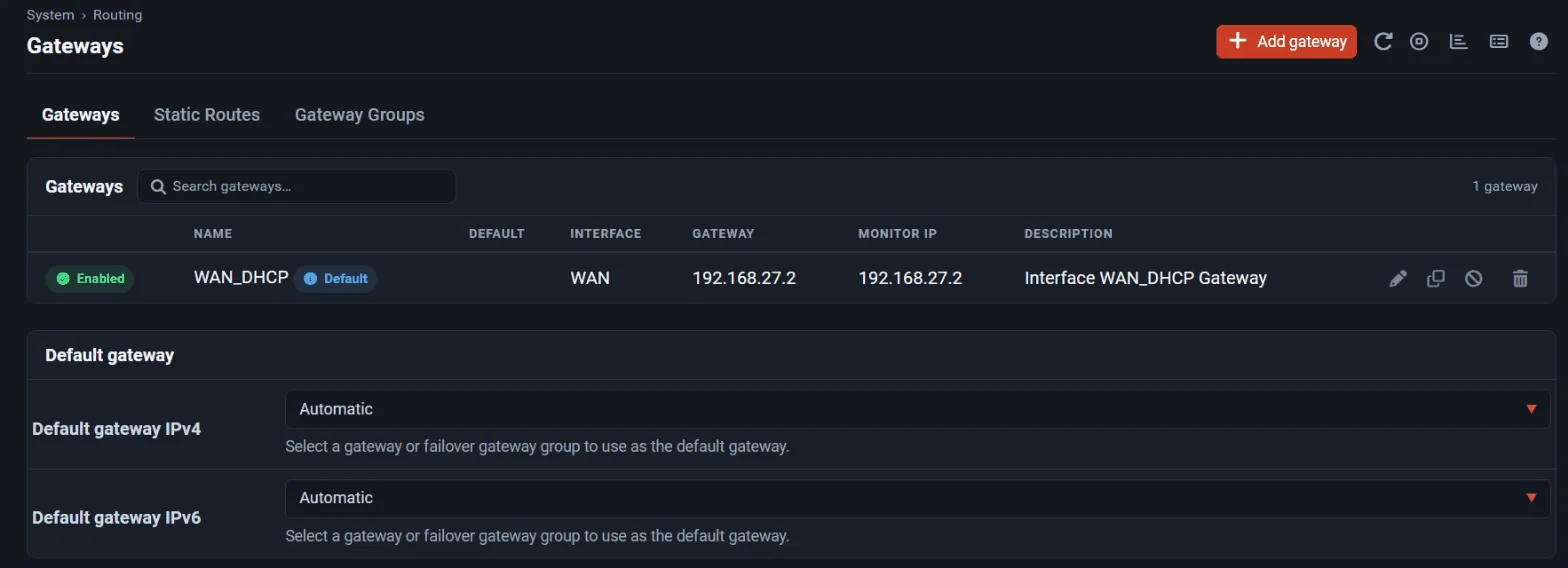
Add or check a gateway
Section titled “Add or check a gateway”- Open System → Routing → Gateways. A WAN with DHCP, PPPoE, or SLAAC gets a dynamic gateway automatically.
- For a static WAN, select Add, choose the Interface and Address Family, enter a Name and the Gateway address, and save.
- Enter a Monitor IP that reflects real upstream reachability, such as a stable public resolver, rather than relying on the gateway address alone.
- In the Default gateway section, choose Default gateway IPv4 and Default gateway IPv6 (a gateway, a failover gateway group, or Automatic), save, then select Apply Changes.
- Confirm the gateway is online in Status → Gateways.
Use a different monitor address for each WAN. The firewall adds a static route for each monitor address through its gateway unless Do not add static route for gateway monitor IP address via the chosen interface is enabled.
Add a static route
Section titled “Add a static route”- Open System → Routing → Static Routes and select Add.
- Enter the Destination network and choose the Gateway that reaches it.
- Add a Description with the purpose and owner, save, and apply.
- Verify the route in Diagnostics → Routes and test the return path from the remote side.
Build a gateway group
Section titled “Build a gateway group”- Open System → Routing → Gateway Groups and select Add.
- Enter a Group Name.
- Under Gateway Priority, give each gateway a Tier: the lowest tier is used first, and gateways on the same tier share connections. Never excludes a gateway.
- Choose a Trigger Level: Member Down, Packet Loss, High Latency, or Packet Loss or High Latency.
- Save and apply. Check the group in Status → Gateways → Gateway Groups.
| Goal | Tier layout |
|---|---|
| Failover from WAN to WAN2 | WAN on Tier 1, WAN2 on Tier 2 |
| Load sharing | WAN and WAN2 both on Tier 1 |
| Load sharing with a backup | WAN and WAN2 on Tier 1, LTE on Tier 2 |
Policy-route selected traffic
Section titled “Policy-route selected traffic”- Open Firewall → Rules on the interface where the traffic enters, for example LAN.
- Edit or add the pass rule for that traffic, select Display Advanced, and under Advanced Options set Gateway to a gateway or gateway group.
- Place the rule below any rules that must stay on the default path, such as traffic to other local networks or VPNs; policy-routed traffic does not consult the routing table.
- Save, apply, and document the expected return path.
Check outbound NAT for every WAN in Firewall → NAT → Outbound. In automatic mode every local network is translated on each WAN.
Test a WAN failure
Section titled “Test a WAN failure”- Note the current state in Status → Gateways.
- Disconnect the primary uplink, or block its monitor address upstream.
- Confirm that the gateway goes down, the group moves to the next tier, and clients reconnect. Existing connections may need to restart unless failover states are kept.
- Restore the uplink and confirm that traffic returns.
- Review Status → System Logs (gateway events) and any notifications you configured.
Dynamic routing
Section titled “Dynamic routing”Use the FRR Optional Package for OSPF, BGP, and other routing protocols. Keep its configuration, route filters, and redistribution under change control, and test with route filters in place before you advertise anything to a provider.
Multicast and discovery across segments
Section titled “Multicast and discovery across segments”The multicast bridge, mDNS bridge, UDP broadcast relay, and Avahi packages, and the built-in Services → IGMP Proxy, each forward one kind of discovery or multicast traffic between segments. Enable only the path you need; broad forwarding can undo the segmentation that VLANs provide.