

Monitoring and logs
Start monitoring with a question: capacity, reachability, security, or audit. Turn on the smallest set of collection and retention that answers it, and review it regularly.
Built-in status pages
Section titled “Built-in status pages”Status pages are under the Status menu, grouped as Overview, Network, VPN, Security, Traffic, and Other. Press Ctrl+K and type a page name to jump straight to it.
| Page | Menu path | Use it for |
|---|---|---|
| Dashboard | Home | Widgets for system information, interfaces, gateways, services, traffic graphs, ZFS storage, and more |
| Interfaces | Status → Interfaces | Addresses, link state, errors, and collisions per interface |
| Gateways | Status → Gateways | Gateway latency, loss, and state |
| Services | Status → Services | Start, stop, and restart services |
| System Logs | Status → System Logs | All system, firewall, and service logs |
| Traffic Graph | Status → Traffic Graph | Live per-interface throughput and top hosts |
| Monitoring | Status → Monitoring | Historical RRD graphs for traffic, CPU, memory, states, gateways, and more |
| Queues | Status → Queues | Traffic shaper queues |
| DHCP Leases | Status → DHCP Leases and DHCPv6 Leases | Current address leases |
| REST API | Status → REST API | REST API listeners and activity |
Optional packages add their own status pages to the same menu, for example Status → CrowdSec Decisions or Status → ZeroTier Peers.
Dashboard update status
Section titled “Dashboard update status”The dashboard’s System Information widget shows the installed version and checks for updates. It reports that a newer version is available, that the system is on the latest version, that the update system is busy, or that it was unable to check for updates. When the check fails, the reason is written to the system log. On System → Update, the Available system tile appears only when the available version is newer than the installed one.
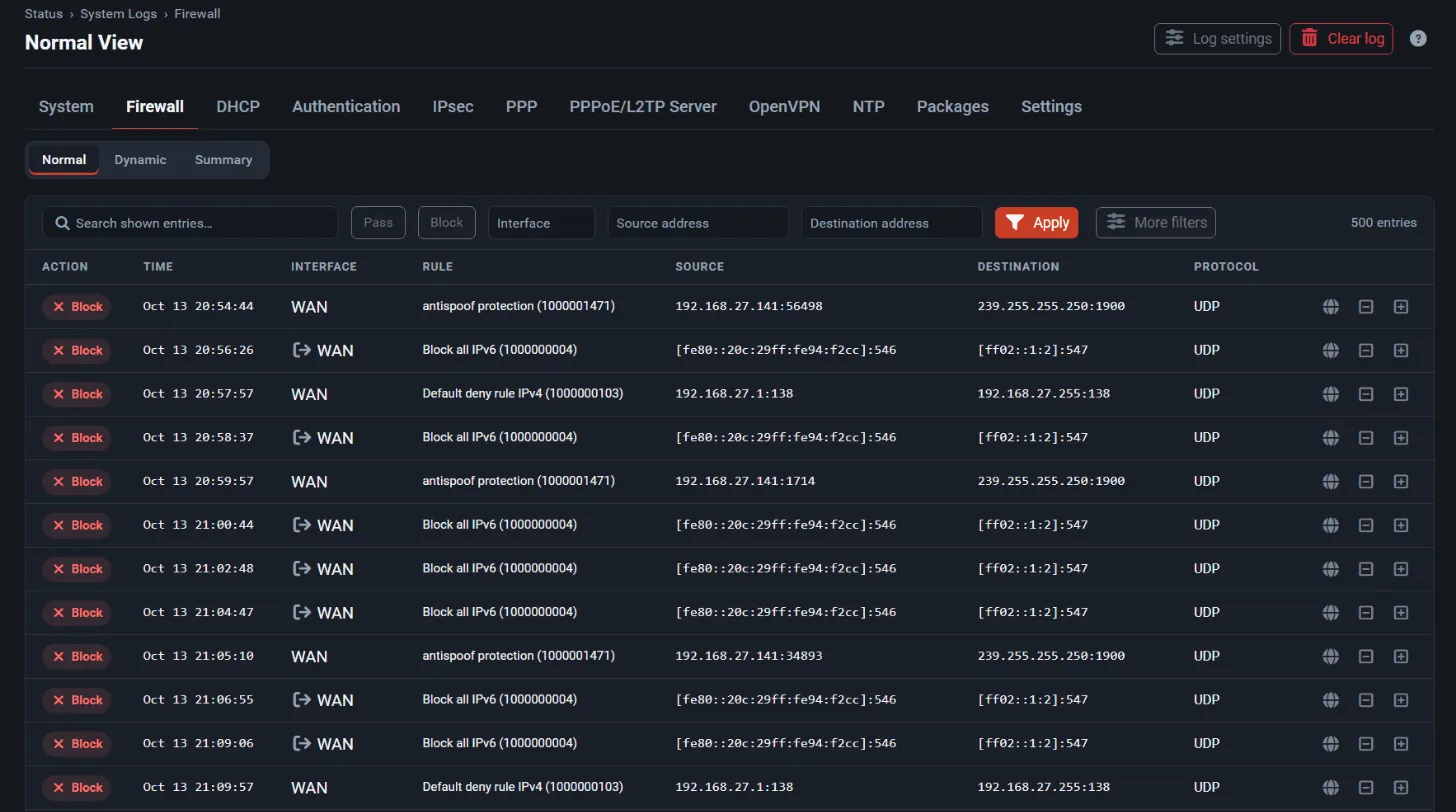
Open Status → System Logs. The tabs select the log:
| Tab | Contains |
|---|---|
| System | General system messages, with sub-views for Gateways, Routing, DNS Resolver, Wireless, GUI Service, and OS Boot |
| Firewall | Packet filter log, with Normal, Dynamic (live), and Summary views |
| DHCP | DHCP server and relay messages |
| Authentication | WebUI, captive portal, and operating system login events |
| IPsec, PPP, OpenVPN, NTP | Logs of those services |
| PPPoE/L2TP Server | Logins and service messages of the PPPoE and L2TP servers |
| Packages | Logs of installed Optional Packages |
| Settings | Log size and retention, display options, and remote syslog servers |
Each log page has a Log settings button for that log’s display and retention settings. The console menu also offers 10) Filter Logs to follow the firewall log live.
REST API
Section titled “REST API”Monitoring systems can read status and logs through the REST API instead of scraping WebUI pages. For example:
| Endpoint | Returns |
|---|---|
GET /api/v1/status/system |
Live CPU, memory, swap, mbufs, states, temperatures, disks, and uptime |
GET /api/v1/status/system/history |
CPU and memory use over time |
GET /api/v1/status/traffic |
Current traffic rates and byte counters per interface |
GET /api/v1/status/gateways/history |
Latency, jitter, and loss of every gateway over time |
GET /api/v1/status/vpn |
OpenVPN, IPsec, and WireGuard tunnel status |
GET /api/v1/logs |
The logs that can be read, with their endpoints and sizes |
GET /api/v1/logs/firewall |
Parsed firewall log entries |
GET /api/v1/logs/{name} |
Entries from a named log |
GET /api/v1/notices |
Current system notices |
Create an API key for a user with only the privileges the monitoring system needs. See the REST API overview and the API reference.
Metrics, flows, and log forwarding
Section titled “Metrics, flows, and log forwarding”These Optional Packages integrate FreeSense with external monitoring. Install them from System → Package Manager → Available Packages.
| Need | Package | Resource profile |
|---|---|---|
| Metrics for InfluxDB and similar systems | Telegraf | Moderate |
| Prometheus metrics | Prometheus Node Exporter | Lightweight |
| Zabbix monitoring | Zabbix 7.0 Agent and Proxy | Lightweight and moderate |
| SNMP polling | SNMP Agent (net-snmp) |
Lightweight |
| NetFlow and IPFIX export | Flow Exporter (softflowd) | Lightweight |
| Traffic analysis | ntopng Traffic Analysis | Intensive |
| Lightweight usage accounting | Traffic Totals | Lightweight |
| Log collection and forwarding | syslog-ng | Moderate |
| Topology and neighbour changes | LLDP Service and Neighbor Watch | Lightweight |
The base system also includes an SNMP daemon under Services → SNMP and remote syslog under Status → System Logs → Settings. See Monitoring and automation packages.
Design logs before you need them
Section titled “Design logs before you need them”- Synchronize time first. Logs from several systems are useless without consistent timestamps.
- Give every log forwarder a reachable destination and test delivery during a planned change.
- Decide retention, access, and incident-review rules before you turn on high-volume inspection or verbose firewall logging.
Watch capacity, not just availability
Section titled “Watch capacity, not just availability”Watch CPU saturation, memory pressure, disk use, interface errors, packet drops, and queue behaviour. A monitor that only reports “up” misses the resource exhaustion that makes a firewall unreliable. Disk space matters most on ZFS systems, because upgrades need free pool space for a new boot environment.